How to Manage Tasks from Your Phone with the Planfix App
You can manage tasks from your phone whenever an idea arrives before you get back to your laptop. The Planfix mobile app lets you capture that idea from the Plus button, dictate it by voice, turn it into a task for a colleague, and then check what the team has done in the Chronicle. This 1.5-minute video walks through those four moves in the app.
What you’ll learn: managing tasks from your phone
- Capture an idea in the app in a few taps, without opening your laptop (0:09).
- Use voice input so that what you say becomes the task name (0:23).
- Delegate a task to a colleague and pick the assignee on the spot (0:42).
- Find recent tasks and review team updates before a meeting (1:00).
How to manage tasks from your phone, step by step
Step 1. Install the app and sign in
Install the Planfix app on iOS or Android and sign in with the email you used when signing up for Planfix, plus your password. To add a second account to the app, you also need the account name, your login or email and the password, and an app password as well if two-factor authentication is enabled for that account. The app is in beta status and under active development.
Step 2. Capture an idea with the Plus button
Open the app and tap the Plus button. Type out the idea and tap send. That is the whole operation: the idea is saved, and you can come back to it at any time. In the video it takes a few seconds, with no project, no assignee and no deadline to fill in first, which is the point when the thought would otherwise be gone by the time you reach your desk.
Step 3. Create a task by voice
Press and hold the Plus button and choose Voice input, then turn on the microphone and start speaking. Everything you say is converted automatically into the task name, so you can dictate your to-do list while you are on the move and assign the tasks to team members once you are back at the office. Holding Plus also offers the Short card and the Full card when you would rather fill the fields in by hand.
Step 4. Delegate a task to a colleague
To hand work to someone else, press and hold the Plus button and select the object you want to use as the basis for the new task. Fill in the required fields, select the assignee and tap create. The task is sent to that team member instantly and joins the rest of their tasks in Planfix, so the handoff does not wait for you to open a browser.
Step 5. Check recent tasks and team updates
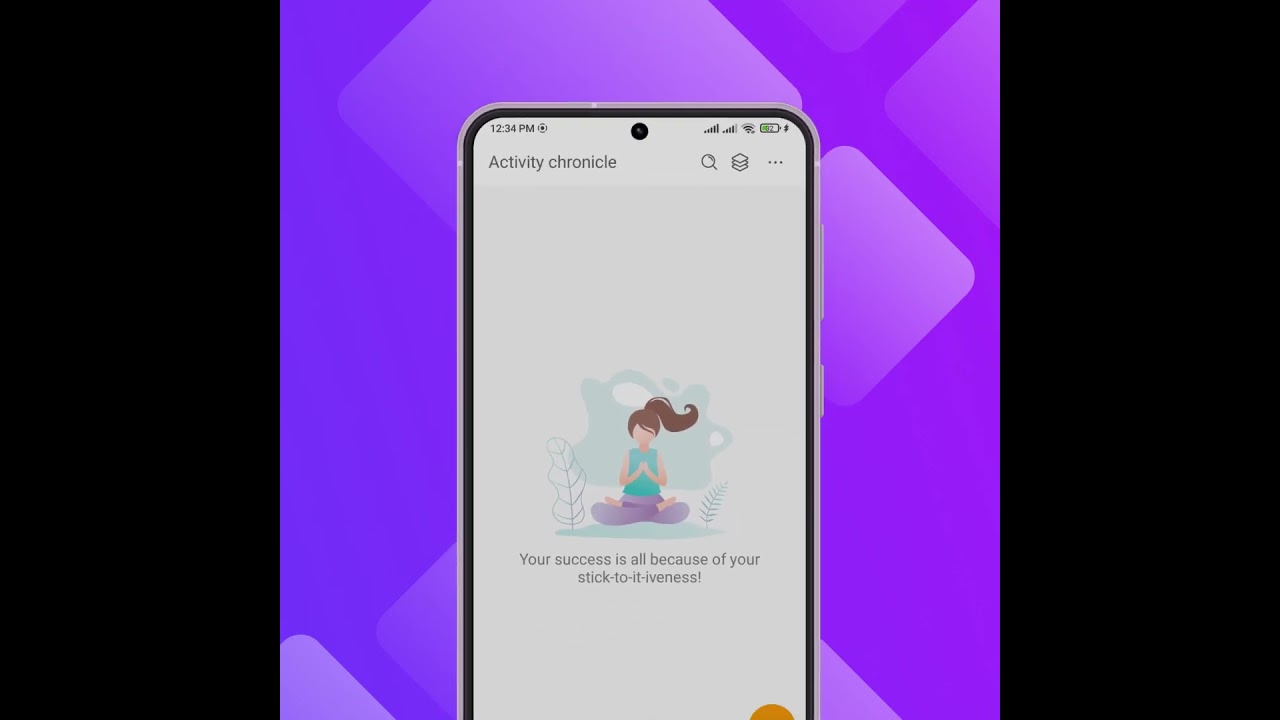
Two places in the app keep you current. The Recent Objects list holds the tasks you opened last, so you can reopen the right one without searching for it. The Chronicle in Planfix is the section that lists notifications about events in tasks and Planfix contacts; from the menu in its top right corner you can order events new first or old first, switch between unread events and all events, and mark everything as read. For longer lists, the Tasks section of the mobile app offers a Table or Tree view and filters for active, overdue or your own tasks.
Example from the video: a sales manager on the way to a client
The video closes with a sales manager heading to a client meeting. On the way, they open Planfix and check the latest tasks in Recent Objects, or open the Chronicle to review updates from colleagues. Either way, they arrive with the current state of the account rather than yesterday’s, and the colleagues they assigned work to on the way have it already.
Who it’s for
- Managers between meetings: dictate tasks as they come up and set the assignees later in the day.
- Sales teams: check Recent Objects and the Chronicle before walking into a client meeting.
- Team leads: delegate from the Plus button so work moves while you are away from your desk.
- Field and remote staff: capture what happened on site as a task instead of a note to yourself.
FAQ
Can I create a Planfix task by voice?
Yes. Press and hold the Plus button, choose Voice input, turn on the microphone and speak. What you say becomes the task name, and you can fill in the other fields later.
How do I assign a task to a colleague from my phone?
Press and hold the Plus button, select the object to base the task on, fill in the required fields, select the assignee and tap create. The task reaches the selected team member straight away.
Where do I see what the team did while I was away?
In the Chronicle, which lists notifications about events in tasks and contacts. You can show unread events only, change the order to new first or old first, and mark all events as read.
Try it on your own phone
Pick the next idea you would have written on a sticky note and put it into the app instead, then assign it when you are back at your desk. Already use Planfix? See what else the app covers in the mobile app Kanban board update. New to Planfix? Sign up to try it.