What’s New in Planfix: October 2026

October may be over, but our work on improving Planfix is just getting into full swing. Here’s a look at the latest updates and improvements to help you optimize your workflow even more.
Bulk Updates for Directories in Planfix
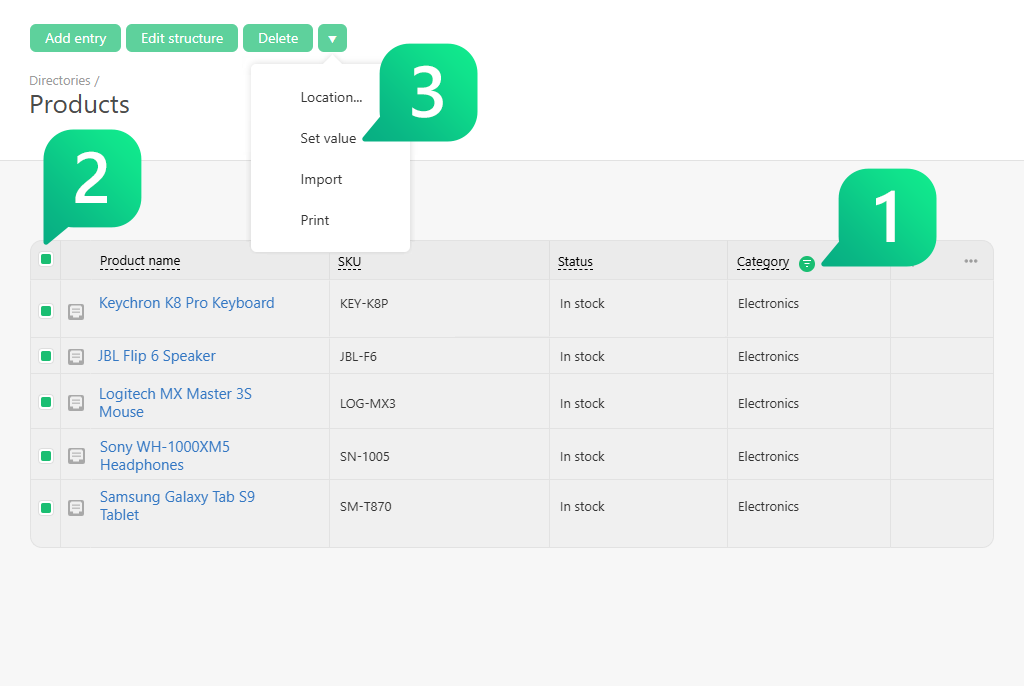
To update multiple Directories entries at once, select them manually or use a filter to find them. From there, choose “Set value” and enter the new value.
For example, you can update the statuses of several products, change customer categories, or clear outdated values. Need to update a specific group? Just filter for it, then apply the new value to all of its entries.
You can also delete entries or move them into groups in bulk. These actions run in the background, so you don’t have to handle each entry one by one.
Add Images to Dashboards
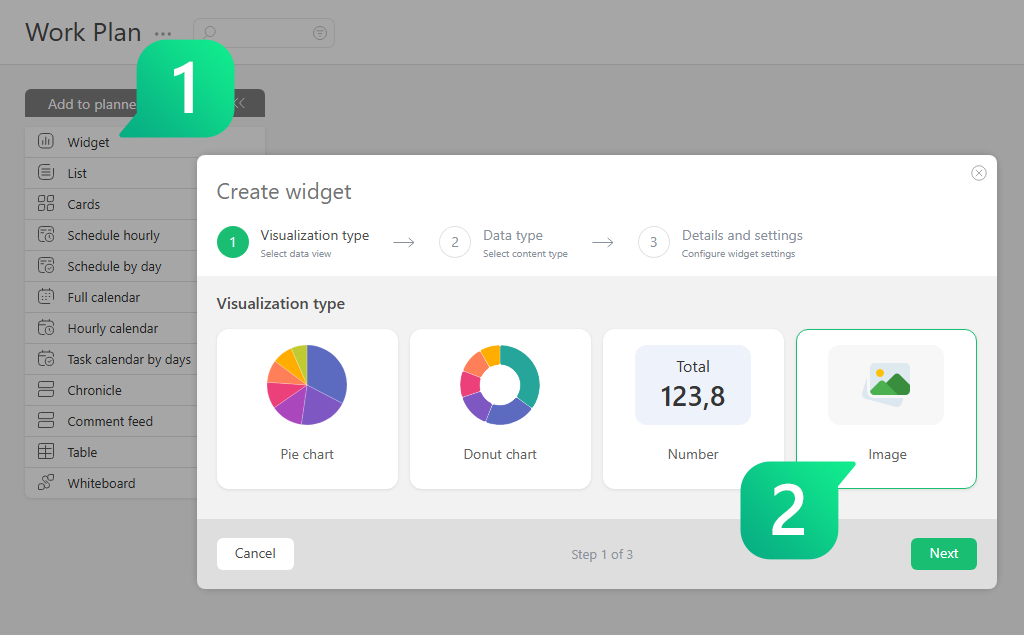
A process diagram, office floor plan, or team reference can now sit right alongside your work data in Planfix. Add an “Image” block to your dashboard, then choose a JPG or PNG file up to 10 MB.
Give the block a title, pick a color, and adjust its fields. Then choose how the image fits. “Fit” keeps the whole image visible, “Fill” covers the block but may crop the edges, and “Actual size” displays the image as-is. You can also preview the result before saving.
That way, your team can keep the org chart, customer communication guidelines, or new-hire instructions close at hand. You can even add your company logo to the dashboard.
New Search Options in Planfix
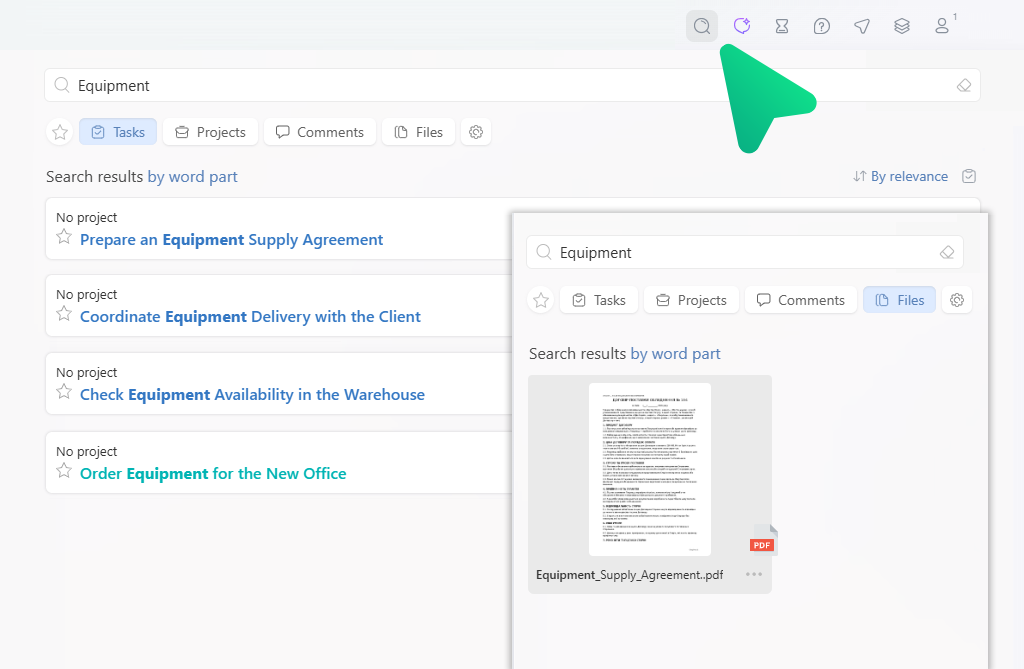
You can now choose where to search upfront, whether you’re looking for tasks, projects, or help articles. Your four most recently selected sections are right there, and you can find the rest in the menu.
Planfix also saves your search queries. Click the star to show only your favorites in the results. Plus, you can browse files as thumbnail cards, which makes it easier to find the image you need.
Customize Task Cards Right on the Map
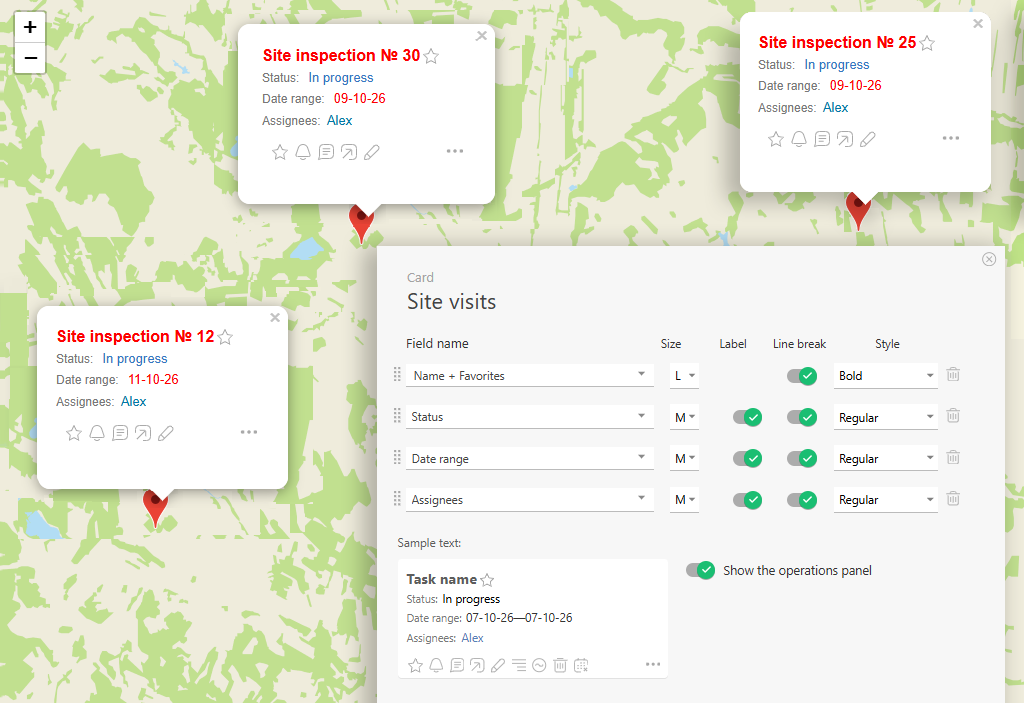
You can now control what appears in a task card when you view tasks in the “Map” filter. Open task filter settings, pick a card in the left column, and choose the fields you want. Turn on the operations panel there too, and you can work on a task without leaving the map view.
Keep the map uncluttered by showing only the status, due date, or assignees, for example. That way, planning routes and getting a quick overview of on-site work is faster and clearer.
Planfix App 0.74 for iOS and Android Is Here
Planner updates:
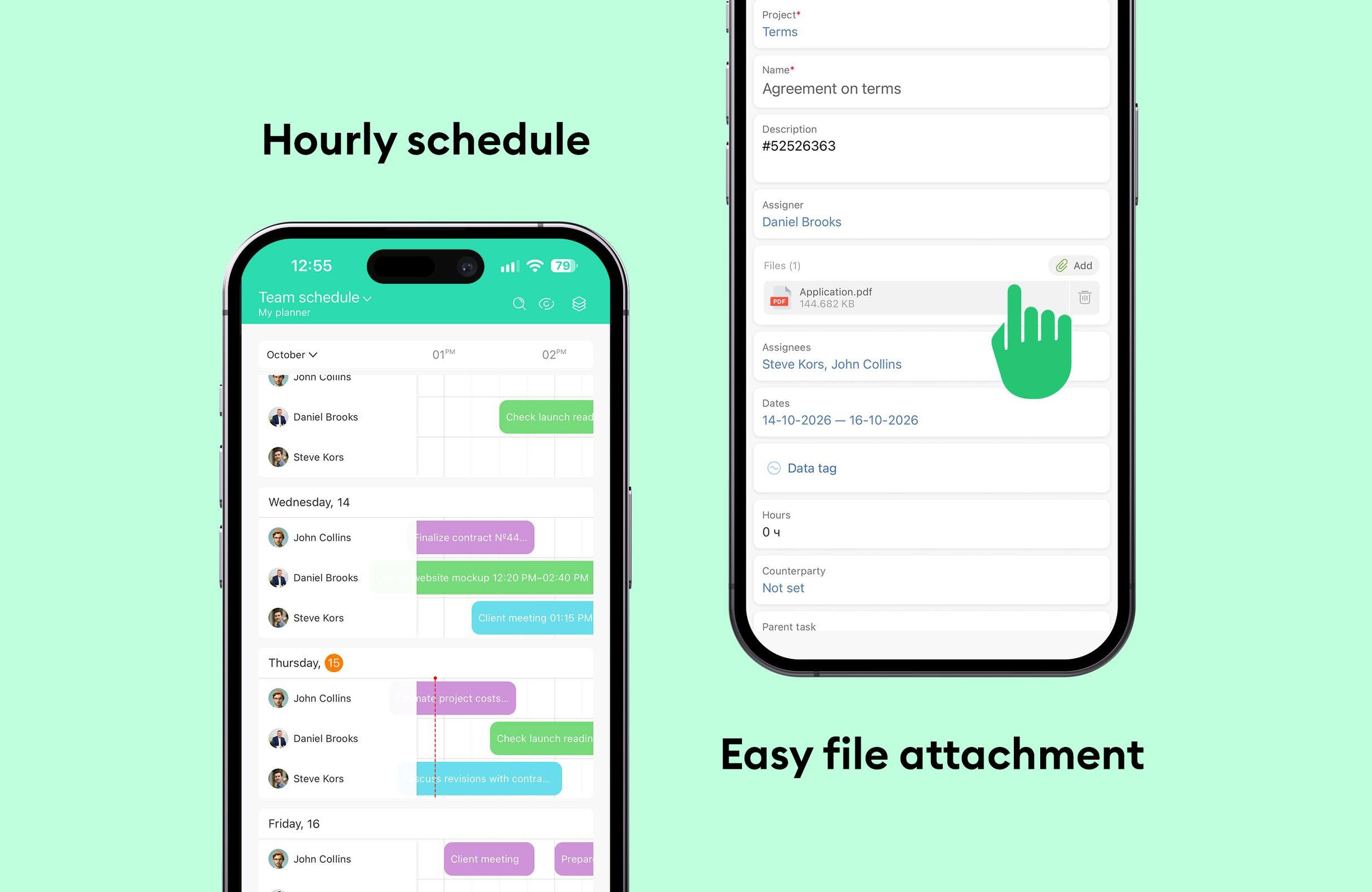
- “Schedule hourly” is now available in the app, too. Set it up in the web app, then plan tasks for specific times from your phone.
Working with tasks:
- The “Files” field is easier to use. When you create or edit a task, you can see where to add a file and what’s already attached.
- On iOS, you can save files from Planfix straight to your phone. Open them in another app or send them to a coworker.
We also made a bunch of improvements to keep the app running reliably. Update the app and give the new features a try.
iOS: https://itunes.apple.com/us/app/id1475346366
Android: https://play.google.com/store/apps/details?id=com.planfixng
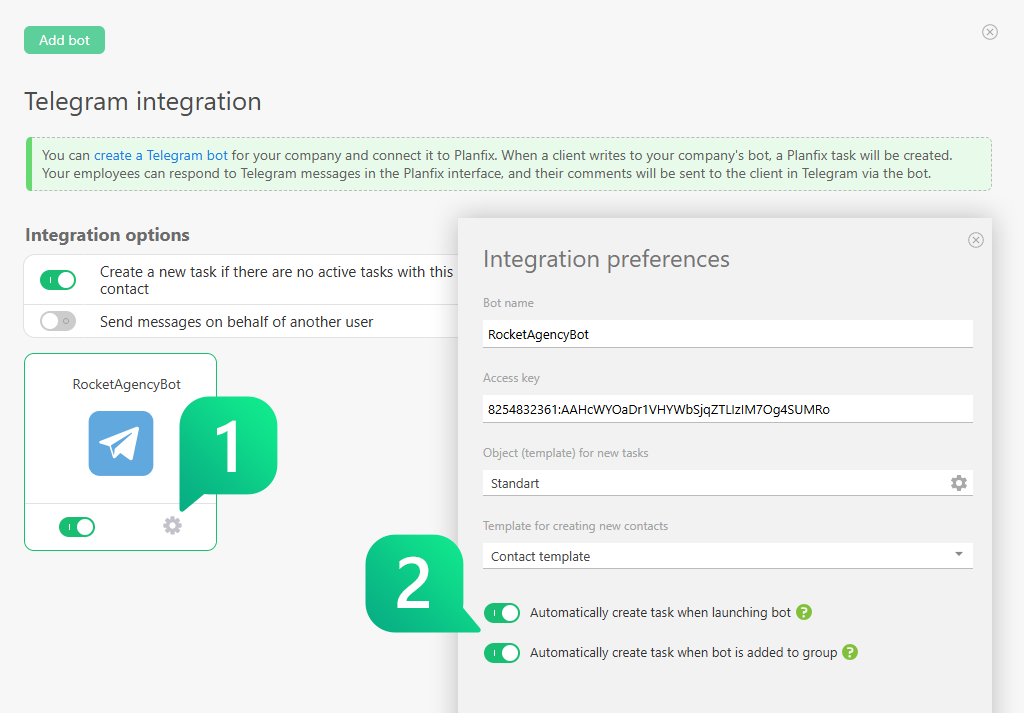
Telegram Bot Auto-Tasks
You can now turn on two handy options in your Planfix Telegram bot settings. One kicks in when the bot is added to a group chat, and the other runs when someone taps the “Start” button.
Both are off by default, so if you leave them that way, nothing changes. Turn on the group option if clients create their own work chats. When the bot joins, it will open a task containing the chat history and add the new person as a contact in Planfix. For people in the group it looks like a normal conversation, with no extra service messages, and your team can still use Telegram bot commands right in the chat.
Enable the task-on-start option when you want to record every visitor to the bot. Even if someone immediately leaves, you’ll see them in Planfix and can follow up. If your bot gets lots of casual visitors, keep that option off. A task will only appear when the visitor actually sends a message.
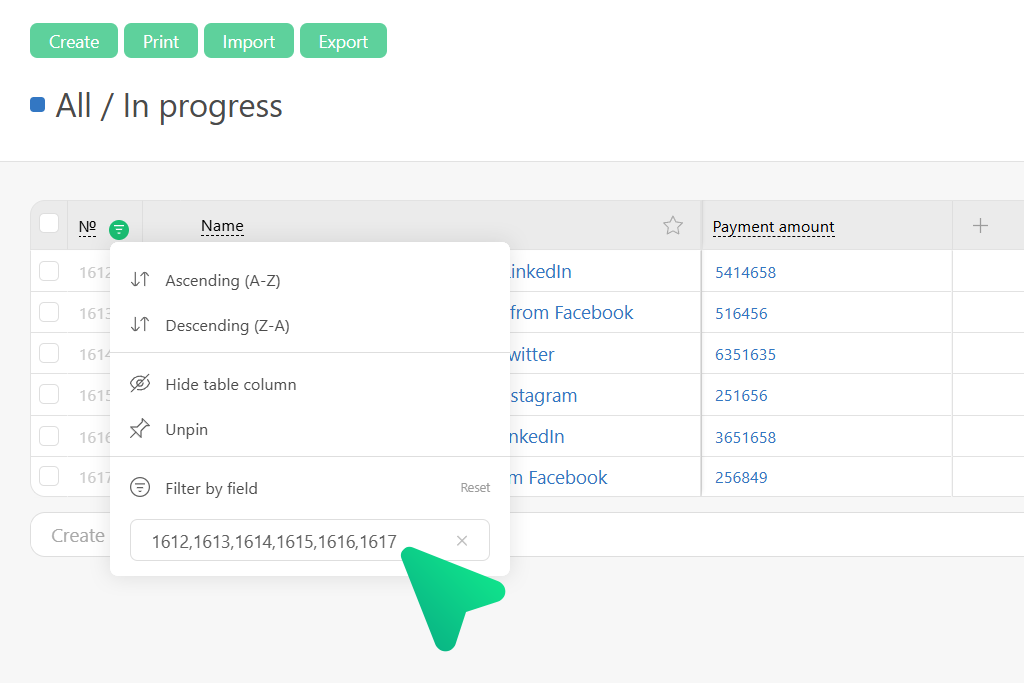
Search Tasks, Contacts, and Projects by Multiple Numbers at Once
You can now paste multiple values into the quick filter for the “Number” column. Just separate the numbers with a comma, and the list will show only the matching tasks, contacts, or projects.
This comes in handy when you already have a list of numbers. Maybe a teammate dropped a set of tasks in chat, or you want to pull projects from a report. Either way, copy the list, paste it into the filter, and you won’t have to open each item individually.
If a number doesn’t exist, or you don’t have access to it, it simply won’t appear in the results.
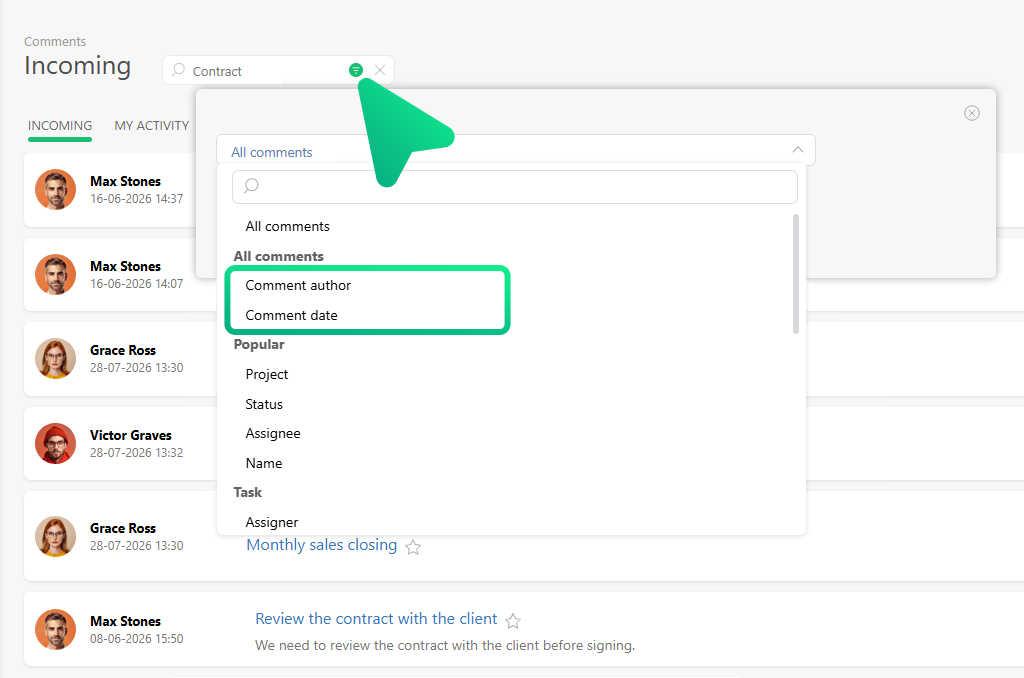
Comment Search in Planfix
You can now filter comments by author and date. Those filters work both inside an employee’s card and in the main comments section.
Combine the filters with words in the search box and with your usual task conditions to home in on the message you need. For example, if a colleague wrote about a contract last week, pick their name, choose “last week,” and add “contract” to the search field. That way, you’ll get straight to that comment without scrolling through the whole feed.
Your search settings stick around while you open found tasks and switch between incoming and outgoing messages, so you won’t have to reapply filters every time.
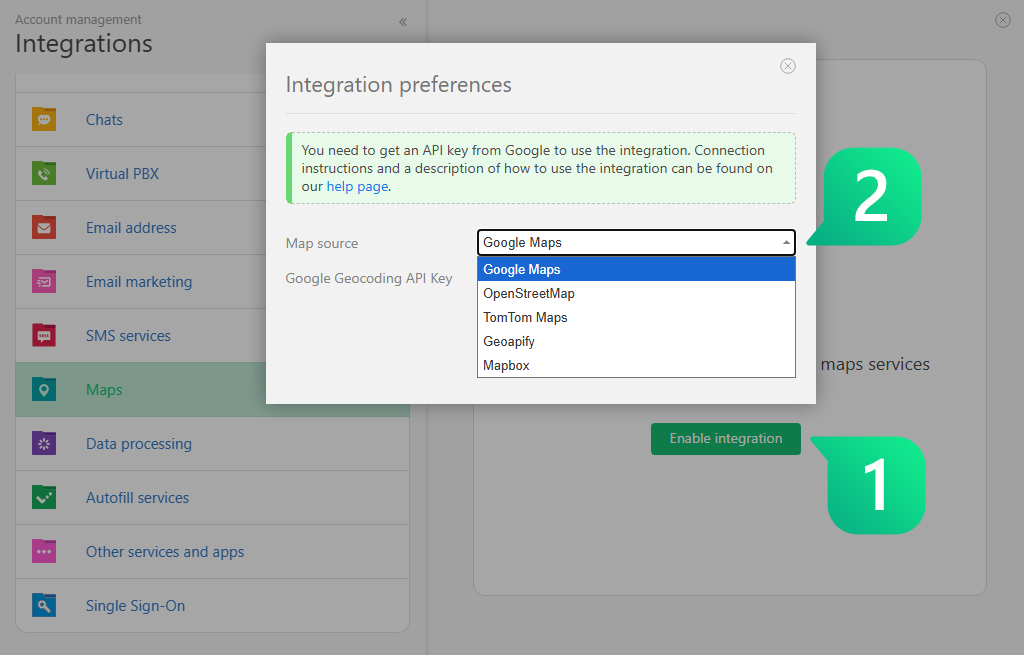
Planfix Now Supports Maps from TomTom, Mapbox, and Geoapify
To turn them on, open the Maps Integrations section and paste your TomTom API key. Once you do, the new maps will automatically appear in any fields that store location info.
This is a big win for your field teams, including couriers, service engineers, and anyone who needs to find a customer on the go. No matter where the client is, it’s easier to see them on a familiar map.
Planfix App 0.73 for iOS and Android Is Here
Planners:
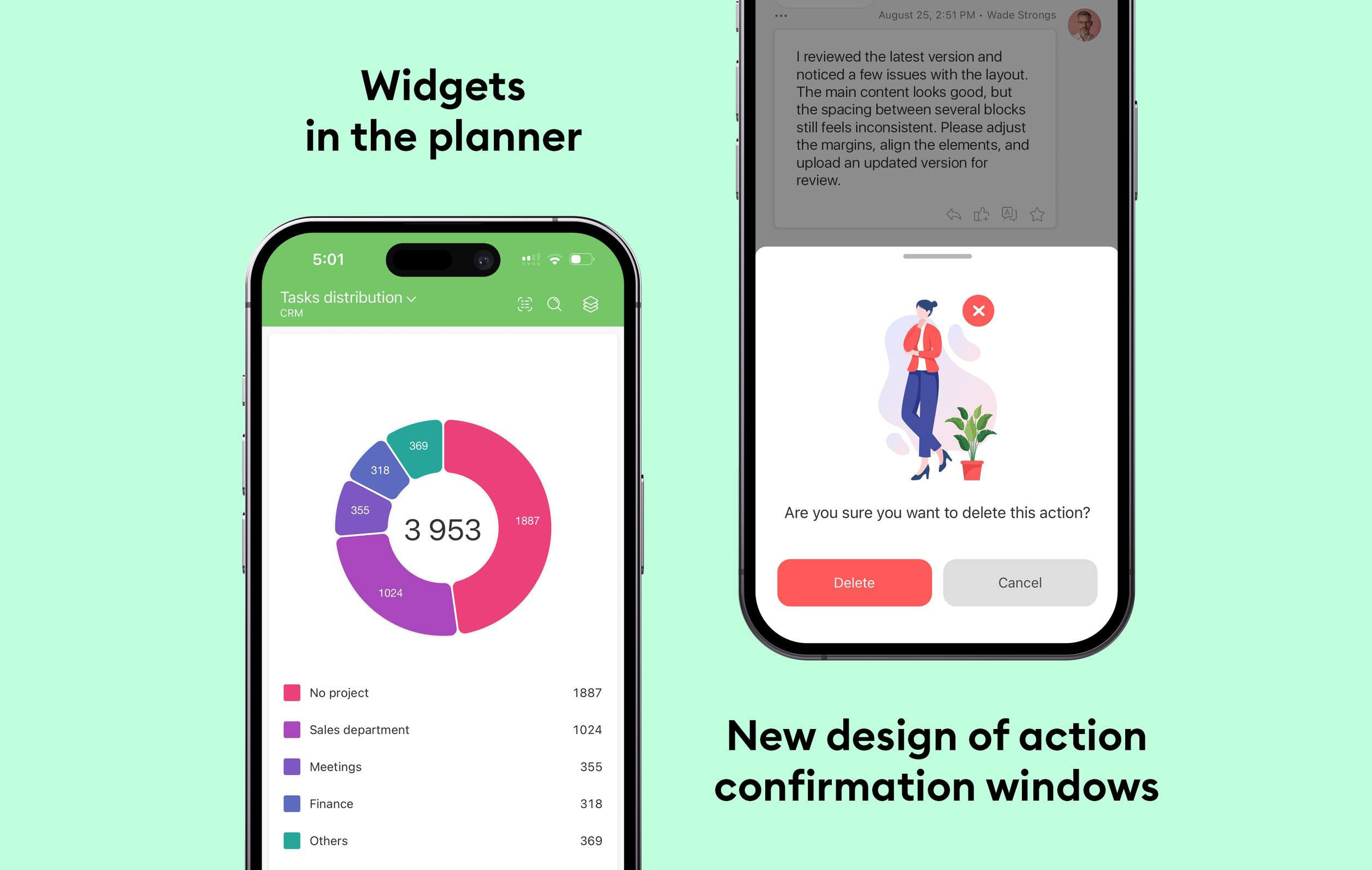
- Planner widgets let you check key metrics right from your phone.
- There’s a new “Full calendar” list type.
Working with tasks:
- The “On vacation” status for employees, so you can immediately see when a reply is unlikely.
- Create a new project directly from the project selection field in a task. Tap the plus icon, and the new project will be added to the task automatically.
- Attached files in comment feeds now look cleaner. A single file is shown with a preview, while multiple files appear as a list.
Notifications and interface:
- Account names in push notifications, so you can immediately see which account a message came from. You can enable this in settings.
- Redesigned confirmation dialogs. They now slide up from the bottom and can be dismissed with a swipe.
We also made a number of smaller improvements to make the app more stable. Update the app and check out the new features.
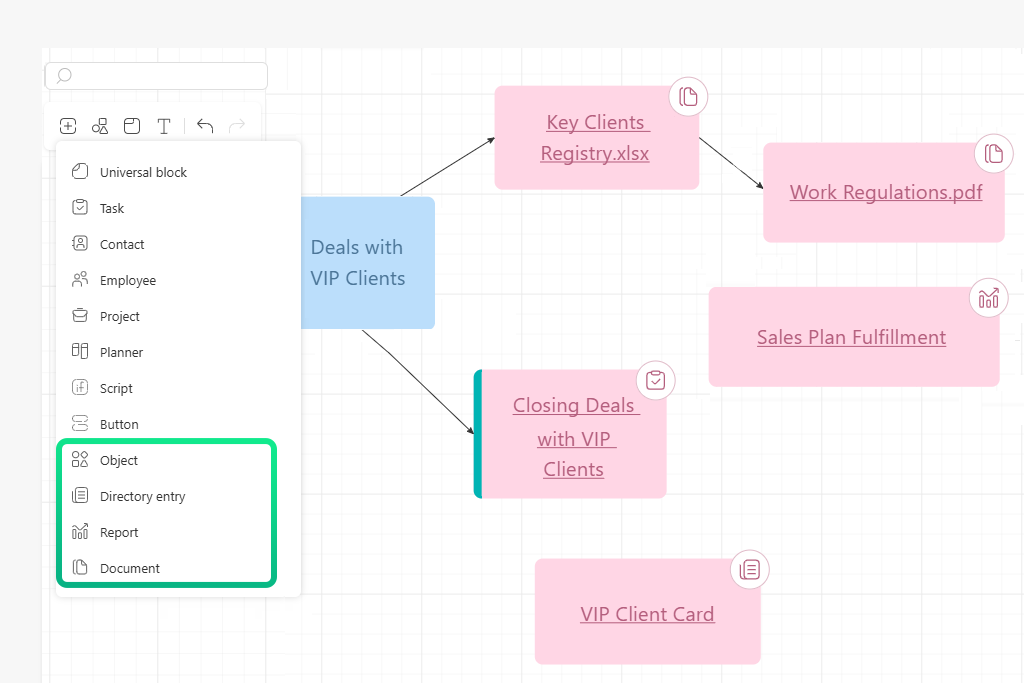
More Object Types on the Whiteboard
In Planfix, you can now add individual directory entries, reports, and document files to the whiteboard. Just click the plus button on the toolbar, select the item you need, and it will appear on the diagram.
This makes it easier to keep the entire process in one place. You can place related data and working materials right next to tasks without jumping between different sections of the system.
Permissions still apply, so if a colleague doesn’t have permission to open a specific document or report, they’ll see it on the diagram but won’t be able to access its contents.
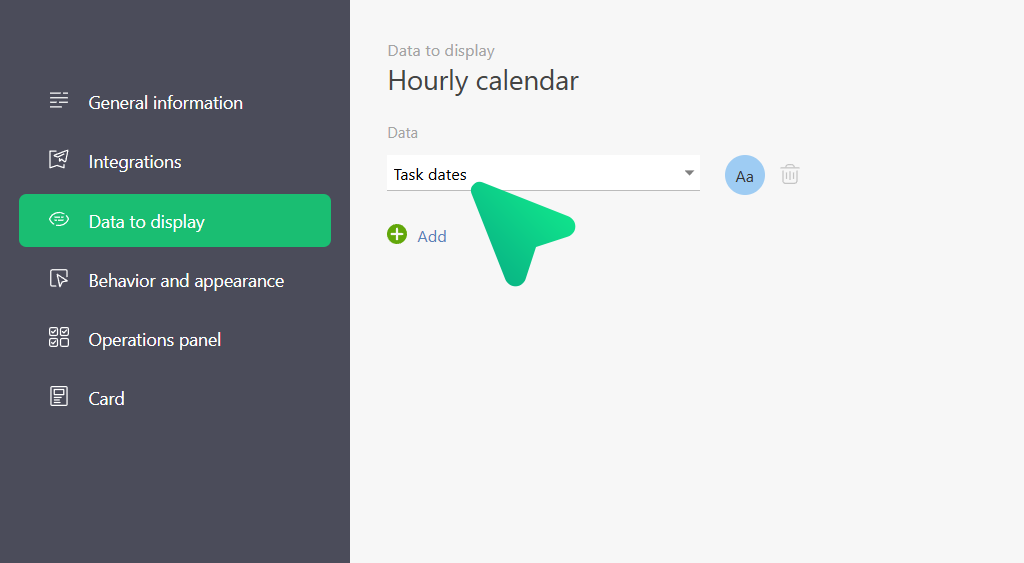
Tasks in the Hourly Calendar
We added a new “Task dates” option in Hourly calendar settings. Turn it on in the “Data to display” section, and events with a start and due date will appear right in the hourly grid.
Want to create a task for a specific time slot? Click an empty cell or drag to select a range. Dragging or stretching a task in the calendar updates its start and end times automatically.
We also fixed duplicate event tiles, resolved issues with saving colors, and got reminders working reliably. Edits and deleted entries now show up in the calendar immediately.
New Video:
Automated Document Generation in Planfix: Numbering and Registry
Manually entering contract numbers and managing a disorganized document registry can lead to serious record-keeping errors and a loss of control over deals.
This step-by-step guide covers document workflow automation and automated document generation in a CRM system. You’ll learn how to set up automatic contract numbering, reset the counter annually, and maintain a contract registry. Scripts and document templates help prevent duplicate records and streamline business process management.
Watch the video: How to Set Up Auto-Numbering and a Centralized Document Registry
Employee Management in Planfix: Company Structure, Vacation Calendar, and Temporary Replacements
Disorganized team management, a lack of visibility into employees’ tasks, and confusion over vacation schedules can all slow business growth.
In this video, we’ll show you how to manage employees more efficiently in Planfix. You’ll learn how to use bulk actions to update employee profiles, build a clear company structure with automatic access permissions, manage vacation schedules, and assign temporary replacements to keep workflows running smoothly.
Watch the video: How to Manage Company Structure, Vacation Schedules, and Replacements
Checklist Tips and Tricks
Complex, multi-step tasks and lengthy checklists can take up too much time with manual updates and progress tracking. In this video, we’ll share 8 practical tips to simplify working with checklists in Planfix and eliminate repetitive work.
Project management and business process automation become easier when you use the built-in tools of your CRM system. In Planfix, you can quickly organize checklists using keyboard shortcuts, turn checklist items into separate subtasks, and link them to Objects. These task management features help managers and teams assign responsibilities more effectively and streamline collaboration.
Watch the video: 8 Practical Tips for Faster and Smarter Checklist Management
Working with Documents in Planfix: Folders, Templates, and Versioning
Endless searches for the right file version and messy folders slow down the entire team and can lead to lost information. In this video, we show how to organize a clear document workflow and automate routine tasks. You’ll learn how to use Planfix document management features to work with files faster and more efficiently.
An effective document management system in Planfix helps automate document workflows and keep company files organized. Document templates, variables, and automatic file versioning reduce manual work and help teams work faster with clients and counterparties. Bulk actions, sorting, Favorites, and quick search make it easier for every employee to work with the company file archive.
Watch the video: How to Organize Files Using Folders, Templates, and Versioning
Company Structure in Planfix: How to Organize Your Team
As a business grows, managers can quickly lose visibility into responsibilities and spend more and more time manually assigning access permissions and adding new employees to projects.
The Company Structure feature in Planfix helps organize employees into departments and workgroups and simplifies team management. A visual organizational chart shows how departments are connected, who manages each team, and how responsibilities are distributed across the company.
Watch the video: How to Build a Visual Company Structure and Organize Your Team
Document Automation in Planfix: Auto-Numbering and Prefixes
Manual contract numbering and entering prefixes by hand can lead to document errors and make deals harder to track.
In this video, we show how to automate document generation in Planfix using both simple numeric and advanced alphanumeric numbering, including letters and prefixes. You’ll learn how to set up automatic deal numbering, calculate contract numbers with an Infoblock, and automatically attach contracts generated from a Word template.
We also walk through creating the automation script, adding Planfix variables to a Word document, and resetting the numbering counter each year.
Watch the video: How to Set Up Letter Prefixes and Template-Based Document Generation
Planfix Conversations: Editing Comments and Tracking Changes
Accidentally posted a comment with a typo or shared sensitive information in the wrong task? In this video, we’ll show you how to quickly edit or delete comments in Planfix while maintaining a complete history of your team’s conversations.
We’ll walk through the tools for managing comments in tasks, recovering deleted messages, and tracking changes to keep your team’s communication organized and transparent.
Watch the video: How to Edit Comments and Track Your Team’s Discussion History
Gantt Chart in Planfix: 5 Tips for Smarter Project Scheduling
Constantly shifting deadlines can throw projects off track and make planning a challenge. In this video, we’ll cover five practical Gantt chart tips in Planfix to simplify scheduling, reduce manual work, and save time.
The Gantt chart in Planfix gives you a visual timeline of project tasks, making it easier to manage deadlines and track progress. Automatic date adjustments for linked tasks, a baseline plan for comparing original and current schedules, and flexible filters help you stay on top of project timelines. By setting up task dependencies, you can automate schedule adjustments and reduce the risk of missed deadlines.
Watch the video: 5 Practical Tips for Effective Scheduling on the Gantt Chart
FAQ
What image formats can you add to a Planfix dashboard?
You can add a JPG or PNG file up to 10 MB. Add an “Image” block to the dashboard, give it a title, pick a color, and choose how the image fits the block, including “Fit”, “Fill”, and “Actual size”. You can preview the result before saving.
How do you find tasks by several numbers at once?
Paste the numbers into the quick filter for the “Number” column and separate them with commas. The list will then show only the matching tasks, contacts, or projects. Numbers that don’t exist, or that you have no access to, simply won’t appear in the results.
Which maps does Planfix support?
Planfix now supports maps from TomTom, Mapbox, and Geoapify. You turn the new maps on in the Integrations section, and after that they appear in any fields that store location info.
What’s new in the Planfix mobile app 0.74?
“Schedule hourly” is now available in the app, so you can set it up in the web app and then plan tasks for specific times from your phone. The “Files” field is also easier to use, and on iOS you can save files from Planfix straight to your phone.
