Best Reminder Apps to Stay on Top of Tasks
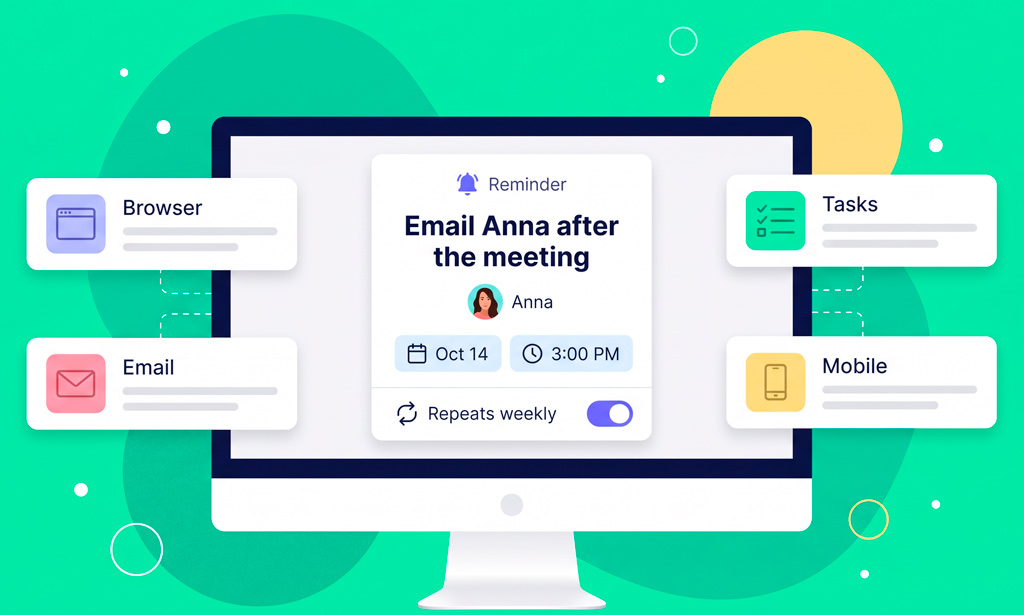
Reminder apps get a bad rap for being interchangeable — just alerts with a different logo slapped on. But get past the surface, and each one solves the “did I forget?” problem in a genuinely different way. That’s why we love putting reminder apps side by side: it turns “which one is best” from a vague question into something you can actually see.
As the team behind Planfix’s workflow tools, we test productivity and reminder software every week — not for fun, but because our own work depends on getting this right. We’ve picked our favorites to share here, tested against real recurring tasks, not marketing pages. We also looked at what actual users report on G2 and Capterra, and the pattern held up.
At a Glance: Top Reminder Apps Compared
We tested each app the same way: set a recurring reminder, assign it to someone else where possible, and see whether it actually gets noticed. Here’s how they stacked up.
| Rank | App | Best For | Platforms | Free Plan | Starting Paid Price |
| 1 | Planfix | Teams & work-related reminders | Web, iOS, Android | Yes | Starting at $8/user/month |
| 2 | Todoist | Personal task + reminder management | Web, iOS, Android, Windows, Mac | Yes, but no reminders on free tier | Pro from $5/month |
| 3 | TickTick | Reminders + habit tracking | Web, iOS, Android, Windows, Mac | Yes | Premium from $49.9/year |
| 4 | Microsoft To Do | Free reminders on Windows | Windows, Web, iOS, Android | Yes | Free (bundled with Microsoft 365 for extras) |
| 5 | Google Keep / Tasks | Simple, free Android reminders | Android, Web, iOS | Yes | Free |
| 6 | Apple Reminders | Built-in iPhone and Mac reminders | iOS, macOS, Web | Yes | Free |
| 7 | Any.do | Shared and family reminders | Web, iOS, Android | Yes | Premium from $4.99/mo (annual) |
| 8 | Things 3 | Premium one-time purchase | iOS, macOS, iPadOS | No | From $9.99 (iPhone) to $49.99 (Mac), one-time |
| 9 | Remember The Milk | Email and IM-based reminders | Web, iOS, Android | Yes, but reminders require Pro | Pro from $49.9/year |
| 10 | Due | Persistent, repeating reminders | iOS, macOS | No | One-time purchase, $9.99 on iOS |
That table is the short version — enough to point you toward the right app if you already know what you’re solving for. The reviews below go deeper into why each one landed where it did, including where a free plan is genuinely enough and where it starts to fall short once reminders stop being just personal.
What Is a Reminder App?
A reminder app is software that alerts you at a set time, place, or trigger about something you’d otherwise forget. Some tools are purely alert-based: set a time, get a notification, done. Others are full task managers with reminders layered on top, useful when you’re tracking due dates alongside longer to-do lists.
A third category goes further — notification programs built into work platforms, where an alert is tied to a task, a client, or a workflow step, and it can notify someone other than you. This is the model behind project and task management for small business tools, where reminders are one piece of a larger system rather than the whole product.
How We Evaluated These Reminder Apps
We evaluated each app using the same core reminder scenarios to make the comparison as consistent as possible. For each tool, we looked at how easy it was to create a recurring reminder, whether notifications could be assigned to other people, which notification channels were available, and how well the app worked across supported devices.
We also considered the features that matter most for different types of users, including the usefulness of the free plan, recurring reminder flexibility, team and assignment capabilities, and overall platform coverage.
Our evaluation criteria were:
- Reliability of notifications across push, email, SMS, and chat — a notification that’s easy to miss doesn’t count
- Flexibility of recurring reminders — daily, weekly, custom intervals, or process-based triggers
- Cross-device sync speed and consistency — a message set on one device should show up everywhere immediately
- Team and assignment features — can it remind someone else, not just you, and can they see it too?
- How usable the free plan actually is — not just whether one exists, but whether reminders work on it
- Platform coverage across Android, iOS, Windows, Mac, and web
We ranked each app according to what it is designed to do. A personal reminder app isn’t penalized for lacking team workflows, just as a team task management platform shouldn’t be expected to be the simplest option for a grocery list.
Best Reminder Apps
Here’s the full reminder apps breakdown, starting with our top pick.
1. Planfix
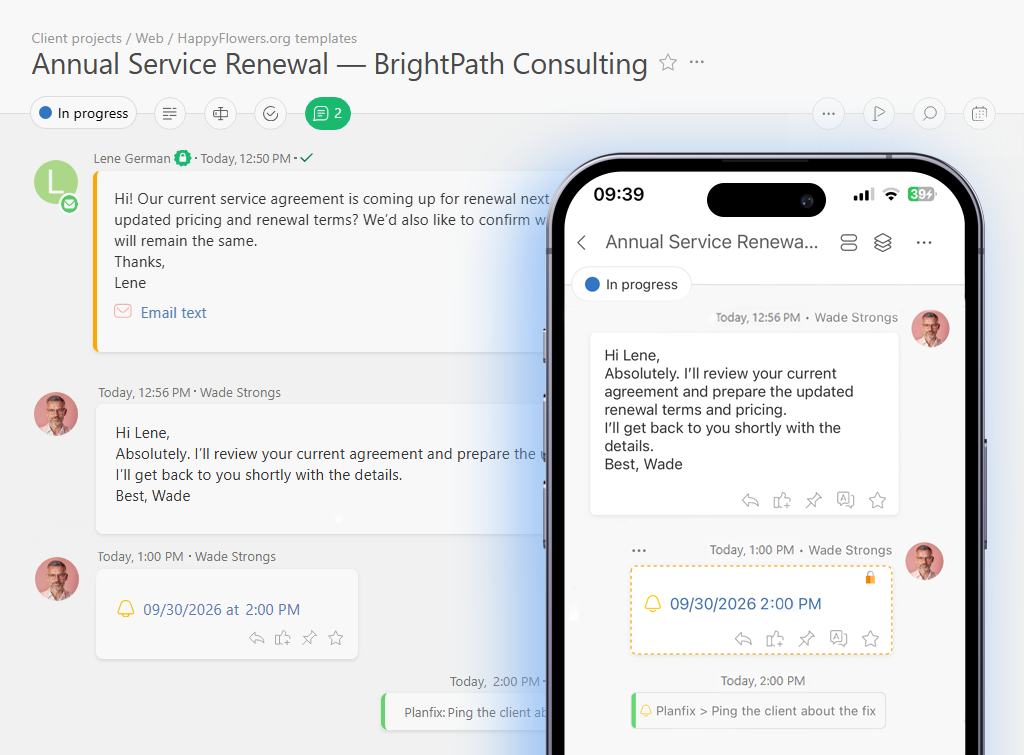
Planfix isn’t built as a standalone reminder app, and that’s the point. Alerts attach directly to a task, a contact, a deal, or a calendar event, so the alert carries context instead of arriving as a bare notification. You can set reminders in Planfix that notify a specific colleague — the assignee, a manager, or anyone watching that task — not just yourself.
Recurring reminders can repeat on custom schedules, and delivery spans the browser, email, mobile app, and Telegram through Planfix’s notification channels. A reminders panel and calendar keep everything visible at a glance, which matters when several people share responsibility for one deadline.
Reminders can also sit alongside broader task management and CRM functionality, so a message about a client renewal can stay connected to the underlying work instead of becoming a separate notification to remember.
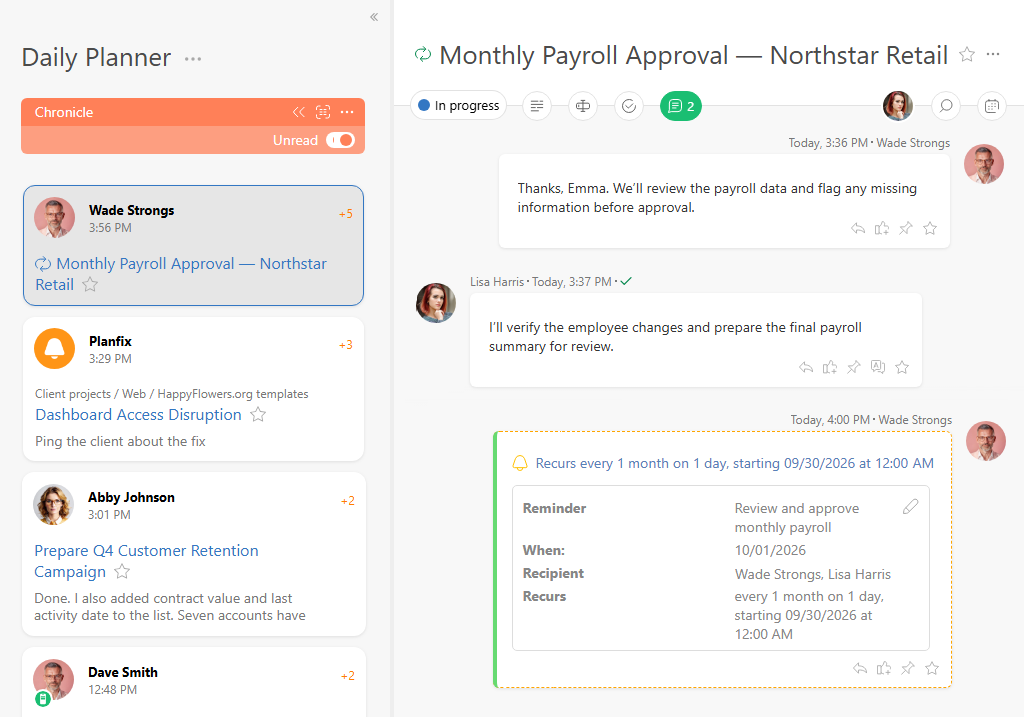
Planfix is overkill if you just want to remember to buy milk. It’s built for people managing real work — task management software with reminders as one piece of a larger system, not the whole product.
Ratings:
Key features:
- Task-based reminders: Set notifications for specific tasks and work activities.
- Team notifications: Notify the person responsible for a task instead of relying only on the person who created the reminder.
- Recurring reminders: Create alerts for tasks and processes that need to be repeated.
- Work context: Keep notifications connected to tasks, projects, clients, and other work-related information.
- Multiple notification options: Choose how and when users receive messages.
- Web and mobile access: Available on web, iOS, and Android.
Pros:
- Designed for both personal productivity and team workflows.
- Reminders can remain connected to the work they relate to instead of existing as standalone notifications.
- Useful for follow-ups, recurring processes, deadlines, and other work-related activities.
- Supports assigning work and reminders to specific team members.
Cons:
- More advanced than a typical personal scheduling tool, so it may take time to learn.
- Some features may be unnecessary if you only need simple personal reminders.
Pricing:
- Free plan available.
- Paid plans start at $8/user/month.
View other Planfix plans.
Best for:
- Teams that need reminders connected to tasks and workflows.
- Managers who need to make sure assigned work is followed up on.
- Businesses looking for more than a basic personal reminder app.
2. Todoist
Source: https://todoist.com/
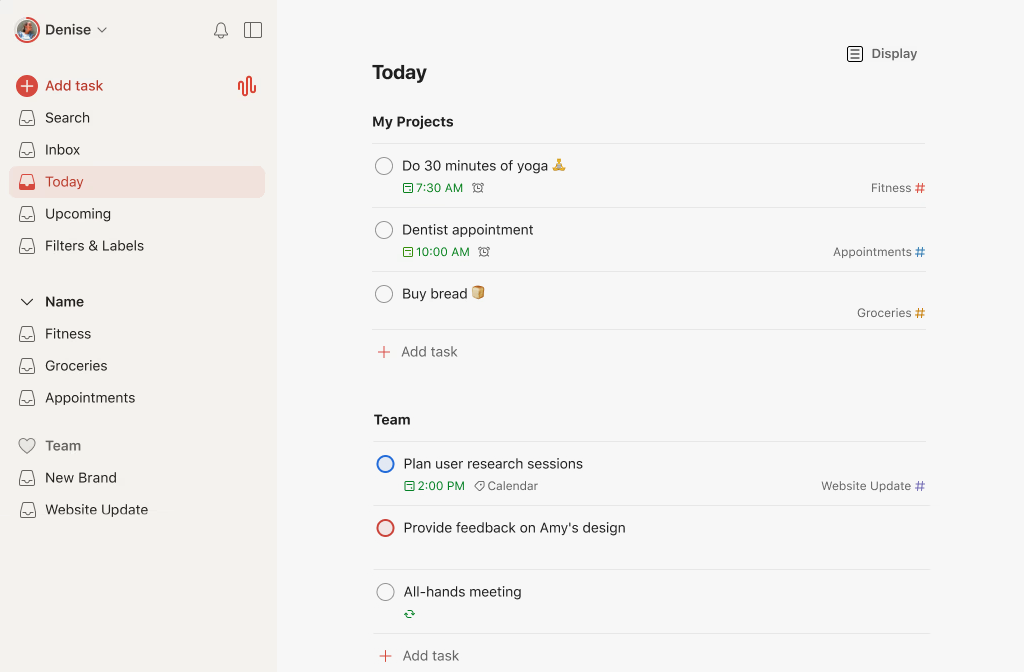
Todoist remains one of the best apps for reminders if you manage your own workload. Natural-language input lets you type “call supplier Friday 9am” and it sets the date automatically. Recurring reminders handle daily, weekly, or custom patterns well, and the app now bundles voice-to-task capture for quick entry on the go.
Ratings:
- Capterra: 4.6 / 5
- G2: 4.5 / 5
Key features:
- Task reminders: Add reminders to tasks so you know when to act.
- Recurring tasks: Create repeating tasks for regular activities.
- Priorities: Organize tasks by priority levels.
- Natural language input: Add tasks using phrases such as “call John tomorrow at 10 AM.”
- Cross-platform sync: Access tasks across web, mobile, and desktop apps.
Pros:
- Clean and easy-to-use interface.
- Strong task organization and prioritization features.
- Works across multiple platforms.
- Useful for both personal tasks and smaller team workflows.
Cons:
- Reminders are not available on the free plan.
- Some advanced features require a paid subscription.
- May feel more structured than necessary for users who only need simple reminders.
Pricing:
- Free plan available, but reminders are not included.
- Pro starts at $5/month.
Best for:
- Individuals who want planner tools integrated with a full task manager.
- Users who work across multiple devices.
- People who need more organization than a basic reminder app provides.
3. TickTick
Source: https://ticktick.com/
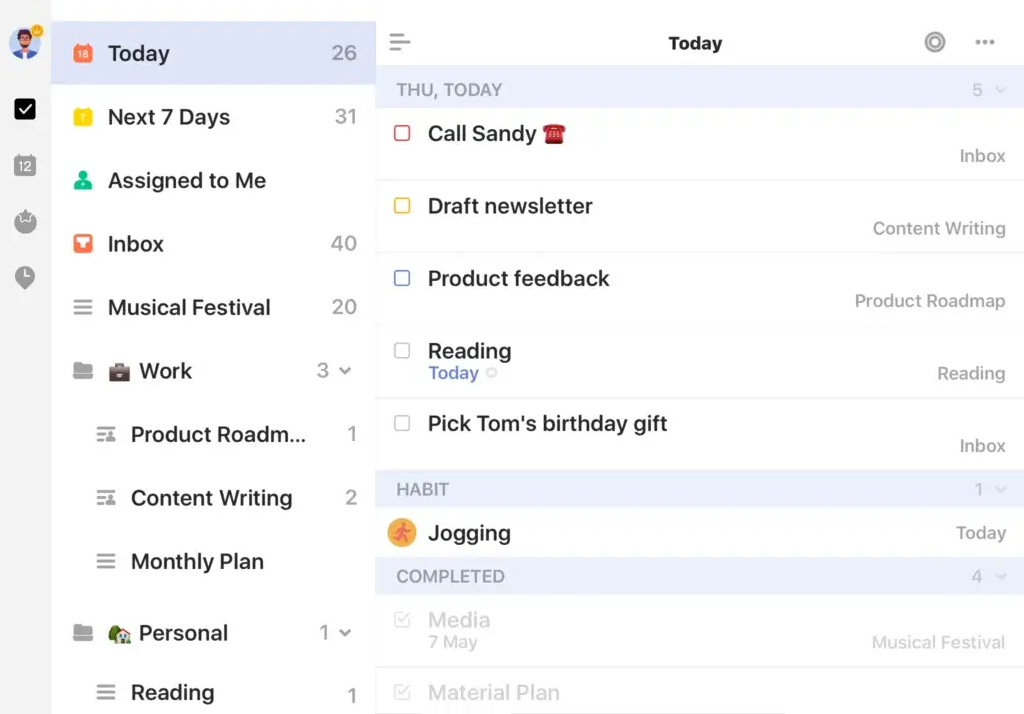
TickTick pairs reminders with a Pomodoro timer and habit tracker, which makes it stand out among the best reminder apps on this list for people who want several productivity tools in one place. For recurring personal routines, this works well — though teams looking at automating recurring tasks across a whole workflow, not just a single habit, usually need something built for that scale.
Ratings:
- Capterra: 4.7 / 5
- G2: 4.5 / 5
Key features:
- Flexible reminders: Set notifications for individual tasks and recurring activities.
- Recurring tasks: Create custom repeating schedules.
- Habit tracking: Track recurring habits alongside tasks.
- Calendar views: See tasks and scheduled activities in a calendar.
- Cross-platform sync: Available across web, mobile, and desktop platforms.
Pros:
- Combines reminders, tasks, habits, and calendar features.
- Strong recurring-task functionality.
- Available across major platforms.
- Useful for building structured daily routines.
Cons:
- The number of features can make the interface feel more complex.
- Some advanced functionality is available only with Premium.
Pricing:
- Free plan available.
- Premium starts at $49.9/year.
Best for:
- Users who want reminders and habit tracking in the same app.
- People managing recurring personal tasks and routines.
- Users who want a more feature-rich alternative to a basic reminder app.
4. Microsoft To Do
Source: https://to-do.office.com/
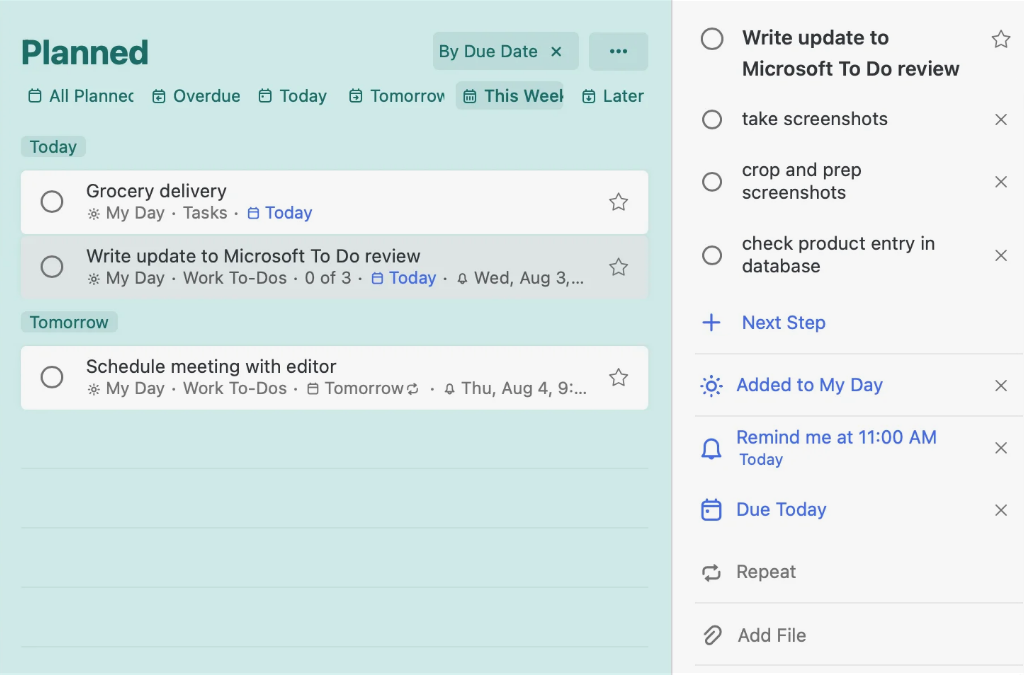
For anyone searching for a reminders application for Windows, Microsoft To Do is a natural choice. It’s free, integrates with Outlook tasks, and works well within a Microsoft 365 setup — though it’s built for individual to-dos rather than tracking project milestones without missing deadlines across a team.
Ratings:
- Capterra: 4.6 / 5
- G2: 4.4 / 5
Key features:
- Task reminders: Add notifications to individual tasks.
- My Day: Organize the tasks you want to focus on each day.
- Recurring tasks: Set tasks to repeat on a regular schedule.
- Task lists: Organize tasks into separate lists.
- Microsoft integration: Works well alongside the Microsoft ecosystem.
Pros:
- Free to use.
- Simple interface.
- Works across Windows, web, iOS, and Android.
- Useful for everyday personal and work tasks.
Cons:
- Fewer advanced project-management features than dedicated work-management platforms.
- Best suited to relatively simple task workflows.
Pricing:
- Free.
- Additional functionality is available through Microsoft 365.
Best for:
- Windows and Microsoft users.
- People who want a simple free reminder and task app.
- Users who do not need advanced project-management functionality.
5. Google Keep / Google Tasks
Source: https://tasks.google.com/
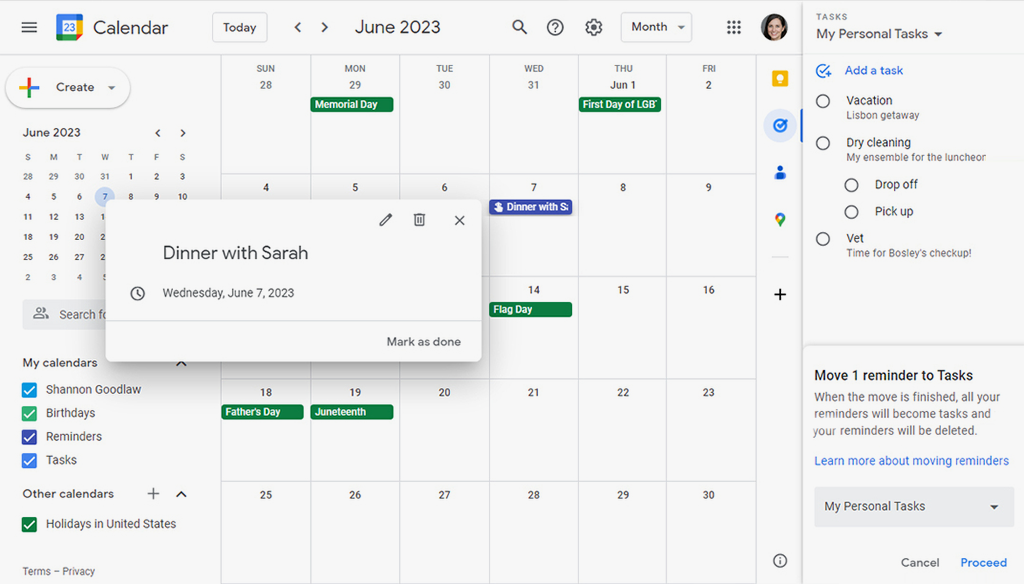
Google Tasks and Keep are useful for people who want a free reminder application that fits naturally into Google’s ecosystem. Tasks connects with Google Calendar, while Keep notes and their reminders are now integrated with Google Tasks.
Ratings:
- Google Keep on Google Play: 4.7 / 5
- Google Tasks on Google Play: 4.6 / 5
- Google Keep on App Store: 4.6 / 5
- Google Tasks on App Store: 4.8 / 5
Key features:
- Task reminders: Set alerts for tasks and notes.
- Google ecosystem integration: Works alongside other Google services.
- Simple task management: Create lists and organize everyday activities.
- Cross-device access: Use the services on web and mobile devices.
Pros:
- Free to use.
- Easy to get started.
- Works well for simple personal reminders.
- Convenient for users already using Google services.
Cons:
- Fewer advanced task-management and collaboration features than dedicated productivity platforms.
- May not be enough for complex work workflows.
Pricing:
- Free.
Best for:
- Android and Google users.
- Simple personal alerts.
- Users who want a lightweight alternative to a full task-management platform.
6. Apple Reminders
Source: https://www.apple.com/
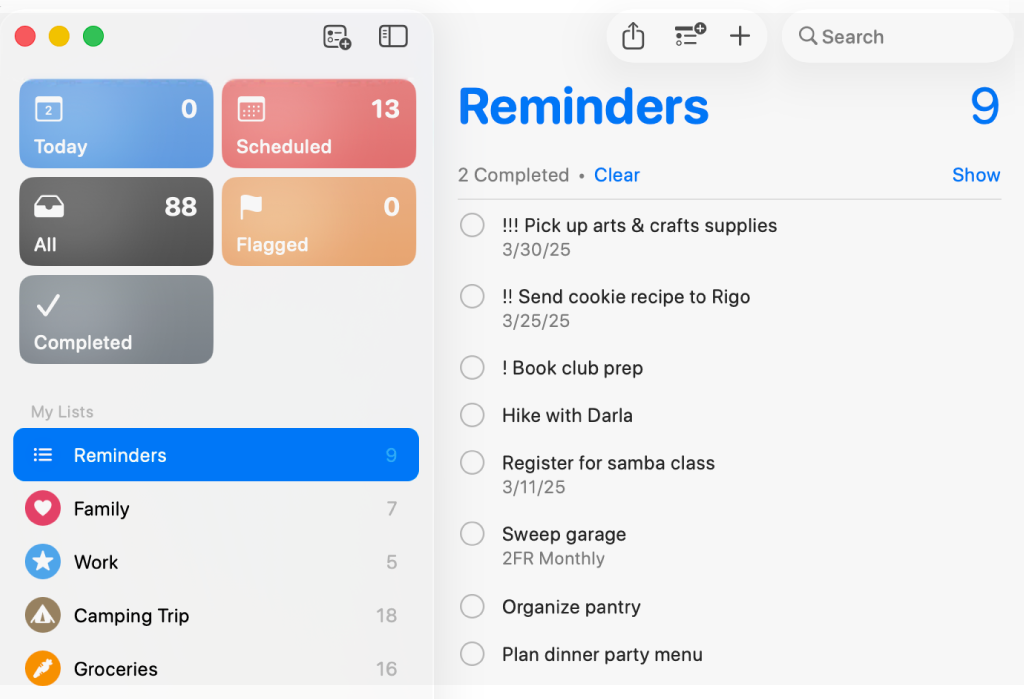
Apple Reminders is the simplest way for solo iPhone and Mac users to stay on top of personal errands. It’s genuinely good at what it does: fast entry, Siri support, and smart lists that sort by date, flag, or tag.
Ratings:
- Capterra: 4.6 / 5
- G2: 4.5 / 5
Key features:
- Time-based reminders: Get notified when a task needs attention.
- Recurring reminders: Schedule tasks to repeat.
- Location-based reminders: Create notifications based on where you are.
- Smart lists: Organize reminders automatically based on different criteria.
- Apple ecosystem integration: Works across compatible Apple devices.
Pros:
- Completely free.
- Built into Apple devices.
- Simple to set up and use.
- Strong integration with the Apple ecosystem.
Cons:
- Less suitable for users who regularly switch between Apple and non-Apple platforms.
- Does not provide the same level of work-management functionality as dedicated business tools.
Pricing:
- Free.
Best for:
- iPhone, iPad, and Mac users.
- Personal reminders and everyday tasks.
- Users who want a built-in solution without another subscription.
7. Any.do
Source: https://www.any.do/
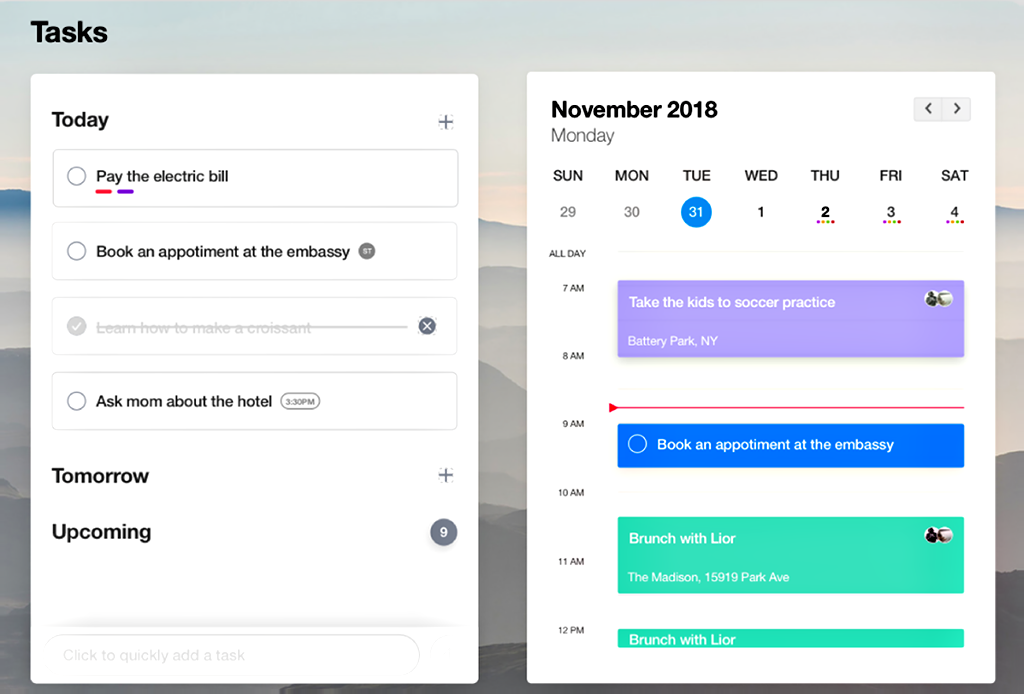
Any.do blends a reminder app with a calendar and shared lists, which makes it a solid pick for households or small groups coordinating errands, groceries, or family schedules together. Its daily planner view nudges you to review reminders each morning.
Ratings:
- Capterra: 4.7 / 5
- G2: 4.2 / 5
Key features:
- Recurring reminders: Set reminders for tasks that repeat.
- Shared tasks and lists: Coordinate tasks with other people.
- Calendar integration: View tasks alongside scheduled events.
- Daily planning: Organize tasks around your daily schedule.
- Cross-platform support: Available across web, iOS, Android, and other platforms.
Pros:
- Clean and straightforward interface.
- Useful for shared and family tasks.
- Combines tasks, reminders, and calendar features.
- Works across multiple devices.
Cons:
- Some advanced alert functionality requires a paid plan.
- May not be suitable for complex team project management.
Pricing:
- Free plan available.
- Premium starts at $4.99/month when billed annually.
Best for:
- Families and couples sharing tasks.
- Users who want reminders and calendar planning in one app.
- Small teams with relatively simple workflows.
8. Things 3
Source: https://culturedcode.com/things/
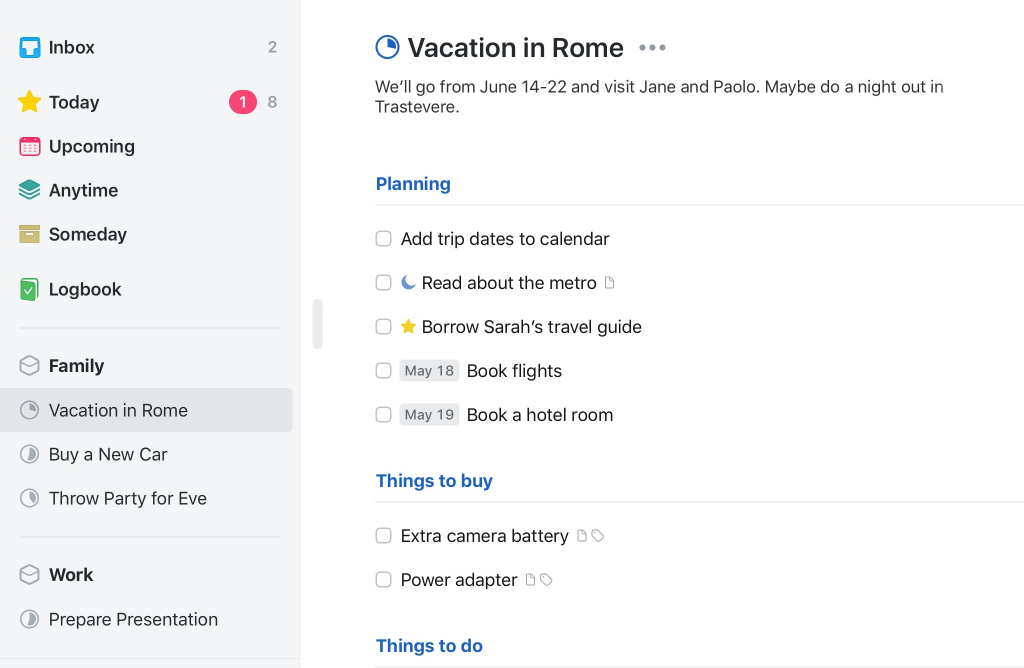
Things 3 is a beautifully designed task and reminder app built exclusively for Mac and iOS. A one-time purchase instead of a subscription appeals to people tired of recurring app fees, and updates are included indefinitely once you own the app.
Key features:
- Task reminders: Add reminders and deadlines to tasks.
- Today’s view: Focus on the tasks that need attention now.
- Projects and areas: Organize tasks into larger categories.
- Upcoming tasks: See what is coming up without manually checking multiple lists.
- Apple integration: Designed specifically for Apple’s ecosystem.
Pros:
- Clean, polished interface.
- No recurring subscription.
- Strong organization for personal tasks.
- Well suited to users who prefer a structured but uncluttered task manager.
Cons:
- Available only on Apple platforms.
- Requires separate purchases for different platforms.
- Not designed for team collaboration.
Pricing:
- One-time purchase ranging from $9.99 for iPhone to $49.99 for Mac.
Best for:
- Apple users who prefer a premium personal task manager.
- Users who want to avoid recurring subscriptions.
- People who prefer a clean and structured approach to personal productivity.
9. Remember The Milk
Source: https://www.rememberthemilk.com/
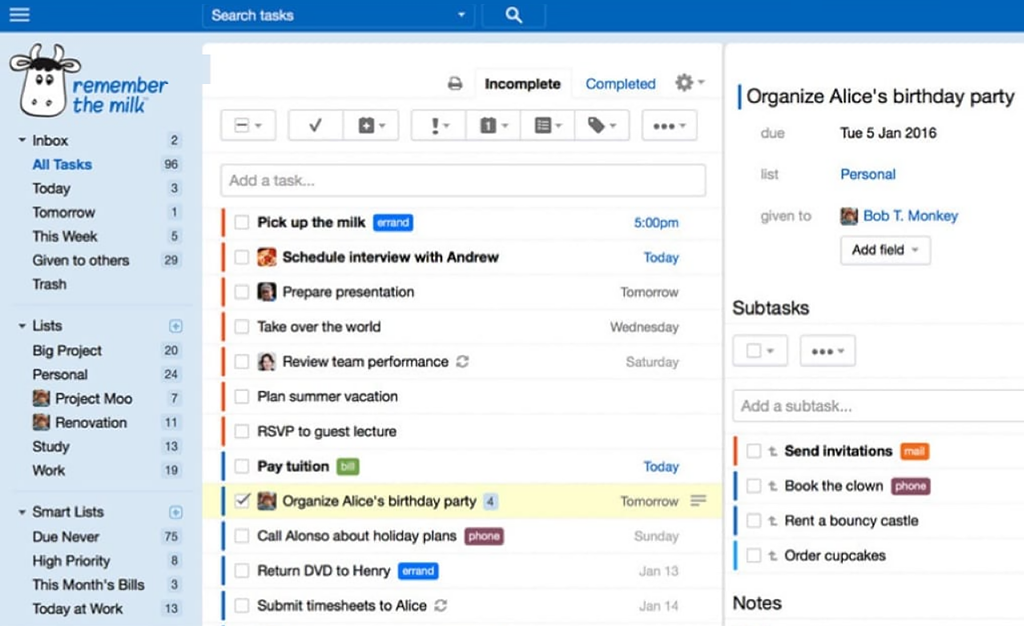
One of the longest-running reminder apps, Remember The Milk lets you add and manage reminders by email, messaging apps, or by asking Alexa, Siri, or Google Assistant — handy for people who live in their inbox rather than a dedicated app.
Ratings:
- G2: 4.4 / 5
Key features:
- Task alerts: Receive notifications when tasks are due.
- Recurring tasks: Schedule tasks that repeat.
- Task organization: Organize tasks into lists and categories.
- Multiple reminder channels: Use supported notification methods beyond the standard app experience.
- Cross-platform access: Manage tasks across web and mobile.
Pros:
- Long-established task and reminder workflow.
- Useful for recurring tasks.
- Supports multiple ways of receiving notifications.
- Available across web and mobile.
Cons:
- Reminders require the Pro plan.
- The interface may feel less modern than newer task-management apps.
Pricing:
- Free plan available, but reminders require Pro.
- Pro starts at $49.9/year.
Best for:
- Users who want flexible reminder delivery.
- People who rely heavily on recurring tasks.
- Users looking for an established reminder and task-management service.
10. Due
Source: https://www.dueapp.com/
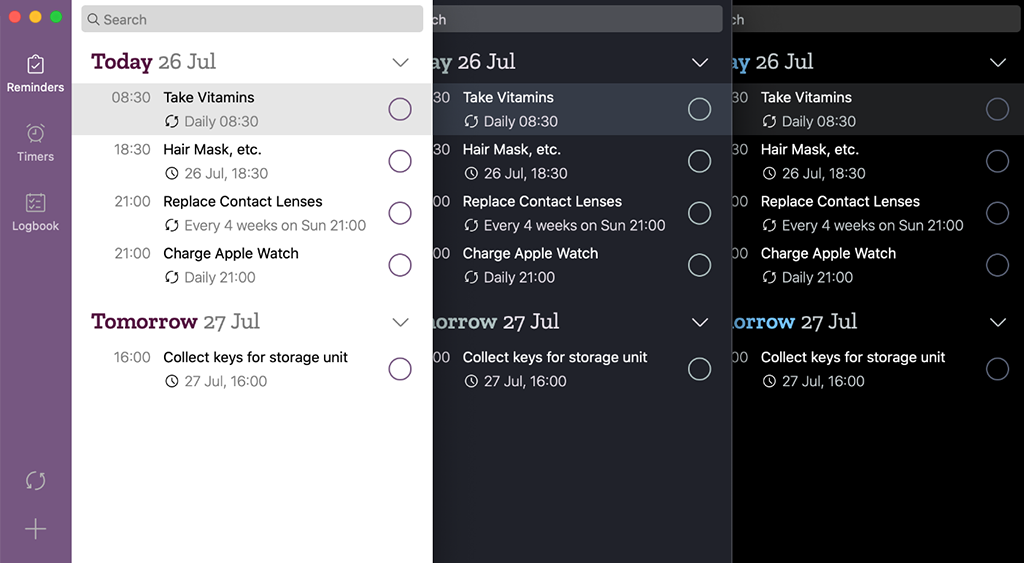
Due is built around one idea: reminders that keep nagging until you actually deal with them. For time-sensitive tasks, it’s one of the strongest app options for daily reminders on iOS, auto-snoozing and re-alerting at intervals you choose until you respond.
Ratings:
- App Store: 4.7 / 5
Key features:
- Persistent reminders: Continue reminding you until you take action.
- Repeating reminders: Set alerts to repeat automatically.
- Quick entry: Create reminders without building a complex task system.
- Focused reminder experience: Prioritizes notifications rather than broader project management.
Pros:
- Strong focus on persistent reminders.
- Useful for tasks that are easy to forget.
- Repeating alerts can help prevent missed follow-ups.
- Simple compared with full project-management platforms.
Cons:
- No free plan.
- Limited compared with full-featured task and project-management apps.
- Primarily suited to personal reminders.
Pricing:
- One-time purchase, from approximately $9.99 on iOS.
Best for:
- People who frequently dismiss or forget standard notifications.
- Users who need persistent, repeating reminders.
- Anyone who wants a dedicated reminder tool rather than a complete task manager.
Testing all ten side by side surfaced something worth knowing upfront: the app itself rarely causes a missed reminder. Every tool here delivers notifications reliably. What varies is what happens after the notification lands.
Some apps send one alert and move on, treating the reminder as done once it’s been shown. Others keep resurfacing it until it’s actually addressed.
Neither approach is universally better — a single alert works fine for a low-stakes task, while a persistent one matters more for something that genuinely can’t slip. Which one you need depends less on the app and more on what you’re actually trying not to forget.
Best Reminder App by Category
Not every reminder app fits neatly into a “best overall” ranking — the right pick often comes down to the one thing you need it to do. Here’s how the list breaks down by use case, so you can jump straight to the app built for your situation.
- Best for teams: Planfix — reminders tied to tasks, contacts, and workflows
- Best free app overall: Microsoft To Do / Google Tasks — no paywall on core reminders
- Best reminder application for Android: Google Tasks — pre-installed, syncs with Gmail and Calendar
- Best reminders application for Windows: Microsoft To Do — native Outlook integration
- Best for daily personal reminders: TickTick / Due — habit tracking or persistent nagging alerts
- Best no-frills built-in option: Apple Reminders — fast, free, Siri-friendly
- Best for shared family use: Any.do — calendar, grocery lists, and shared projects in one view
- Best one-time purchase: Things 3 — no subscription, Apple-only
The list splits into two clear groups: lightweight personal reminder programs and platforms designed to keep work visible across a team. For teams already tracking clients and deals, notification tools tend to work best when they’re built into a broader CRM for small business rather than living in a separate app.
How to Choose the Right Reminder App
Start with who needs to see the reminder. If it’s just you, a free built-in app like Apple Reminders or Google Tasks is usually enough. If reminders need to reach a teammate, a client, or a recurring business process, a personal app will start to show cracks fast.
Consider platform support next — Apple-only tools won’t help a mixed-device team. Then compare free versus paid plans based on the features you’ll actually use.
If your reminders are really about tracking work rather than personal errands, look for a system where reminders stay connected to tasks, deadlines, and ownership. Small teams outgrowing sticky notes and shared docs often find that task management for small teams solves this more permanently than a standalone reminder app ever could.
Where This Leaves You
A good reminder app solves the “did I forget?” problem for one person. Teams eventually run into a different problem: digital planner programs that only live on one phone don’t help anyone else. Once reminders are about deadlines, clients, or handoffs between people, they work better when they’re connected to the task itself.
The right tool depends on that distinction. For personal errands, a simple free scheduling app may be all you need. For shared work, reminders need context, ownership, and a clear connection to the work that follows.
If you’re choosing an app for a team, platform support is only one consideration. You may also need to know whether reminders can be assigned to other people and stay connected to the underlying task — something a work-management platform such as Planfix is designed to handle.
FAQ
What features should I look for in a reminder app?
The most useful apps make it easy to capture a task, choose when you need to be reminded, and reliably deliver the notification. Depending on your needs, look for recurring planners, cross-device sync, multiple notification options, natural-language input, location-based reminders, and task sharing or assignment.
Can reminder apps help with recurring tasks?
Yes. Most modern calendar management apps support recurring tasks, but their flexibility varies. Simple apps may handle schedules such as daily, weekly, or monthly reminders, while more advanced tools support custom recurrence patterns.
Recurring reminders are particularly useful for routine work, follow-ups, maintenance tasks, bill payments, habits, and other actions that need to happen repeatedly.
Can planner apps be used for team tasks?
Yes, but not every reminder app is designed for team workflows. Shared lists can be enough for simple family tasks, shopping lists, or small group projects. For more structured work, you may want features such as task assignment, deadlines, recurring workflows, notifications, and collaboration.
Planfix is designed for this type of use case, allowing reminders to be tied to assigned work and notifying the people responsible for a task — including keeping client and deal records connected to your workflow rather than tracking them separately.
When should I use a reminder app instead of a calendar?
Use a calendar when the exact time of an event matters, such as a meeting, appointment, or scheduled call. Use a planner program when you need to remember an action, especially when the task doesn’t have a fixed time.
Is there a planner app that works across Windows, Android, and iPhone?
Yes. Todoist, TickTick, and Microsoft To Do all support the major desktop and mobile platforms, making them practical choices for people who switch between Windows, Android, iPhone, or Mac.