How to Make a Task Repeat in Planfix and Stop It
To make a task repeat in Planfix, you don’t rebuild it every cycle: you set the recurrence once, and Planfix creates the next task on the date you chose. Recurring tasks in Planfix move routine work out of your memory and into a rule — a daily bank statement check, a bi-weekly review of receivables, even a call to a favorite client on their birthday. This two-minute beginner video walks through the whole mechanism, from the circular-arrows icon to stopping the repetition.
What you’ll learn: how to make a task repeat in Planfix
- Open the recurrence settings with the circular-arrows icon while creating a task.
- Choose the interval and the day of the week or month the task comes back on.
- Find the recurrence template Planfix generates for the task.
- See how each automatically created task reaches its assignee.
- Change the schedule or stop the repetition from the task itself.
How to make a task repeat in Planfix, step by step
Step 1. Open the recurrence settings
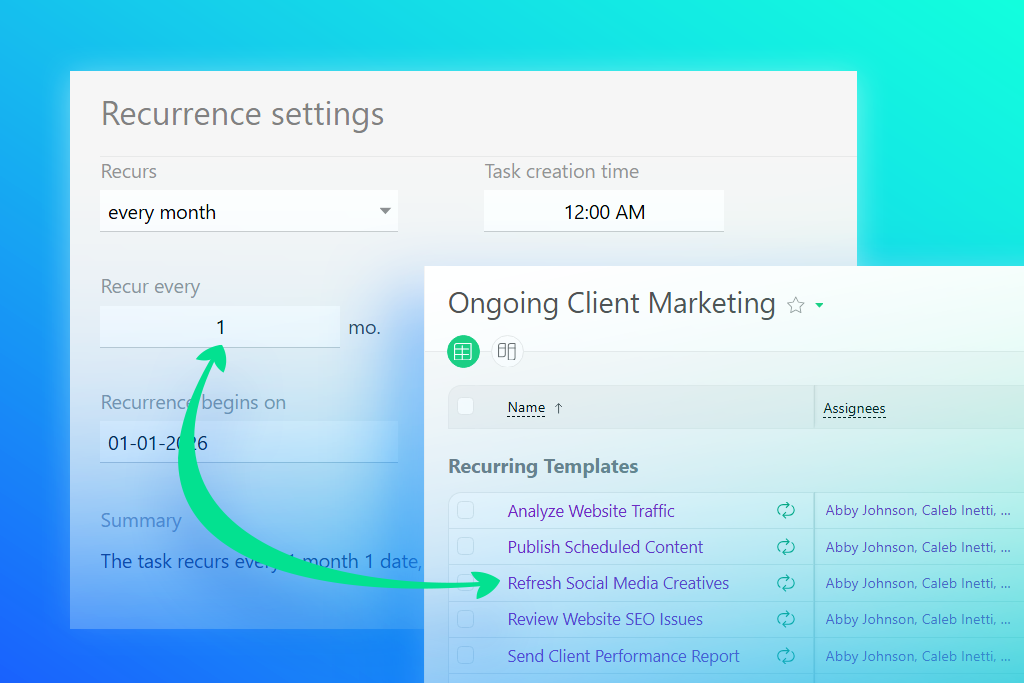
While creating or editing a task, click the icon with the circular arrows. A window opens where you set the condition for creating the task. There is no separate kind of task to learn here: any regular task becomes a periodic one this way. The Help Center article on recurring tasks shows the same window in screenshots.
Step 2. Set the interval and the day
Pick the interval you need and the matching day of the week or month. Rules can be quite specific — in the video, the task repeats every second Thursday of the third month. Remember what this window does: it defines only when the next task is created. Duration and end date are set in the recurrence template, exactly as in a standard task template.
Step 3. Save the task and get a recurrence template
Once the recurrence parameters are saved and the task is created, a recurrence template for it appears in the Tasks / Recurring section. Every later copy of the task is built from that template, so its name, assignee, duration, end date, checklist and files carry over without you touching them again.
Step 4. Let Planfix create and assign each task
When the recurrence date arrives, Planfix creates the task from the template and hands it to the people you specified. The assignee is notified: the task appears in their activity feed and through their other notification channels, and it is completed and closed like any other task. New copies keep arriving until the recurrence period ends, after which the template moves to the recycle bin.
Step 5. Change the schedule or stop the repetition
A repeating task carries the same circular-arrows icon to the left of its name. Click it to see how the task repeats, the date of the next occurrence and a link to its recurrence template. From there you can change the settings, turn off the limit or stop the repetition in a single click. Tasks that already exist stay where they are.
What the recurrence template stores
The recurrence template is a task template with a schedule attached. It holds what every future task inherits — duration, end date, checklist, files — while the recurrence window holds only the date rule. The split is worth remembering: when the work changes and next month’s task needs three days instead of one, edit the template, not the schedule. If an account collects a lot of templates over time, template filters keep the Recurring list readable.
Example from the video: maintenance that comes back on its own
The video follows a team that keeps technological cards for production line maintenance in Planfix, with every maintenance operation as a separate task. Those operations have to return at fixed intervals, so each one gets a recurrence rule instead of a place in someone’s memory — in the example, every second Thursday of the third month. Nobody rebuilds the list before the next round of maintenance: the tasks appear on their own date, already assigned.
Who it’s for
A task is worth repeating whenever the work follows a calendar instead of a request:
- Accounting and finance: a bank statement check every day and a review of receivables every two weeks.
- Sales and account managers: a birthday call to a long-standing client, so a deal is not the only reason to get in touch.
- Maintenance and operations: scheduled service for each piece of equipment, each with its own interval.
- Office and admin teams: routines that run every other week on Tuesdays and Thursdays.
- Anyone invoicing on a schedule: one task per billing cycle, for example on the last day of every month.
FAQ
How do I stop a recurring task in Planfix?
Click the circular-arrows icon to the left of the task name, open the recurrence settings and stop the repetition in one click. You can also change the rule or turn off the limit there; tasks that have already been created keep their data.
Where do I find the recurrence template of a task?
In the Tasks / Recurring section, or through the link in the recurrence window of the task itself. The template keeps the parameters of all future tasks, so edit it when the work changes rather than the date.
What is the difference between a recurring task and a recurring reminder?
A recurring task is created again on schedule and has to be completed by its assignee. A recurring reminder is set up inside one task and only sends a notification when it fires.
Start with one routine task
Pick one check, report or invoice your team repeats on a fixed date and give it a recurrence rule instead of a place in someone’s memory. It is the shortest piece of online task management to automate, and it clears your head for the work that actually needs thinking. If you want the scheduling side in more depth — rules like the first business day of the month and the workload they create — see how to schedule recurring tasks. New to Planfix? Sign up to try it.