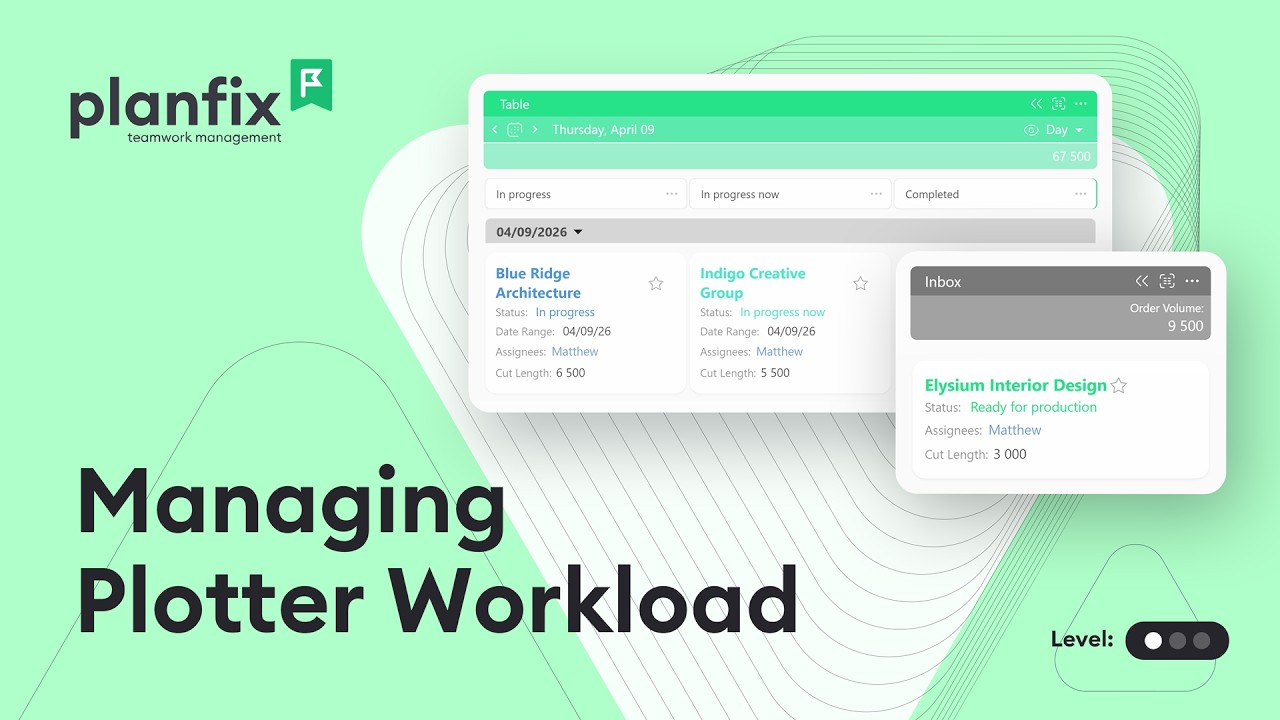
Team Workload Management in the Planfix Planner
Team workload management breaks down when one person is buried in tasks, another waits for work, and you learn about it from a missed deadline. In the Planfix planner, you can give each employee’s tasks their own list on one screen, and dragging a task between lists changes its assignee or status. This three-minute video shows how to organize the team’s current work this way, without collecting reports by hand.
What you’ll learn: how to manage team workload in the Planfix planner
- Build planner lists with flexible filters to control employee workload and task distribution (0:06).
- Create tasks in short or full form directly in the right planner list (0:51).
- Change a task’s status in the planner and see the data update across the whole system (1:40).
- Use grouping and bulk list settings to fit the planner to your team’s processes.
How to set up a team workload planner in Planfix, step by step
Step 1. Create a planner with a list for each employee
Open the Planner tab. At the bottom of the panel with the list of planners, click the Add icon, select Planner and name it. Then set up a planner list for each employee: in the list’s selection parameters, add a condition on Assignee, so the list shows only that person’s tasks.
Conditions are joined with AND by default, so you can add a second one, for example, by project, to see one person’s load on a single project.
Step 2. Create tasks right where they belong
In short or full form, you can create a task right in the planner list where it belongs. For a short-form task, type a name in the list’s creation field and press Enter. The new task takes on the list’s selection parameters, so a task created in an employee’s list is assigned to them from the start.
Step 3. Drag and drop tasks to rebalance the load
When one list gets too long, use drag and drop: drag a task to another list to change its status or assignee. A moved task takes on the new list’s selection parameters: drag it from an “In progress” list to a “Ready for review” list, and its status changes to Ready for review. The task itself changes, so the new status shows up across Planfix.
Step 4. Group tasks by status and sync list filters
In a list’s selection parameters, the Grouping block splits tasks into groups, for example, by status. Drop a task into a group, and it takes that group’s value, such as its status. Turn on the Show totals section setting to see the number of tasks under each list heading, a quick way to compare workloads without a report.
To adjust all lists at once, synchronize planner lists: click the planner name to turn on synchronization. Changes to the filter conditions, or to the fields and operations shown on task cards, in one list then apply to the others. Condition values sync too, so set each employee’s Assignee condition before you turn sync on, or keep those lists out of sync with the Lock icon. Sorting, grouping, filter logic and colors don’t sync.
Example: moving work from one employee to another
Here is how it works in practice (the example is from the Planfix Help Center). Take two lists, “Max’s tasks” and “Alex’s tasks.” Drag a task from the first list to the second, and the assignee switches from Max to Alex. Now picture both lists grouped by status, with totals turned on. If the total under Max’s list is higher, drag one of his tasks into a status group in Alex’s list, and both the assignee and the status change. Nobody edits the task by hand or reports the change.
Who a workload planner is for
- Team leads: a list per employee shows who is overloaded and who has room, and one drag reassigns a task.
- Department heads: tasks moved to a department’s list pick up its settings, such as adding the department’s designers as assignees.
- Operations managers: totals under each list show how many tasks each person has, with no report to collect.
Team workload management: FAQ
How do I see each employee’s tasks in one place?
Create a planner with a list for each employee, filtered by Assignee. All lists sit on one screen, and a task that meets the conditions of several lists appears in each without duplicates.
Does moving a task to another employee’s list reassign it?
Yes, if the list selects tasks by Assignee. A moved task takes on the new list’s selection parameters, so the assignee is replaced; hold Ctrl while you drag to add the person instead. The same works for a list that selects or groups tasks by status.
Can my team see the workload planner?
By default, only the planner’s creator can open it. To share it, click the planner name and set access for coworkers. Access to a planner doesn’t grant access to tasks, so users may see different tasks in the same planner.
Build your workload planner
Start with one list per person and a condition on the assignee, then add grouping and totals. Once the lists are in place, the planner shows the team’s current work without anyone collecting reports. When lists get long, learn how to find any task in the planner. New to Planfix? Sign up to try it.
This video was featured in What’s New in Planfix: June 2026.