Hidden Planfix Planner Features: Edit Tasks Faster
The hidden features of the Planfix planner are the small moves that take clicks out of your day: a menu of operations on the card itself, parameters that change when you drag a card to another column, and a calendar you can drop work into. If your team already uses the Planfix planner to visualize tasks, these four tools remove most of the routine around keeping them up to date. This 84-second video shows all four.
What you’ll learn: hidden features of the Planfix planner
- Edit a task from its card with the operations panel: add a reminder or comment, change the date, complete the task (0:06).
- Change a task’s status or assignee by moving its card to another column (0:20).
- Plan work time by dragging a task into a calendar (0:37).
- See sent and upcoming reminders in the reminder calendar (0:47).
How to use the hidden planner features in Planfix, step by step
Step 1. Edit a task from the operations panel
In most planner list types you can choose what a card shows and which operations it offers. The menu of operations appears either as icons at the bottom of the card — the operations panel — or, when that panel is disabled, as a drop-down behind the three dots in the card’s upper right-hand corner. That drop-down is the hidden menu from the video.
From either one you can add a reminder or a comment, change the date or complete the task without opening it. Choose which operations to show in the list settings, together with card display settings in a planner. Contact cards work the same way.
Step 2. Change status or assignee by moving a card
Planner columns are built from selection parameters, and the rule is simple: a task that moves to another list acquires the parameters by which tasks are selected there. Drag a card from a column with the condition Task status = In progress into one with Task status = Ready for review, and the status changes with the card — which is what makes agile boards in Planfix work.
A column can set several parameters at once: move a card from Status = Inspection, Assignee = John Newton to Status = Selecting replacement car, Assignee = Mary Goodman, and one drag passes the task to the next stage and the next person. One detail worth knowing, from the Help Center article on moving tasks between planner lists: hold Ctrl while dragging and Planfix adds to fields that accept several values, so the task keeps John and gains Mary.
Step 3. Plan work time in a calendar
Add a calendar list next to your task lists, then drag a task into the day or hour when you plan to deal with it. Moving a task inside the task calendar changes its planned completion date, so building a work schedule is a matter of dropping cards into slots; once the deadline lands on the current date, the task is no longer overdue and returns to its normal color.
The hourly calendar displays data tags that contain a time period, such as the standard Planned and Actual working time tags; its Task dates option shows tasks themselves by start and due time, though tasks longer than a day are not shown.
Step 4. Add a reminder and find it in the reminder calendar
Reminders draw your attention to the right task or contact at the right moment. Open the interface for adding reminders with the bell icon while you create a task or write a comment, and choose the recipients — employees or external users — the text and the time. Planfix then notifies you through the channel you chose, with a link to the task. More in the Help Center article on reminders in Planfix and on the reminders feature page.
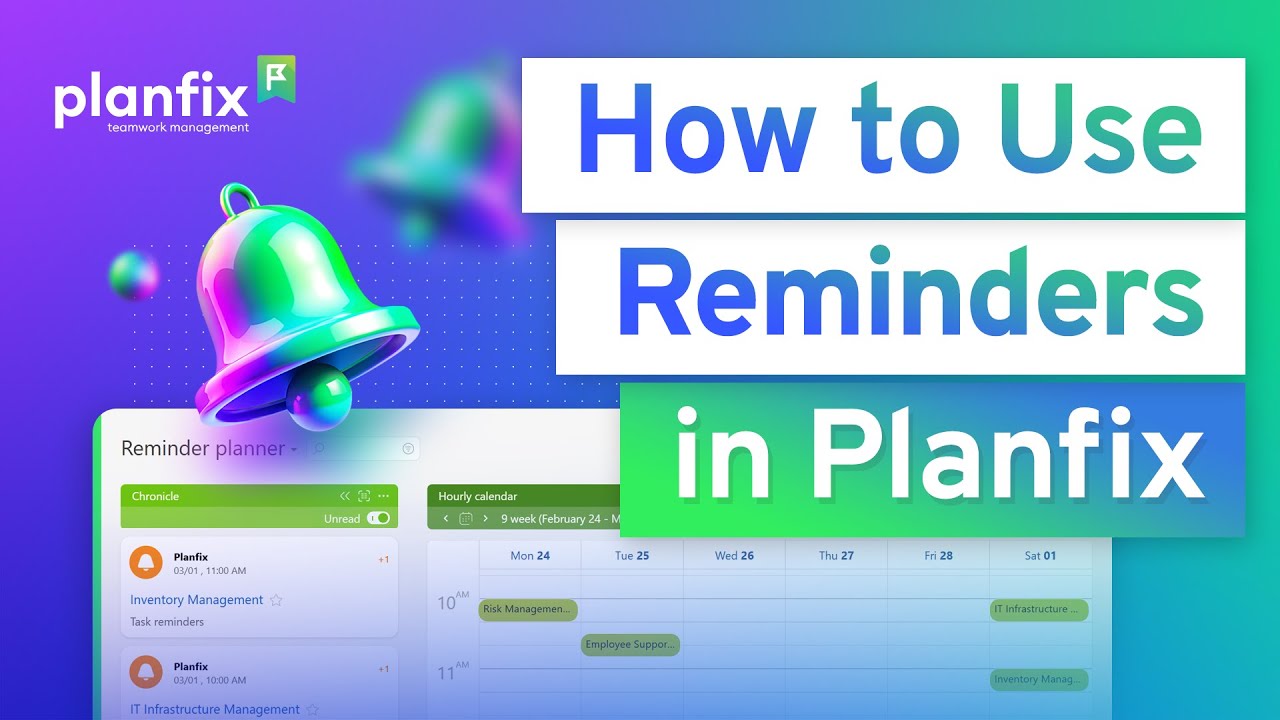
To see them all in one place, open the reminder calendar: a special case of the hourly calendar where reminders appear along with or in place of data tags, both already sent and still upcoming. Switch their display on in the list settings.
Checking task progress without chasing it
The video’s example is intermediate monitoring. When you assign a task or write a comment, add a reminder for the date you next plan to check on it. The notification reaches you in the Chronicle, where reminders appear as unread events. Check the status, set the next reminder, and the calendar shows the chain of checkpoints ahead.
Who it’s for
- Team leads: hand work over by moving a card between stage columns — status and assignee change in one drag.
- Support teams: comment on or close requests from the card, without opening each one.
- Sales: act on a client card the same way and add a reminder for the next call.
- Anyone planning a week: drop tasks into calendar slots instead of editing dates field by field.
FAQ
Can I change a task status without opening the task?
Yes. Move its card to a column whose selection parameters set that status: the task acquires the parameters of the list it lands in. The card’s operations menu can change the status too.
Where is the operations panel on a Planfix card?
It is the row of icons at the bottom of the card. When the panel is disabled, the same menu opens from the three dots in the card’s corner.
How do I see all my reminders in one place?
Use the reminder calendar, a special case of the hourly calendar. Turn reminder display on in the list settings to see reminders already sent and still upcoming.
Start with one card
Pick the action your team repeats most often, add it to the operations panel of your busiest list, and give one column a second selection parameter so a drag also passes the task on. If forgotten tasks are the bigger problem, start with reminders instead, as in how to stop forgetting tasks. New to Planfix? Sign up to try it.