How to Create a Telegram Bot?

With over 1 billion Telegram users, the app is one of the most powerful channels for business communication. But here’s what we’ve experienced firsthand: knowing how to create a Telegram bot is the easy part. Making it actually useful for your team is where most people get stuck.
Standing out from a flood of manual replies takes more than posting a few automated messages every now and then. You need a bot that’s configured correctly from the start, and a plan for everything it collects once real conversations start coming in. Don’t worry, we’re here to help.
Creating a Telegram bot starts with BotFather, Telegram’s official tool for building and managing assistants. Within a few minutes, anyone can have a working system connected to their account, no coding required for this part.
Let’s walk through the process step by step, and then look at what happens once messages start piling up: how do you turn a working bot into an actual business tool?
What Is a Telegram Bot?
A Telegram bot is an automated account that can receive messages, respond to users, and perform actions through the Bot API.
A bot is not the same as a regular Telegram account. It doesn’t have a person behind it typing replies. Instead, it runs on automated commands and API connections that decide what to say and when to say it. Users interact with a bot through text messages, buttons, and slash commands, and the bot responds instantly, every time, without getting tired of repeating itself.
That makes bots useful for repetitive tasks. A company can use it to:
- Answer frequently asked questions
- Collect customer requests
- Send order updates
- Notify employees about important events
We’ve seen teams set up digital assistants to handle exactly this kind of repetitive communication, freeing up staff for the requests that actually need a human. A Telegram bot handles the communication itself, but teams still need somewhere to send the information the system collects, so it doesn’t just disappear into a chat log.
7 Steps to Make a Telegram Bot via BotFather
Building a bot doesn’t require writing a single line of code at this stage. Everything starts inside Telegram itself, through a conversation with BotFather.
Step 1: Open Telegram and Find BotFather
BotFather is Telegram’s official bot management tool, and every Telegram bot on the platform starts here. To use it, you’ll need an active Telegram account on your phone or desktop app.
Open Telegram and search for @BotFather in the search bar. Look for the account with the blue verification checkmark – this confirms it’s the official Telegram BotFather, not an imitation. Tap the account and start the conversation by pressing “Start.”
Step 2: Create a New Bot With the /newbot Command
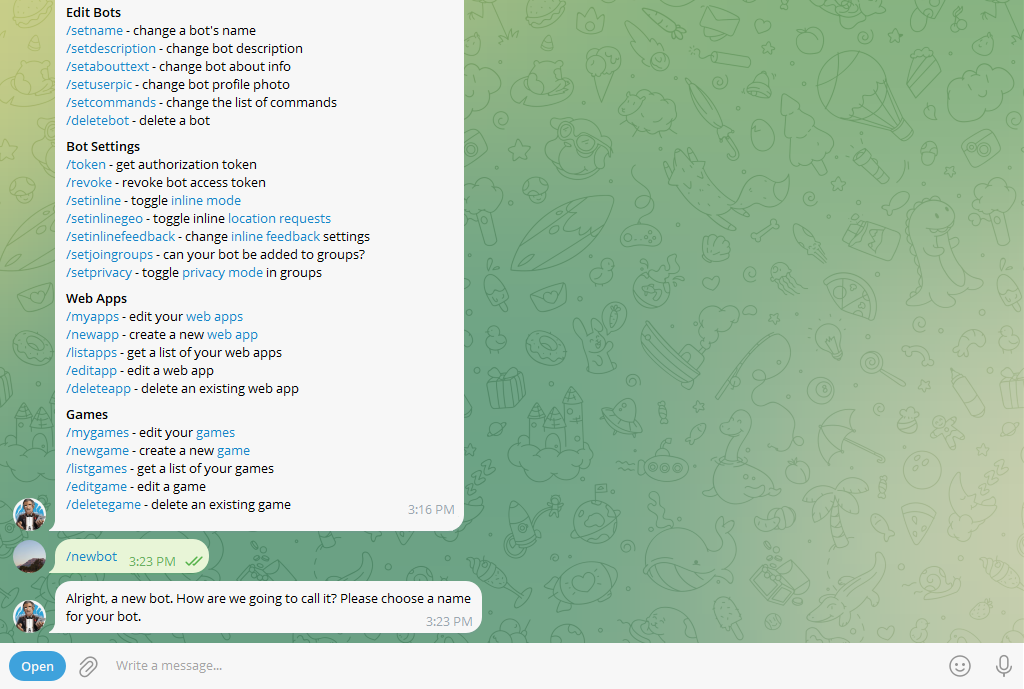
Once the chat with BotFather opens, type /newbot and send it. BotFather will ask for two things: a display name and a username.
The tool name is what users see in their chat list, so it can be anything – for example, “Customer Support Assistant.” The username is different. It’s the unique identifier people use to find your bot, and it must end with “bot” or “Bot,” such as CustomerSupportBot.
BotFather checks the username against every other bot on Telegram, so you may need to try a few variations before one is available.
Step 3: Get Your Bot Token and Keep It Secure
This step matters most if you want to properly create a Telegram bot that’s safe to use. Once BotFather confirms your solution, it sends back an API token – a long string of letters and numbers.
This token connects your tool to Telegram’s servers and lets any application you build control the system’s behavior. Anyone who has the token can control the bot, so it should never be shared publicly or posted in a public repository or chat.
If you plan to make your bot private, this token is the first thing to protect. Security for a system starts with protecting its access credentials, not with any setting inside Telegram’s menus.
Step 4: Customize Your Bot Settings
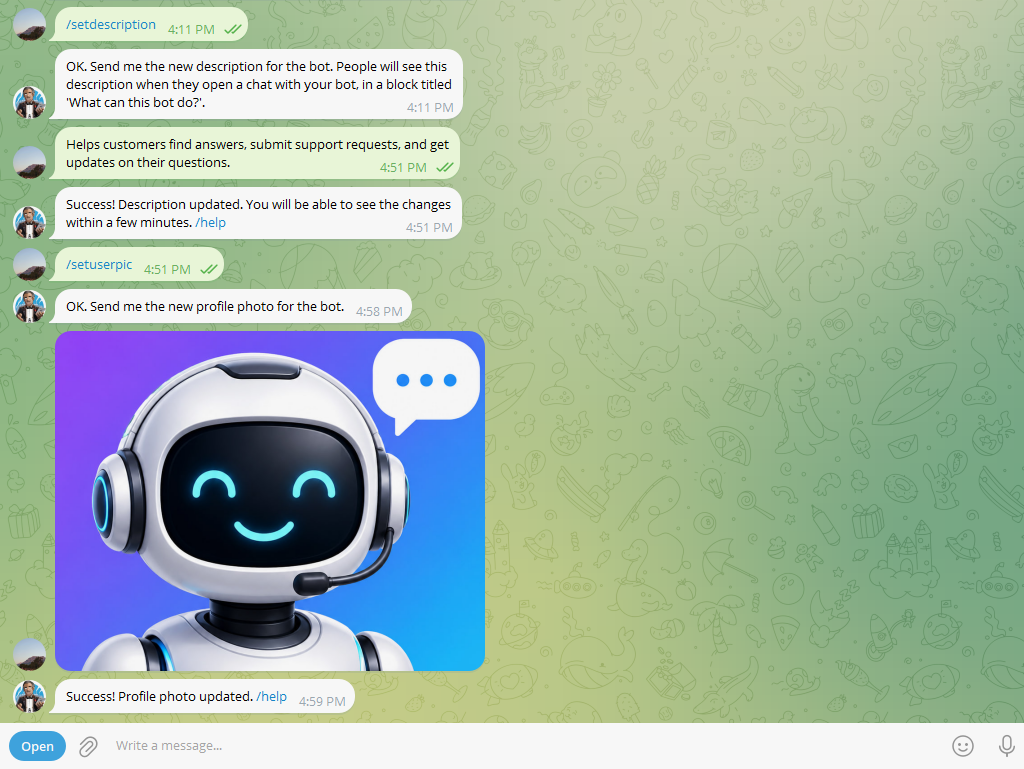
A bot with no description or profile picture looks unfinished to the people messaging it. BotFather lets you update several details directly from the same chat.
Useful commands include:
| Command | What It Does | When to Use It |
| /newbot | Creates a new bot | Starting from scratch |
| /setdescription | Sets the description shown before a chat starts | Right after creation |
| /setabouttext | Sets the bio shown on the bot’s profile | Customization step |
| /setuserpic | Sets the assistant’s profile picture | Customization step |
| /setcommands | Defines the command list shown to users | Before launch |
| /token | Regenerates the bot’s API token | If the token is compromised |
| /deletebot | Deletes a bot permanently | Retiring a bot |
A clear description helps users understand what the bot does before they even send a message, which reduces confusion and unnecessary questions later.
Step 5: Create a Telegram Bot Without Coding
At this point, the bot exists, but it doesn’t do anything on its own yet. There are two paths forward.
The coding approach means using the Telegram Bot API directly, along with a programming language and a library that handles the technical connection. This gives full control over the bot’s logic, but it requires development time and ongoing maintenance.
The no-code approach means connecting the bot to an automation tool instead of writing code. This is often the faster route to create a Telegram bot without coding, and it’s usually enough for business use cases like:
- Creating tasks automatically from incoming messages
- Sending notifications to the right team member
- Assigning requests based on simple rules
- Updating customer records without manual entry
No-code solutions matter most when the real goal isn’t just having a bot – it’s automating what happens after someone messages it. Many of these workflows are just automating recurring tasks that used to require someone to remember and repeat them manually.
Step 6: Test Your Bot
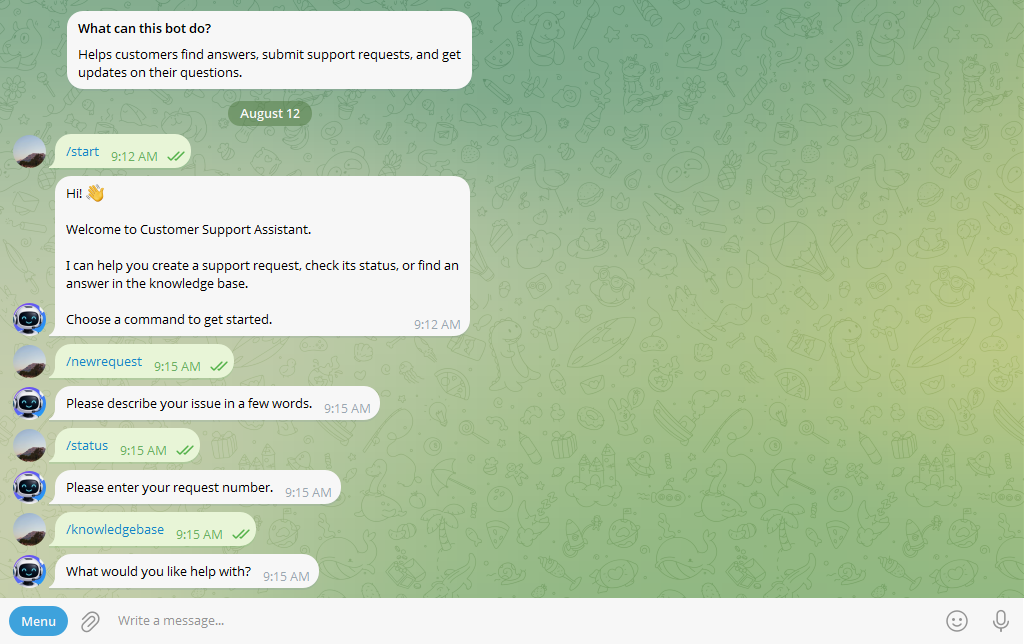
Before rolling a bot out to real customers or employees, test it the way an actual user would. Send it the commands you’ve set up. Check that automated replies appear correctly and that notifications reach the right chat.
Testing usually surfaces small gaps – a missing response, a command that doesn’t trigger anything, or a message that reads oddly out of context. It’s easier to fix these before people start relying on the bot daily.
Step 7: Connect Your Tool to Business Workflows
Creating such a solution solves the communication problem. It doesn’t solve what happens next.
Picture a typical flow: a customer sends a message, the automation tool collects some basic information, a team member gets notified, a task gets created, and someone follows up. Each of those steps after the message arrives has to happen somewhere – and a bot on its own doesn’t manage tasks, track follow-ups, or show a manager what’s still pending.
This is where business automation platforms become useful, turning a single conversation into a tracked, assignable process – the same job that project management software does for tasks that come from other channels.
How to Connect a Telegram Bot to Planfix
Once you’ve created your Telegram bot with BotFather, you can connect it to Planfix through the Telegram CRM integration. This links incoming Telegram messages to your Planfix workspace, where they can be processed as tasks and handled by your team.
Setting up the bot in Planfix:
1. Sign in to Planfix and open the Telegram integration section.
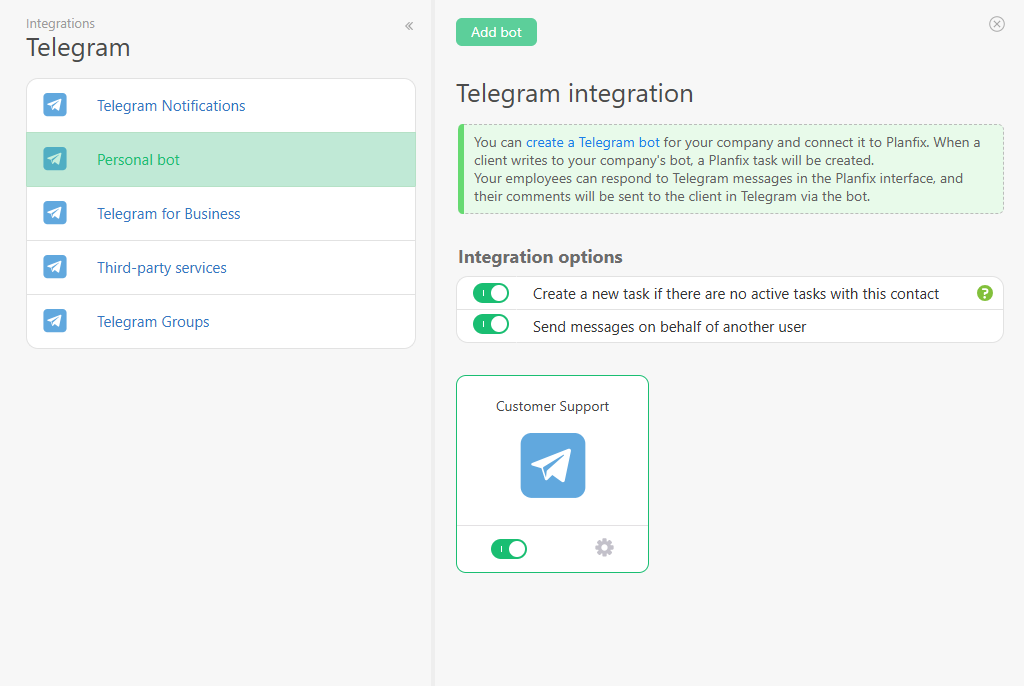
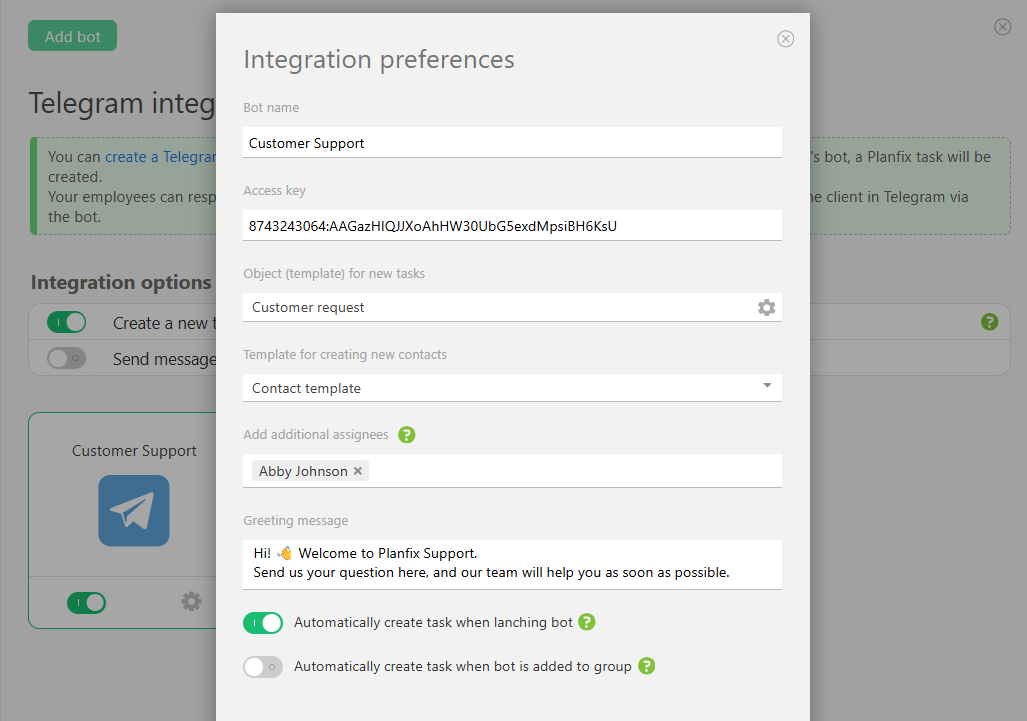
2. Add your Telegram bot to Planfix by entering the bot details and API token you received from BotFather.
3. Choose how tasks get created, including whether a new task should only be created if there’s no active conversation already open with that contact, so the same request doesn’t generate duplicates.
4. Set a default assignee for incoming requests, so every conversation has someone responsible from the moment it arrives.
What happens once it’s live:
Once connected, the bot becomes the face of your company on Telegram. A customer messages the bot, Planfix creates a profile for that contact along with a task for handling the request, and the assigned employee responds directly from Planfix. The customer never leaves the Telegram chat – on their end, they’re just talking to your company bot the whole time.
Why teams use this instead of a personal bot:
- If the employee handling a conversation goes on vacation or leaves the company, a coworker can pick it up without the customer noticing anything changed.
- The bot belongs to the company account, not an individual. Someone who leaves the team can’t take the conversation history or redirect future messages to a personal account.
- Managers get reports on who handled which requests, how many came in, and where responses slowed down.
One thing worth knowing before you start: full two-way integration, meaning the company bot that handles customer conversations, is available on Planfix’s paid and premium plans. Free accounts can still set up Planfix notifications in Telegram, alerting employees about new tasks or comments, without the full customer-facing bot setup.
How to Build a Telegram Bot for Business Automation
Once the basic system is running, the real value comes from how a business puts it to work. Here’s how teams typically use Telegram bots once they understand how to build a Telegram bot that fits into daily operations.
Customer Support Automation
A support assistant can answer common questions instantly, collect the details of a support request, and give customers initial information – like order status or business hours – before a human ever gets involved.
Sales Lead Collection
A bot can collect what a potential customer needs, their contact details, and the service they’re asking about. We’ve noticed that sales teams often collect this information successfully but then struggle to manage it – a bot deposits leads into a chat, and it’s easy for a request to get buried under the next ten messages. Feeding these leads into a proper CRM strategy is usually what turns an assistant from a lead-catcher into a real sales tool.
Employee Notifications
Bots can push task updates, reminders, and alerts straight to the people who need them, cutting down on manual status-check messages between managers and staff. Teams running sprints often pair this kind of notification with agile tools for project management so updates land next to the task board, not just in a chat.
Internal Communication Teams
It can automate routine internal messages, including status updates, approval requests, and workflow notifications, so people aren’t manually pinging each other for the same recurring updates. Some teams pair Telegram with email integration so nothing internal depends on a single channel.
The Bottom Line
Once people start sending messages, businesses need a way to organize requests, assign tasks, track follow-ups, and keep conversations from getting lost.
A well-built digital assistant works best when it becomes part of a larger workflow. Instead of managing messages manually, teams can connect Telegram with their existing tools and automate what happens after every conversation.
If your team is ready to move beyond a simple bot and build a more organized communication process, explore how Planfix can help turn Telegram messages into automated, trackable workflows.
FAQ
Do I need to know how to code to create a Telegram bot?
No. BotFather handles bot creation entirely through chat commands, so no programming is required at this stage. Coding only becomes relevant later, if you want the bot to run custom logic beyond what BotFather and no-code tools no-code tools can configure.
Is creating a Telegram bot free?
Yes. BotFather and the Telegram Bot API don’t charge anything for creating or running a basic bot. Costs only appear if you host custom bot logic on your own server or connect the bot through a paid automation or business platform.
If I don’t set a default assignee in Planfix, who handles an incoming request?
Planfix falls back to the account owner or the employee who originally set up the integration. This means requests are never left unassigned, even if a specific routing rule hasn’t been configured yet.
Can Planfix connect Telegram groups and channels, or only one-on-one bot chats?
Planfix supports syncing Telegram groups and channels in addition to direct bot conversations. That matters for teams working with a client’s group chat, where several specialists on both sides need visibility into the same thread.
Is Planfix’s Telegram bot only useful for customer support, or can other departments use it too?
The same bot setup can support sales, ordering, and internal request handling, not just support tickets. Since every incoming message becomes a task tied to a contact, teams can route requests into whichever workflow fits – a sales pipeline, an order queue, or a support ticket, without setting up a separate bot for each.
We already have a Telegram bot. Can we connect it through Planfix instead of creating a new one?
Planfix’s guided setup is built around creating the company bot directly as part of the connection process. If you already have a bot in use elsewhere, check with Planfix support before starting, since connecting an existing bot may need a different setup path than the one described above.