Basic Planfix actions
This article covers the essential actions you need to get started with Planfix: find your tasks, accept a new task, discuss it with colleagues, and report when it is complete.
Before you begin, note that the buttons, statuses, and menu sections in your account may differ because they are configured by your administrator.
Where to find your tasks
The main sections are in the main menu on the left.
- Planner — tasks displayed on one screen in lists and a calendar. Use it to plan your day and distribute tasks.
- Tasks — all tasks in the account, organized by filters. The standard filter groups are:
- Inbox — tasks assigned to you
- Outbox — tasks you assigned
- Audited — tasks where you are an Auditor.
- Within each group, tasks are divided by status: New, In progress, Completed, and others.
- Projects — tasks grouped by project.
Planfix keeps you up to date on activity in your tasks in the Chronicle: new tasks, comments, and status changes appear there.
Accepting a task
A task assigned to you arrives with the status "New." Until you accept it, the Assigner can see that work has not started:
- Open the task from the Chronicle or from the "Inbox" — "New" filter in the "Tasks" section.
- Click the "Accept" button in the top bar of the task card.
A task's status will change to "In progress." If you cannot take the task, click "Reject" and explain why in a comment.
If you assigned a task to yourself, you do not need to accept it: its status is immediately set to "In progress."
Discussing a task
All discussion about a task takes place in its card as comments. This keeps the work history in one place and makes it available to all participants:
- Open the task and click the "Add a comment" field at the bottom of the card.
- Write your message.
- In the row above the field, select the employees who should be notified. Use the "Employees" menu to "Select everyone in the task," "Select a group…," or "Clear selection for all employees."
- Click the send button.
Important: only the people you select will be notified. If you do not select anyone, Planfix will warn you before sending.
To keep a comment from being visible to all task participants, send hidden (private) comments.
Replying by email
If you receive notifications by email, you can simply reply to an email from Planfix. Your reply will be added to the task as a new comment, and any files attached to the email will be uploaded to Planfix.
What else you can add to a comment
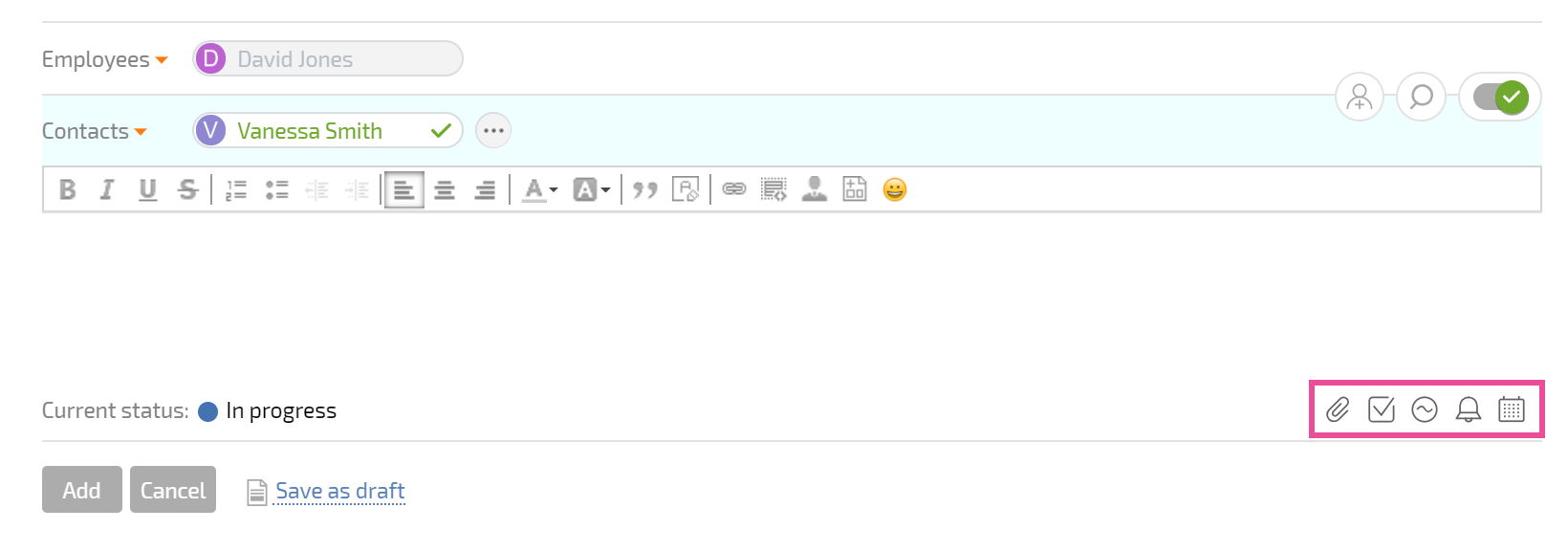
There is a toolbar below the comment field with these buttons:
| Button | What it does |
|---|---|
| Add (plus sign) | Adds a Reminder, a Data tag, or a Checklist item to the comment |
| File (paper clip) | Attaches a file to the comment |
| Status (colored circle) | Changes the task status when you send the comment |
| More options (three dots) | Opens other comment options |



Reporting that a task is complete
When the work is done, let the Assigner know by changing the task status to "Completed." There are two ways to do this:
- With a comment — if you need to describe the result:
- Click the "Add a comment" field and describe what you did. Attach files if needed.
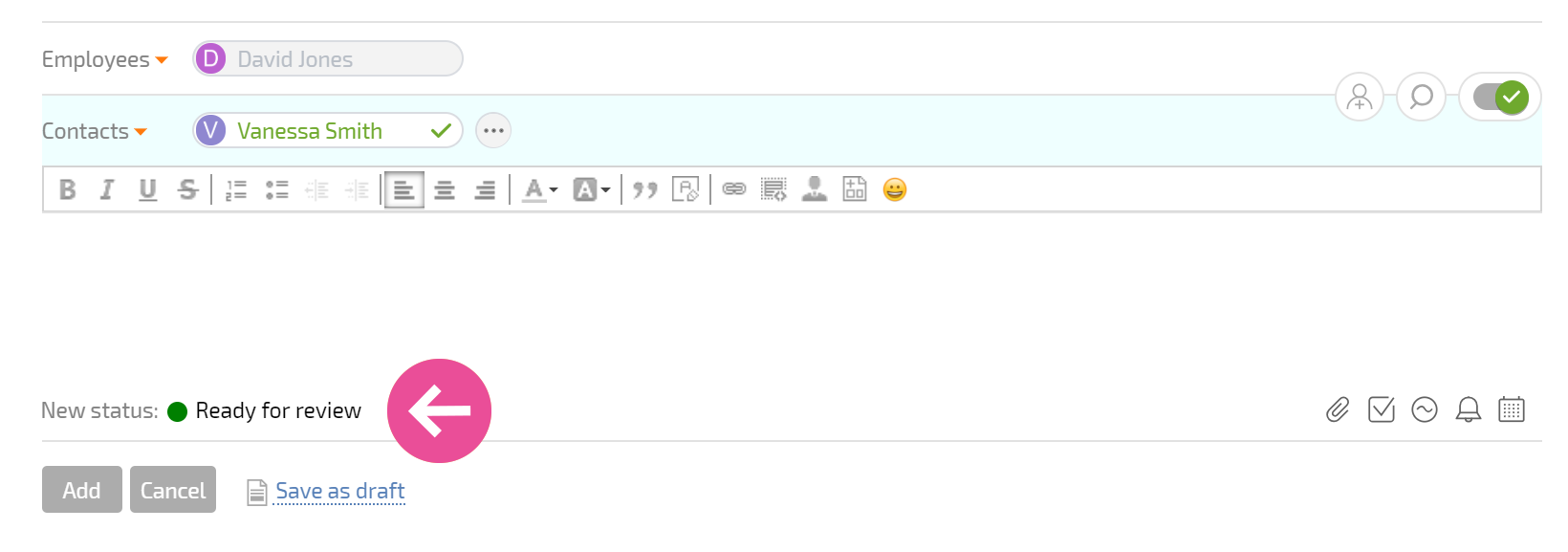
- Click the "Status" button in the toolbar below the field and select "Completed."
- Send the comment.
- Quickly — if no explanation is needed: click the current status in the task card and select "Completed."
The Assigner will receive a notification and review the result:
- if everything is OK, they will change the task status to "Closed"
- if more work is needed, they will return the task to In progress and write a comment explaining what to fix.