How to change a task's status
The most common situations in which a task status changes are:
- An assignee completes the required work on a task and changes its status to "Ready for review."
- The assigner approves the results of the work on the task and changes its status to "Complete."
Changing a task's status
The quick way
In the task card, click the current status and select the desired status from the list that opens:
 The image may differ depending on the chosen comment feed view.
Another way
- Create a new comment.
- Write a short description of the work you have done (not required).
- Select one of the available statuses:
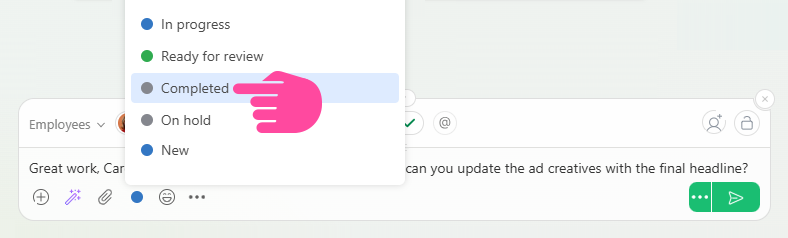 The image may differ depending on the chosen comment feed view.
- Save the comment.
If the comment contains text, the task status will change only after the comment is submitted. If the comment is empty, the status changes immediately when you select it, just as it does with the quick option. In this case, there's no need to submit an empty comment.
Important
- Depending on your role, you may have a different number of statuses available to you. For example, assignees only have access to In progress and Ready for review, while the assigner sees the statuses Draft, Canceled, and Complete. The rules for transitions between statuses also affect which statuses are visible in different situations. For example, by default, an assignee's supervisor cannot change the task status.