Employee external email address settings
- From the user's personal (corporate) email address.
- From a shared company email address that several (or all) users use.
Planfix supports both configurations. If the email account settings are configured at both the company level and the individual employee level, the employee's settings will take precedence. This allows some employees to use a shared company mailbox (configured at the company level) while others use their personal email addresses (configured in their profiles).
- Note: The email server must support the POP3 protocol for the connection.
This option is used when emails for external contacts should be sent from personal user email addresses (including company email addresses).
This is the more common option since it is in line with how the majority of companies operate, with each employee communicating with external contacts from their own name. If you need several (or all) of your employees to communicate from a shared company email address, you must use company external email address settings instead.
- Personal employee email address settings are found in Account management — Email — Outgoing messages — Employee's external email addresses:
- When you select an employee, you see a list of email addresses from which they can send their emails in Planfix. By default, this list is empty. You can add external email addresses:
- Clicking the Add external email address button opens a window with email account settings. There you can choose default settings for one of the popular mail services or enter the details of another (including corporate) mail server.
Note
If the Send replies to the same email address option is enabled, replies from the client will be delivered to your email address and then forwarded into Planfix:
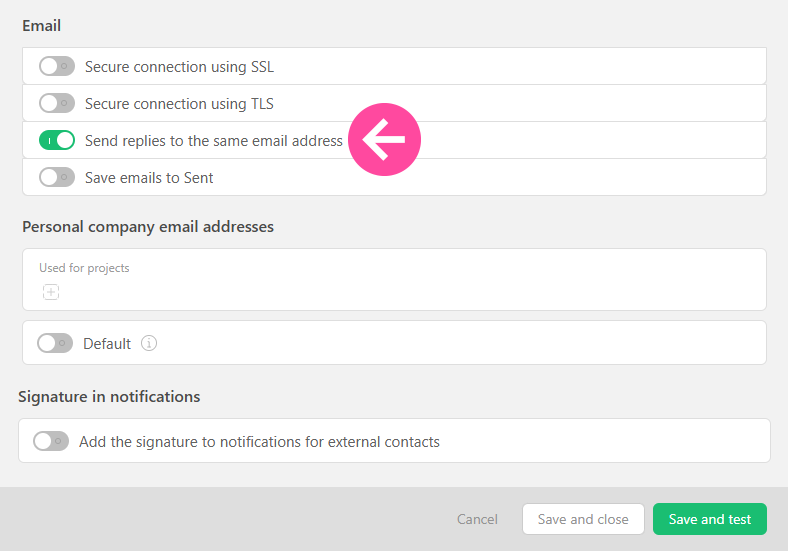
In addition to adding the details needed to send emails from an external email server, you can also select additional options in this window. You can also specify projects for which an email address will be used:
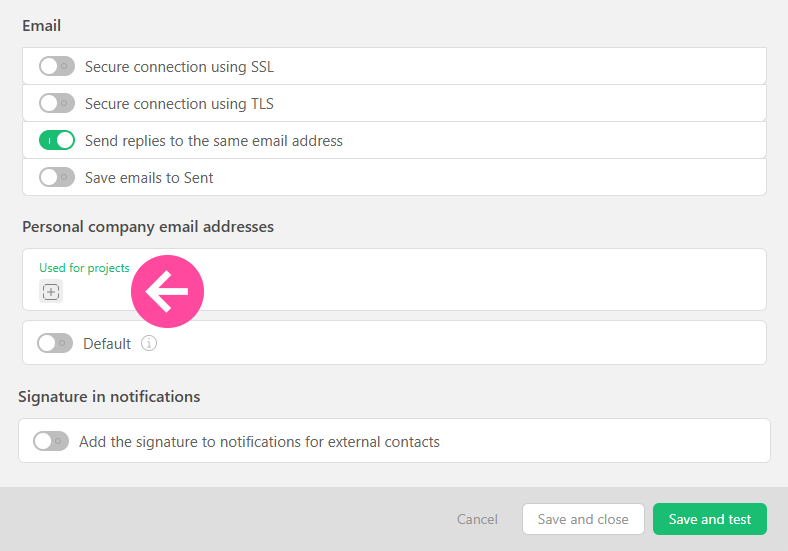
Setting Default means that this external address will be automatically selected for the specified projects for users who have access to it.
This approach lets you use one Planfix account to work as several different companies or brands. You can choose the email address that will be used to email clients for specific projects.
Important
- You must test your settings by clicking the Test account button. If the test isn't successful, you can't save your changes and Planfix won't be able to send messages to counterparties.
- If two-factor authentication is enabled in the email service you are using, you may need to go through an additional connection process.
Error when sending emails to customers without Planfix access
If you have enabled sending email from your company email address and you get an error message, read the message carefully. Your company server usually returns this error, and the message contains the reason why the email wasn't sent or delivered. The most common reasons are outlined on a separate page.