
Recurring tasks in project templates
Recurring tasks in Planfix can be configured not only in individual projects but also in project templates. A task added to a template will be automatically created according to the specified schedule in all projects based on that template.
You can manage such tasks in two ways:
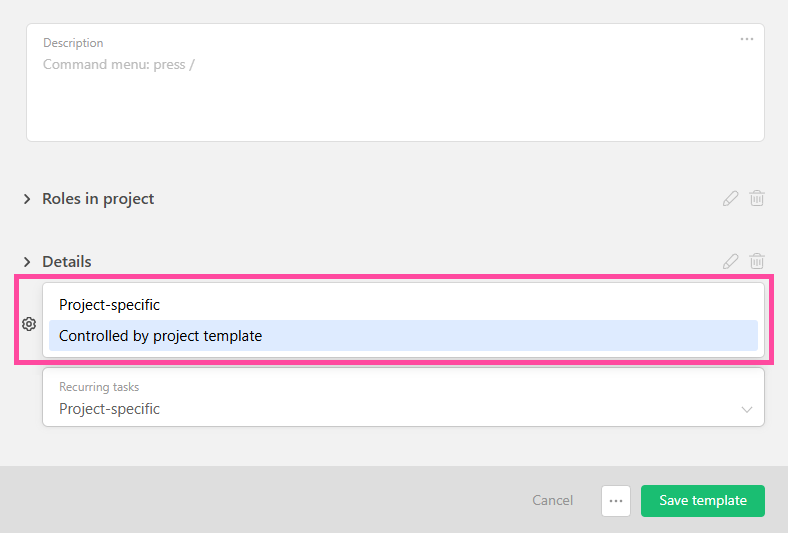
- Project-specific. Each project gets its own set of recurring tasks with individual settings. To change the schedule, you need to edit each project separately.
- At the project template level. The schedule is set in the template and is automatically applied to all projects created from it.
Choosing the management method
The management method is chosen when creating or editing a project template:
- Go to the "Project templates" section.
- Open the template creation or form, or edit an existing template.
- Expand the "Template settings" block and find the recurring tasks management setting.
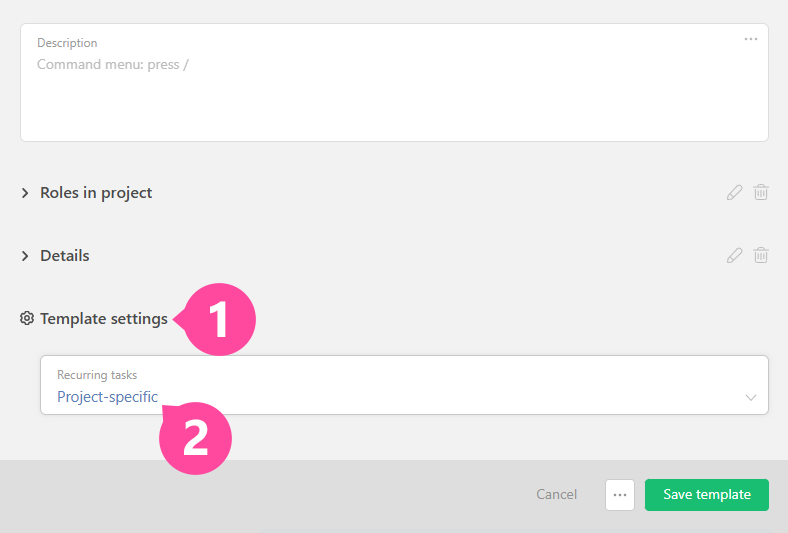
- Select the desired option.
- Save the template.
Adding a recurring task to a project template
- Open the desired project template.
- Click the "New task template" button on the top bar.
- In the creation form, open the "Additional parameters" block and click the recurrence settings field.
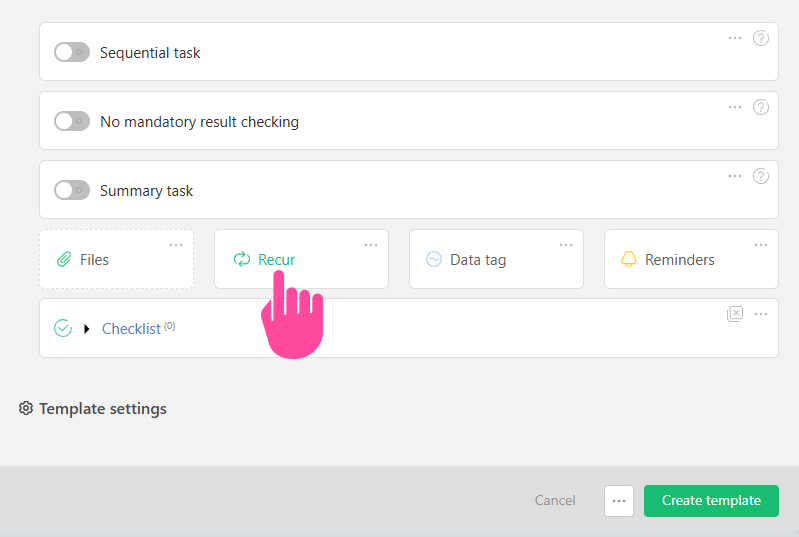
- Set the recurrence schedule.
- Save the task template.
A recurring task has the same settings available as a regular task: reminders, duration, and other parameters.
Viewing recurring tasks
All recurring tasks of a template are shown on its separate tab:
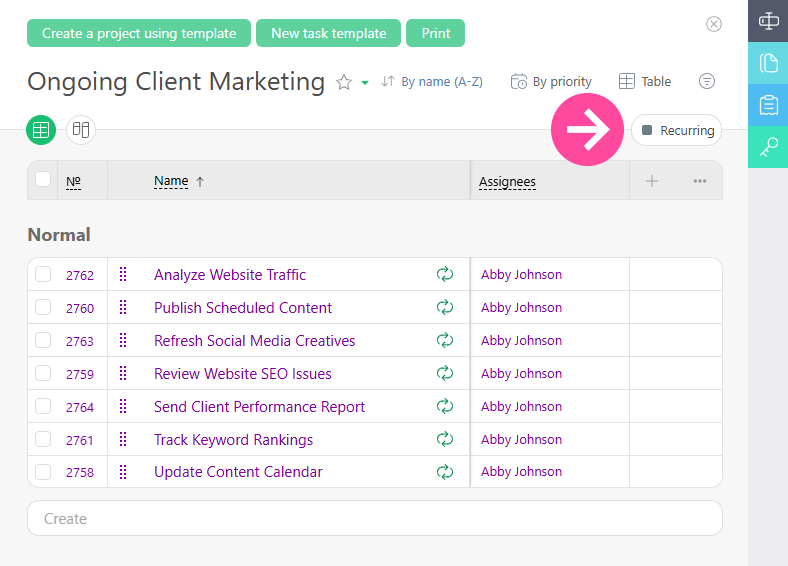
How it works
When a project is created from a template, regular tasks are created immediately, while recurring tasks are created automatically according to the configured schedule. This allows one template to be used for regular processes without having to add tasks manually to each new project.
Changing recurrence settings
- If management at the project template level is selected, changing the schedule in the template is automatically applied to all existing and new projects based on it.
- If management at the individual project level is selected, changes must be made in each project separately.