Checklist display settings
From Planfix
You can control the visibility of completed checklist items, as well as items related to you or to other task participants, configuring a checklist view that suits you:
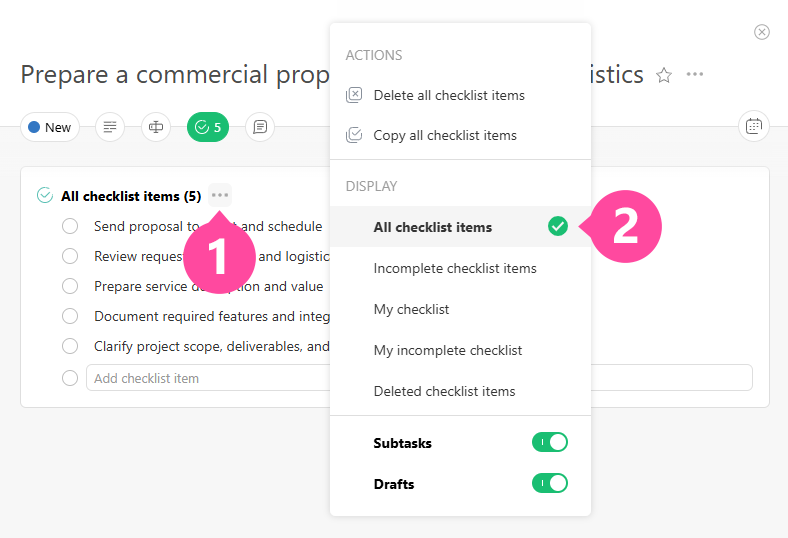
Visibility of checklist items
- All checklist items — all checklist items are shown, except deleted ones.
- Incomplete checklist items — all checklist items are shown except deleted and completed ones.
- My checklist — checklist items without assignees, checklist items where the employee is the Assignee, and subtasks where the employee is the Assigner or Assignee are shown.
- My incomplete checklist — incomplete checklist items without assignees, checklist items where the employee is the Assignee, and subtasks where the employee is the Assigner or Assignee are shown.
- Deleted checklist items — includes only checklist items that have been deleted.
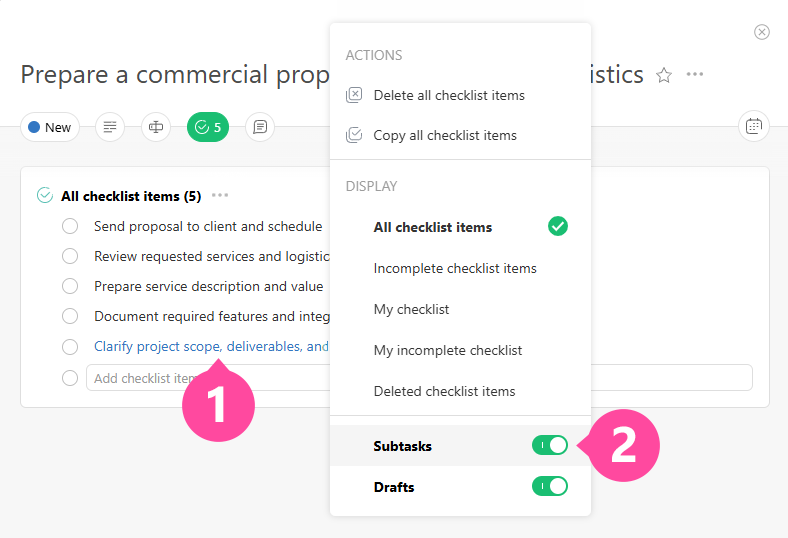
Displaying subtasks in a checklist
Checklists can also display subtasks:
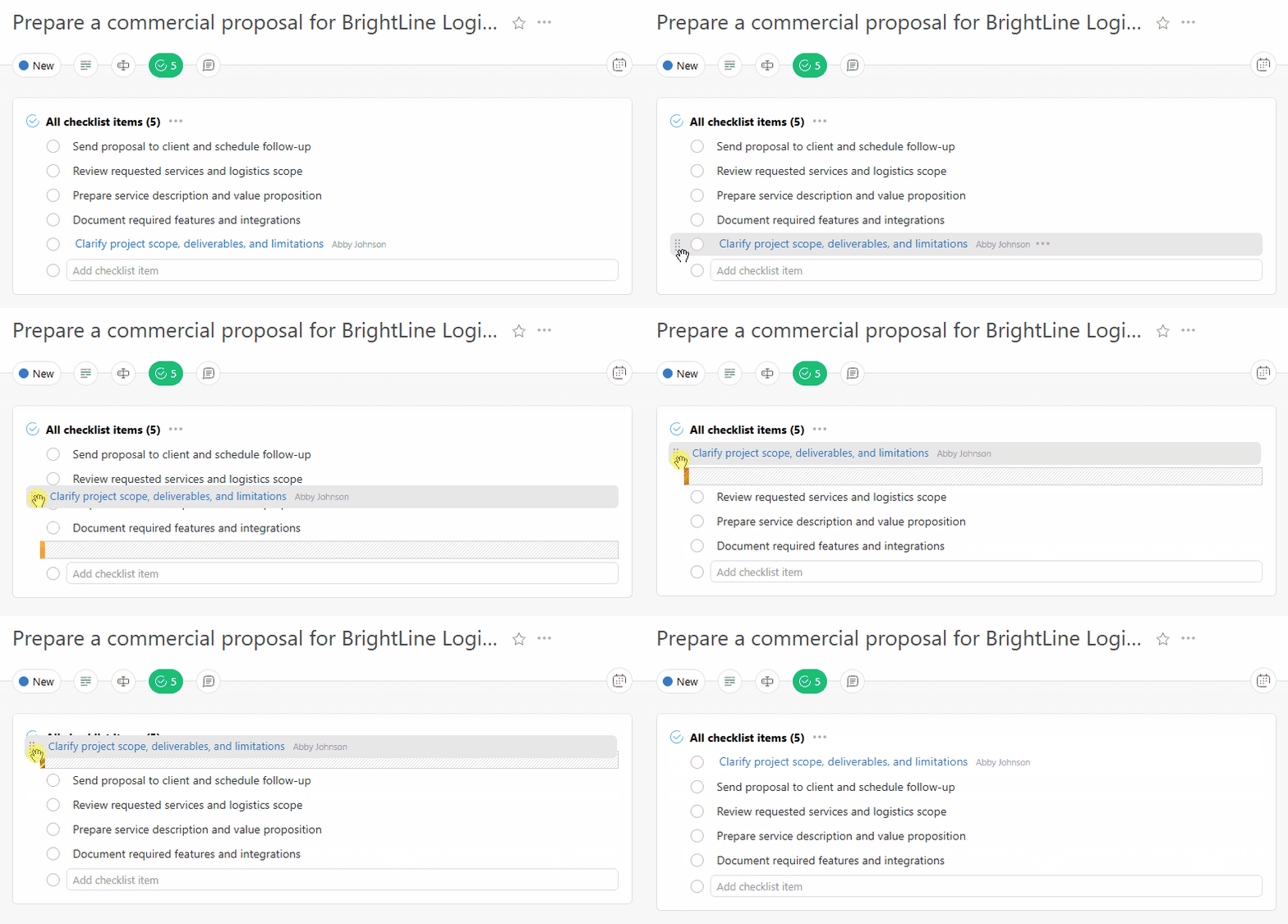
Ordering checklist items
Checklist items can be moved around and placed in any order. To do this, drag and drop checklist items into the desired position
Important
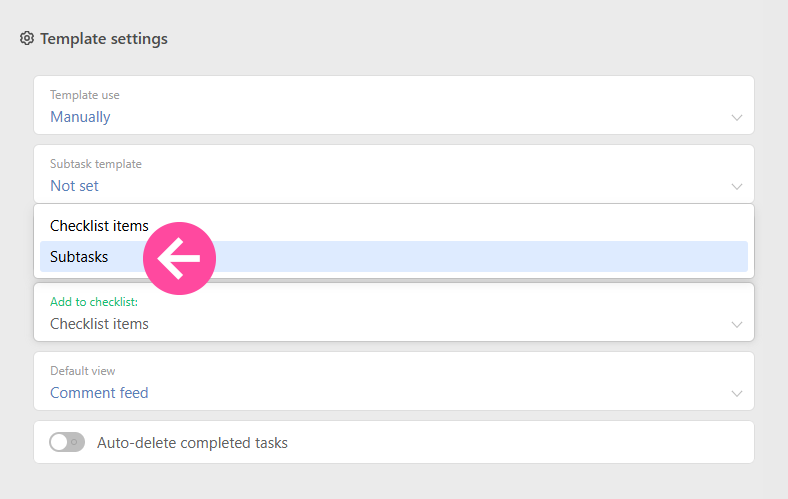
- In the task template, you can specify what will be created in a checklist by default: a checklist item or a subtask: