Subtask panel
From Planfix
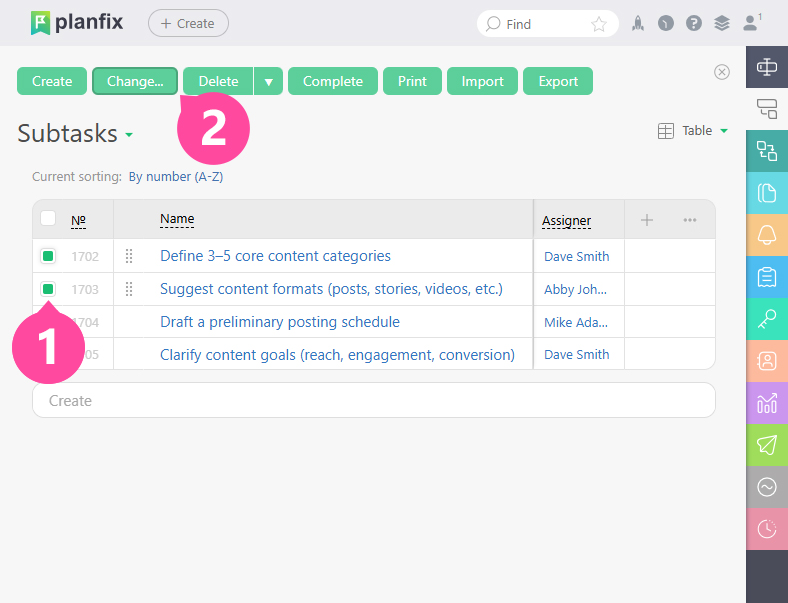
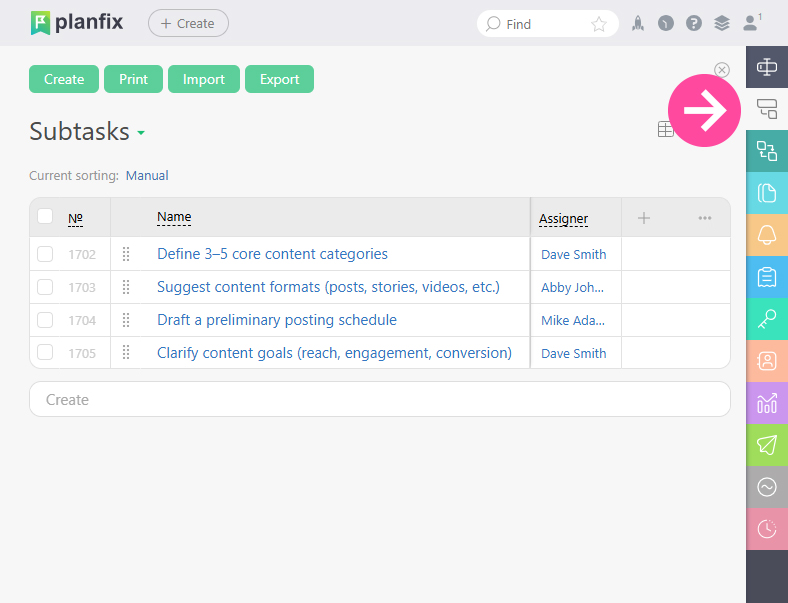
The Subtask panel of a task card displays a list of the task's subtasks:
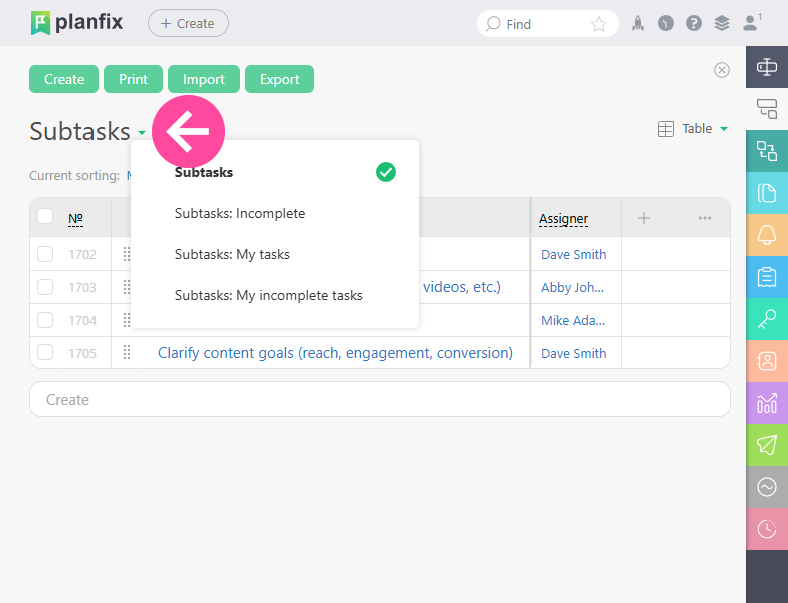
You can limit which subtasks are displayed by using the filter that opens when you click the panel header:
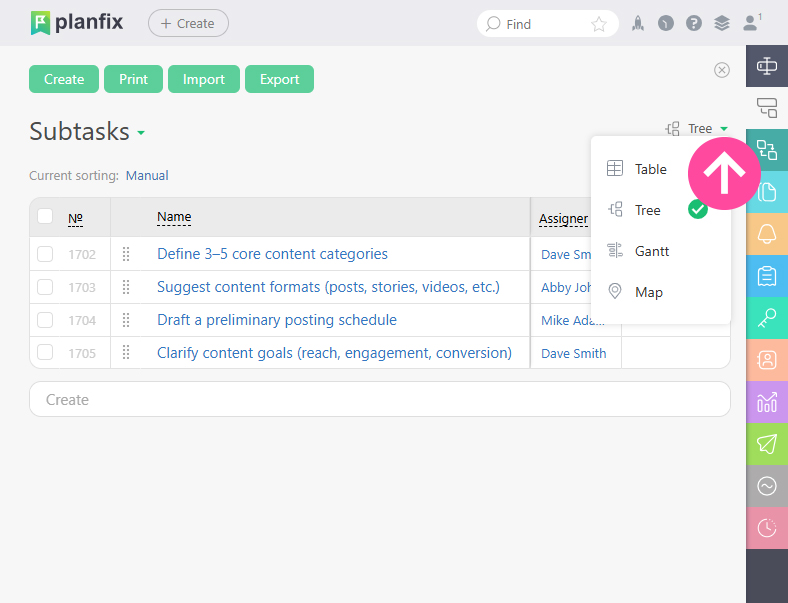
You can also use the standard Display view menu to display subtasks in different ways:
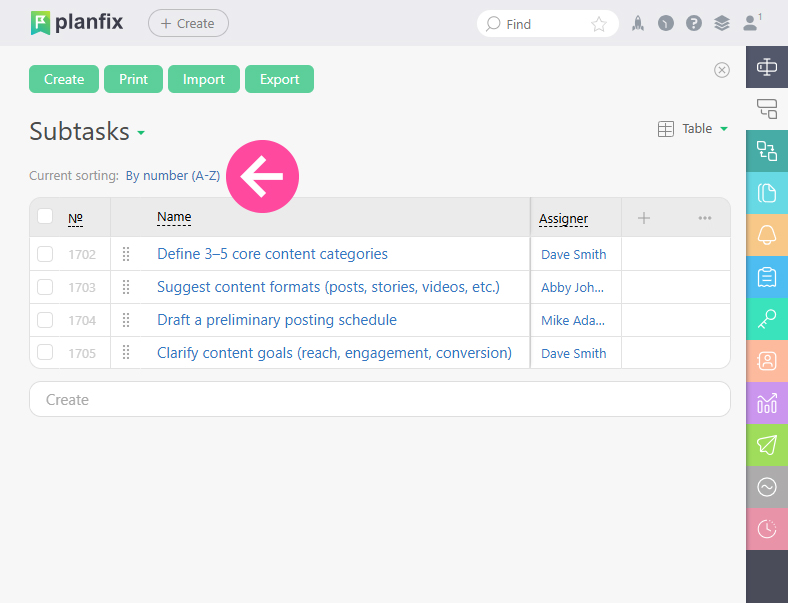
You can sort the list using standard sorting options:
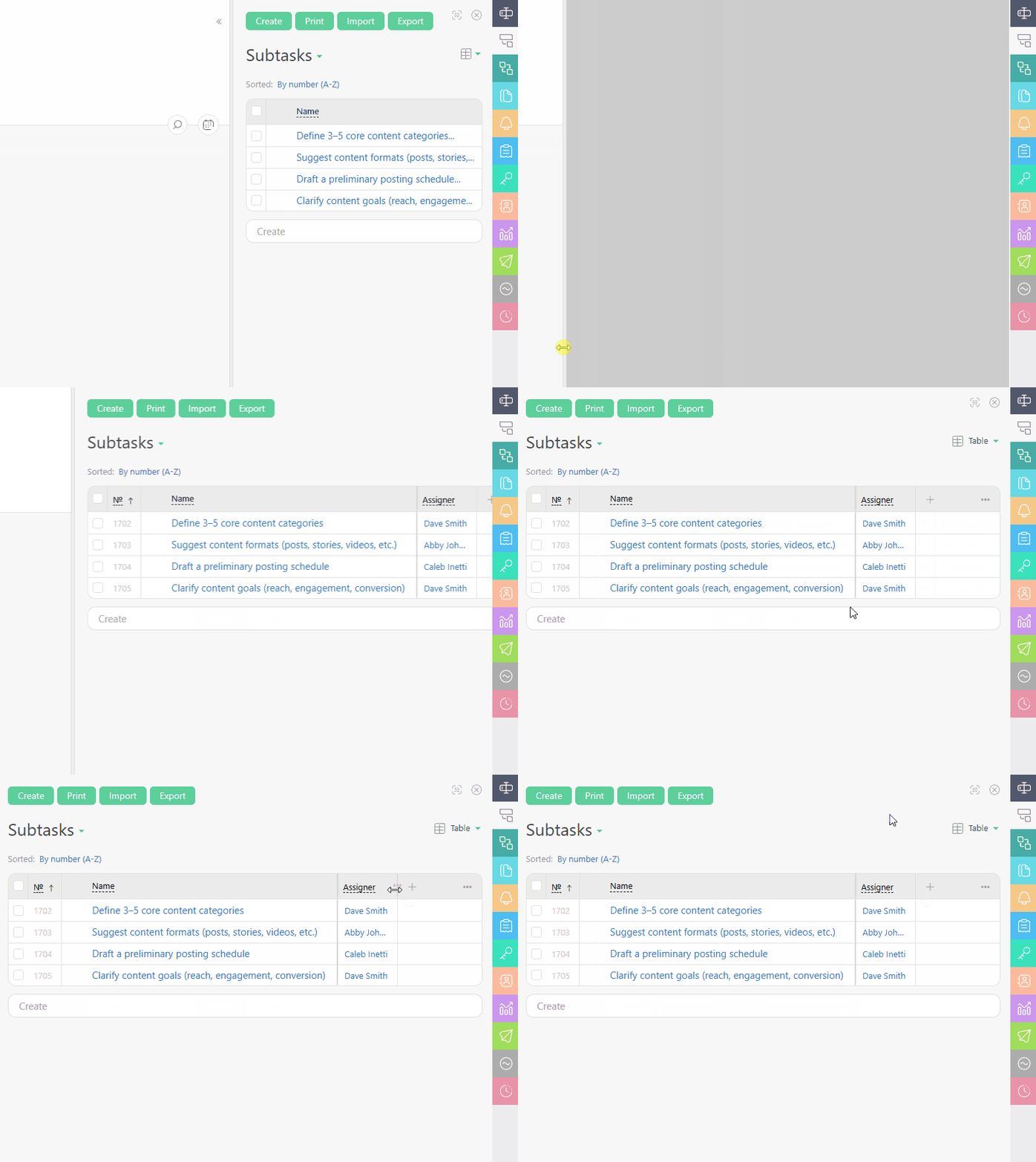
You can change the panel width to display more columns and fields. You can configure which fields will be displayed via the "plus" icon, and click a column header to remove it or to filter subtasks by a particular value.
Operations in the Subtask panel
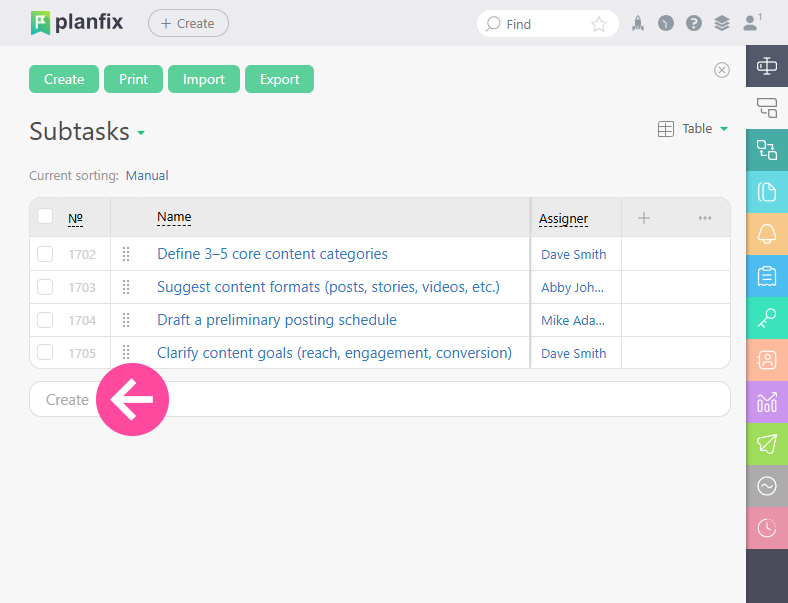
- In the Subtask panel, you can create a subtask simply by entering a task name in the "Create" field:
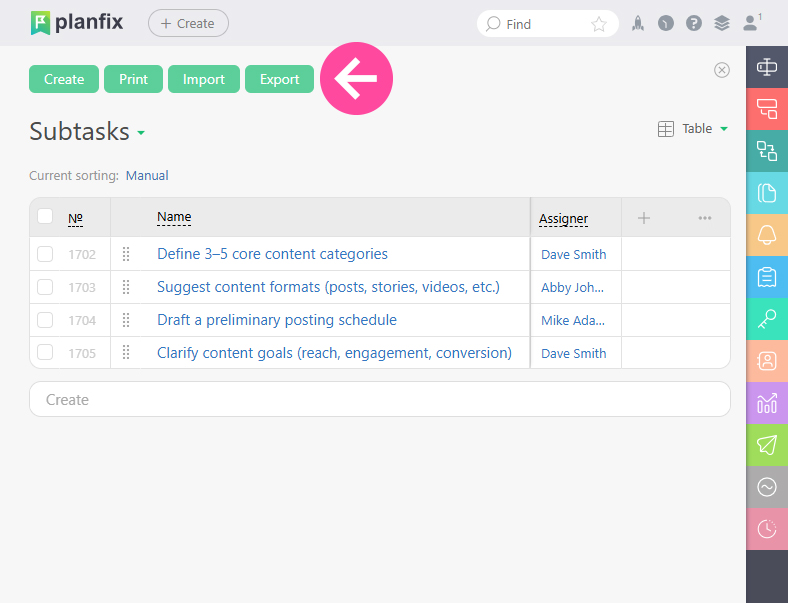
- You can use the button at the top to print the subtask list or create a subtask using the full task creation form:
- You can also carry out bulk operations on subtasks. The "Change..." button and several of the most popular operations in the drop-down menu will appear when at least one subtask is selected in the list: