Nach Tag planen
Mit dieser Art von Terminplaner-Liste können Sie einen Zeitplan für beliebige Objekte verwalten. Links neben dem Zeitplan wird eine Liste der Objekte angezeigt, rechts davon ein Kalender:
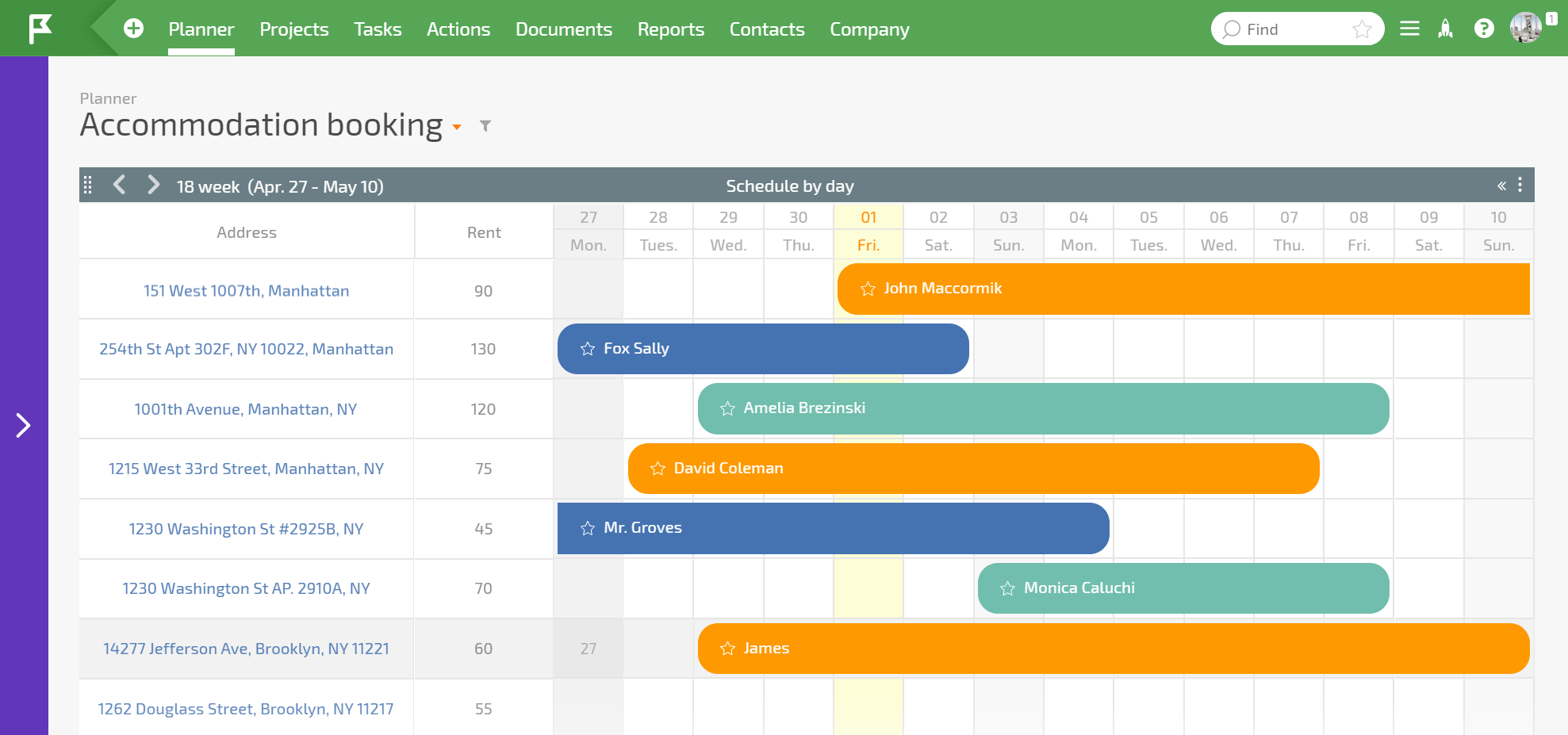
Wenn Sie rechts neben einem bestimmten Objekt den gewünschten Zeitraum auswählen, können Sie eine Aufgabe erstellen, die für die ausgewählten Tage als „belegter“ Block angezeigt wird. So können Sie für jedes Objekt visuell Aufgaben reservieren und gleichzeitig einen Auslastungskalender erstellen.
Tagesplanung konfigurieren
Diese Art von Terminplaner-Liste bietet in den Einstellungen mehrere besondere Optionen:
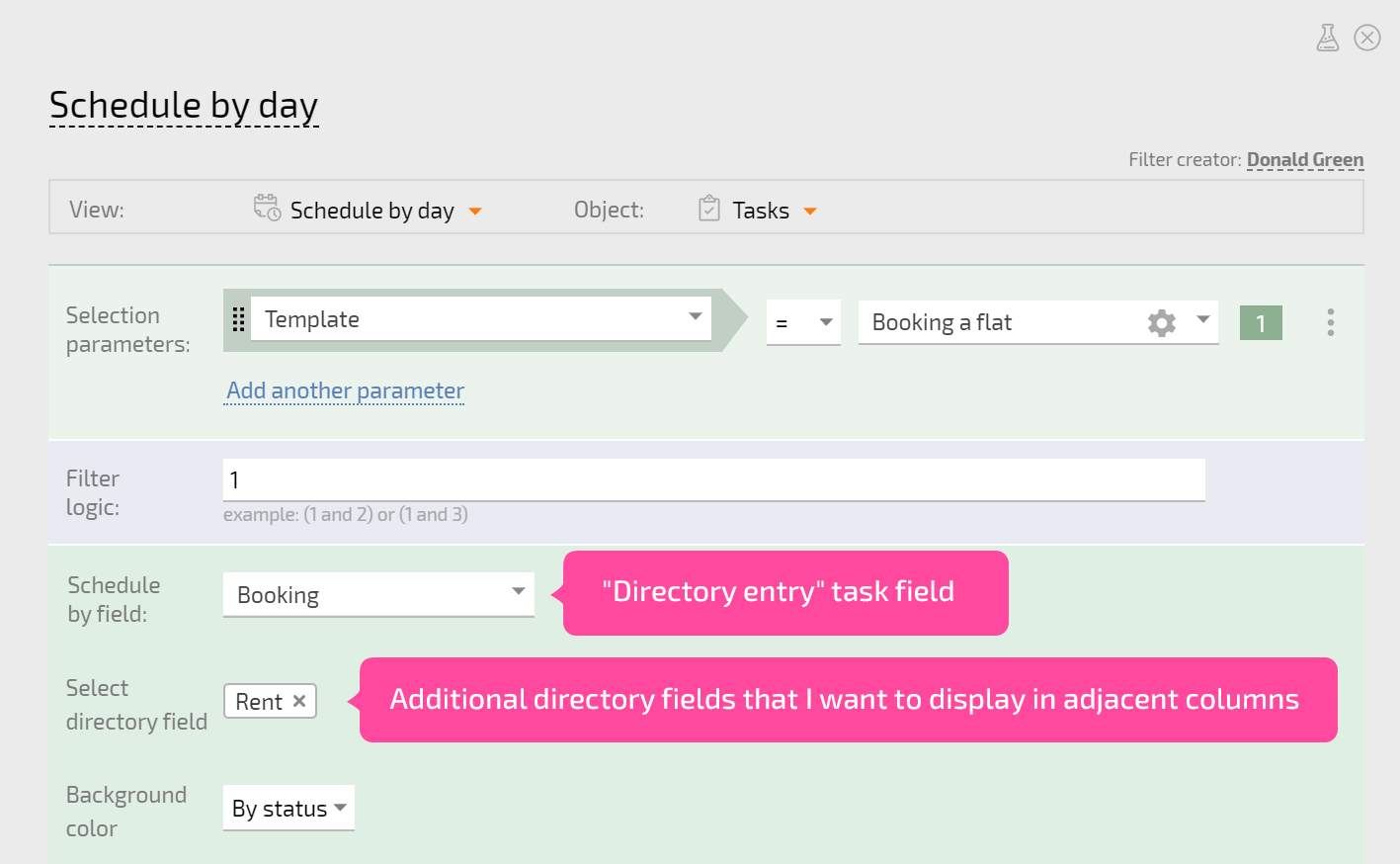
- Zeitplan nach Feld – hiermit können Sie das Feld auswählen, in dem die Objekte für den Zeitplan gespeichert werden. Unterstützt werden folgende Feldtypen:
Wenn Sie Felder verwenden, die Verzeichniseinträge enthalten, können Sie zusätzliche Verzeichnisfelder angeben, die in der Zeitplantabelle angezeigt werden sollen:
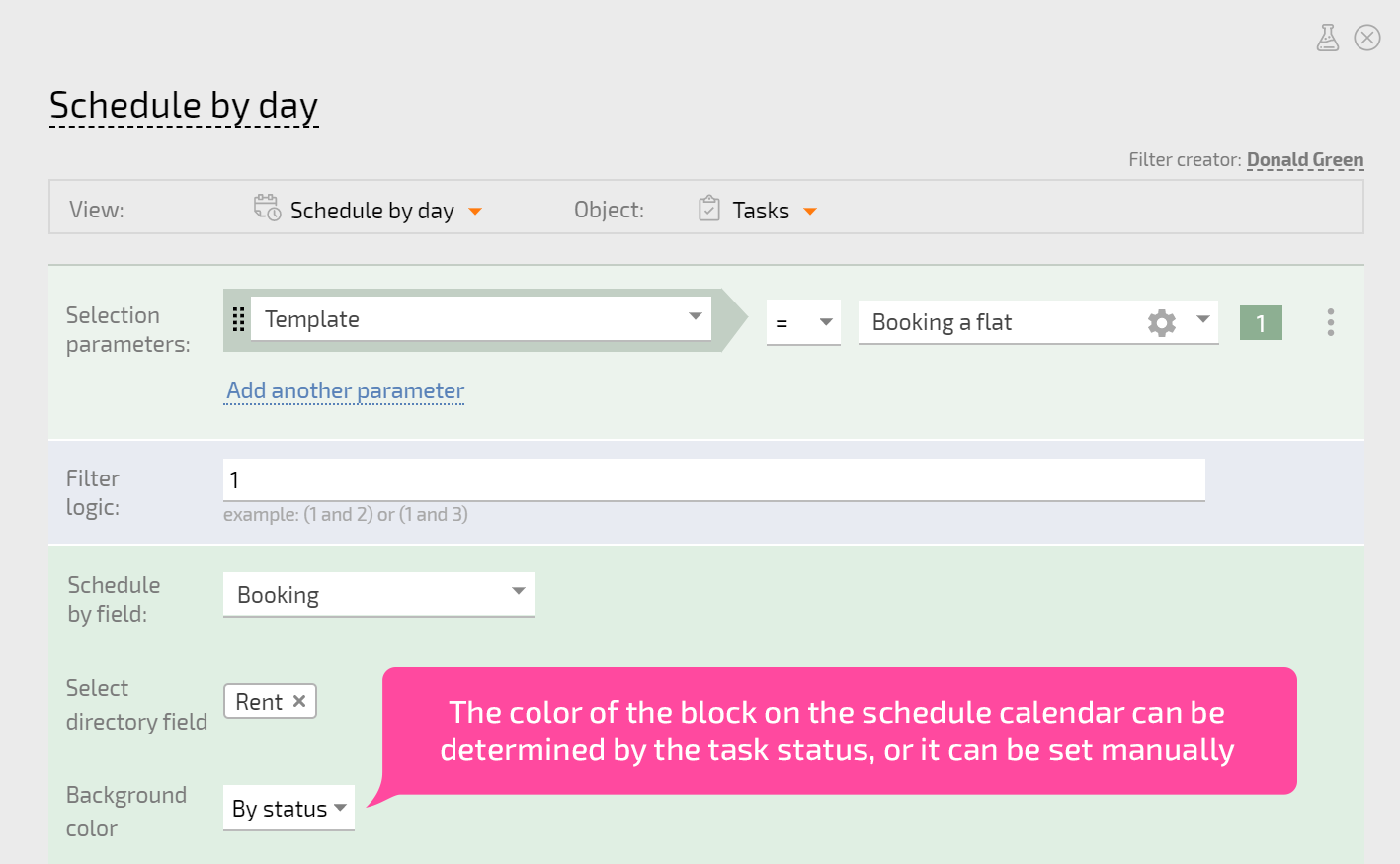
- Hintergrundfarbe – hiermit legen Sie fest, wodurch die „belegten“ Blöcke (Aufgaben) im Zeitplan eingefärbt werden. Es gibt zwei Möglichkeiten:
- Festgelegt durch den Aufgabenstatus
- Für jedes Objekt (jede Zeitplanzeile) manuell festgelegt
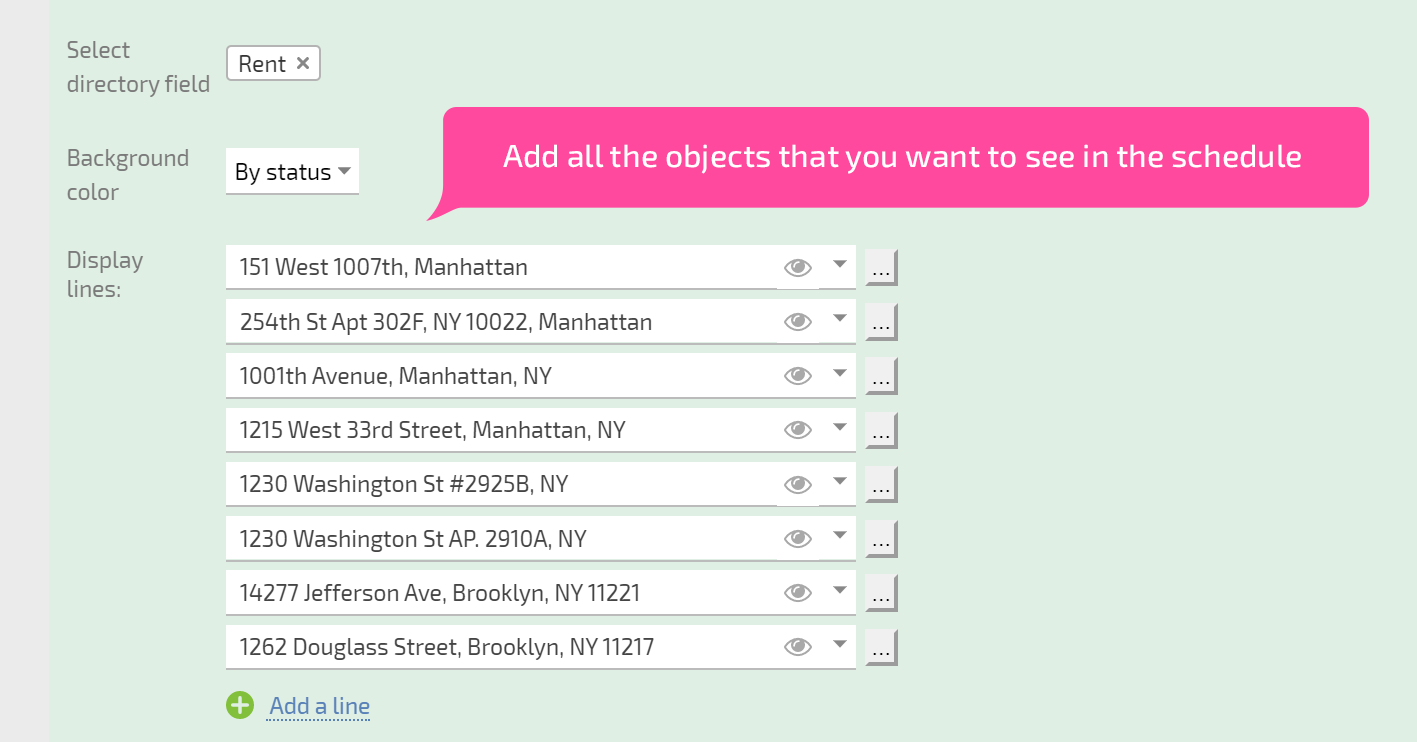
- Zeilen anzeigen – fügen Sie hier alle Objekte hinzu, die im Zeitplan angezeigt werden sollen:
- Startdatum und Fälligkeitsdatum – „Datums“-Felder, die den Anfang und das Ende des „belegten“ Blocks im Zeitplan bestimmen:
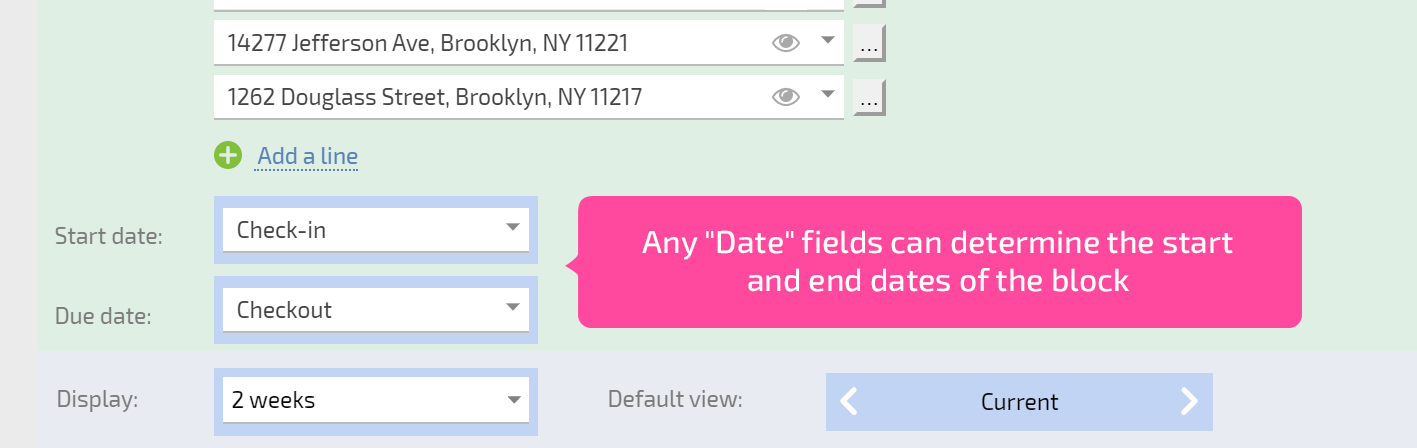
In Listen zur Tagesplanung können Sie beliebige „Datums“-Felder verwenden. Sie sind nicht auf die standardmäßigen Start- und Enddaten von Aufgaben beschränkt. Dadurch erweitern sich die Einsatzmöglichkeiten dieser Listen.
Zusätzliche Informationen
- Das Ziehen von Objekten in diese Art von Liste und aus dieser Liste heraus wird derzeit nicht unterstützt.
- Innerhalb eines Zeitplans können Blöcke zwischen verschiedenen Zeilen bzw. Objekten verschoben werden.
- Nur Benutzer/innen mit einem kostenpflichtigen Planfix-Konto können Terminplaner-Listen zur Tagesplanung verwenden.