Dashboards in Planfix: Get Key Metrics Right in Planner

Managing work without clear numbers is like steering a ship with the instruments painted over. To understand what is really happening, managers often have to piece the picture together manually. That means checking reports, opening different projects, or asking teammates for status updates. All of that takes time and attention that could be better spent making decisions.
That’s why we added project dashboards directly to Planner, so the metrics that matter are always right where you work.
What Dashboards Are and Why They Matter
Think of a project dashboard like the instrument panel in a car. After all, you don’t open the fuel tank to check how much gas you have. You just glance at the panel and immediately know what to do next. Business works much the same way – whether you need a project tracking dashboard for daily operations or a management dashboard for executive oversight.
In practice, dashboards solve several everyday management problems:
- Instant visibility. You get the information you need in seconds and always know where a company, team, or project stands.
- Shared team focus. When the most important numbers are visible in the main workspace, everyone understands the current direction, including what goal you are moving toward, whether the plan is on track, and where the bottleneck is. This helps keep the team aligned without yet another meeting.
- Early warning signs. Dashboards help you catch anomalies before they turn into bigger problems. If open bugs suddenly spike or call conversion drops, you see it right away, not at the end of the month results review.
- Less uncertainty. When everything is visible on one screen, there is less need for micromanagement and fewer “where are we with…” messages in your team chats.
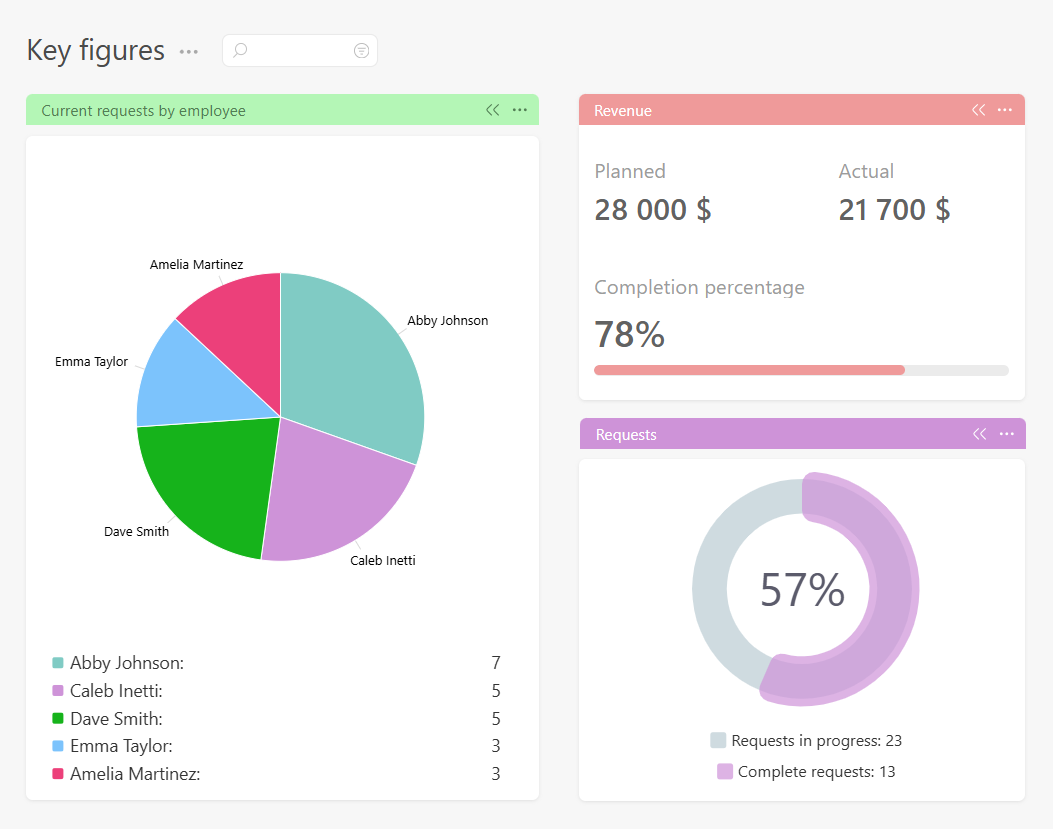
Where to Find Dashboards in Planfix
We deliberately avoided placing dashboards in a separate section that you would have to open manually. Instead, we added them directly to your Planners.
In fact, there is now a new menu item for adding a Planner list: a planner widget – the basic building block of a dashboard. It’s essentially a visual element that shows the metric you need at a glance.
Planfix currently includes three dashboard widget types. While they use the same data sources, each one is designed to visualize information differently depending on what you want to monitor.
Large Number: For When One Metric Matters Most
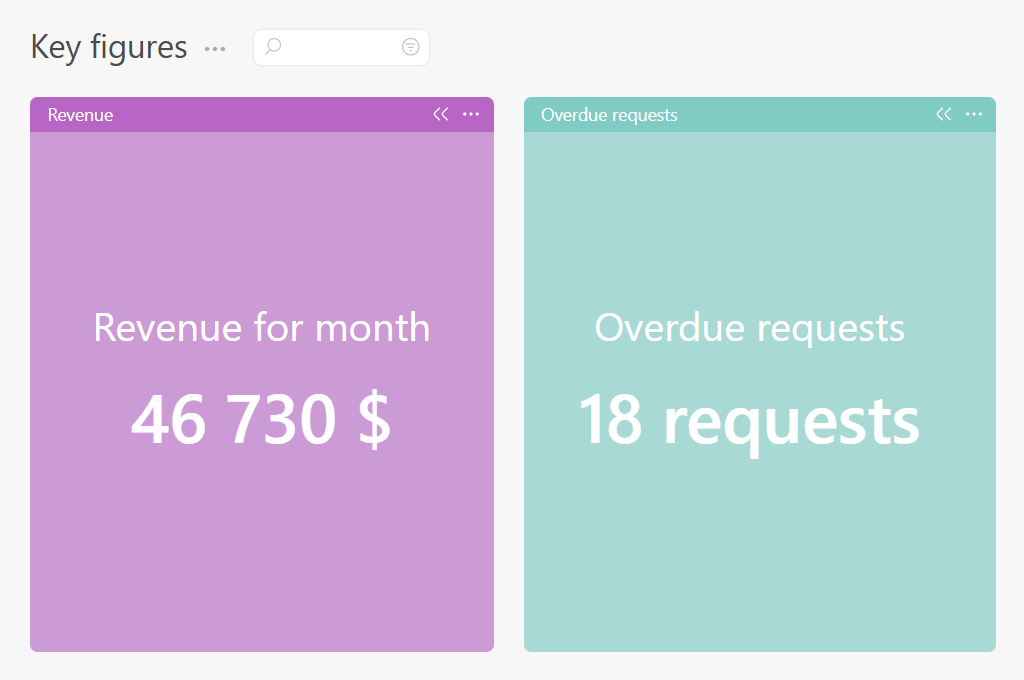
Managers usually don’t need complex charts, but a fast answer to a specific question. How many unread support requests are waiting right now? How much have we spent on marketing this month? How many releases have we shipped?
The “Large number” widget is built to answer these quickly by displaying a single large, high-contrast number you can read instantly. Depending on the selected “Data type”, it can either show a summary metric or compare a planned value against the actual result, making it equally useful for tracking both current KPIs and progress toward business targets.
Pie and Donut Charts: For When Breakdown Matters
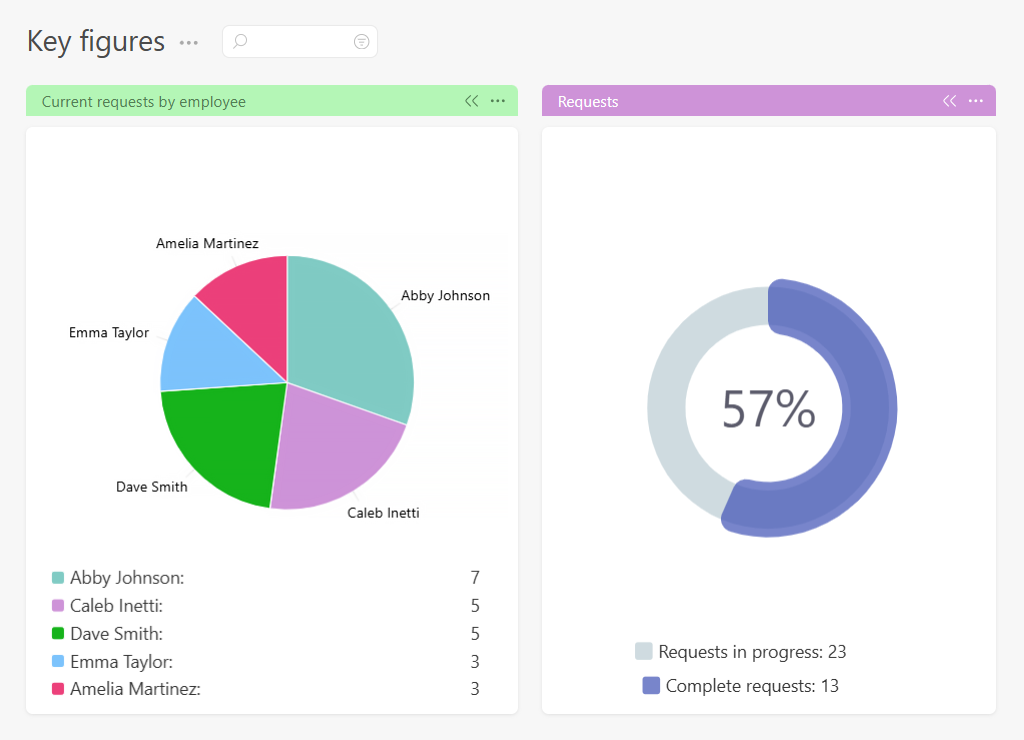
Sometimes the total number matters less than what it consists of. Where is our traffic coming from? How are bugs distributed by severity? What share of the budget goes to each advertising channel?
Planfix provides two chart widgets for this purpose: “Pie Chart” and “Donut Chart”. Both visualize proportions using the same data sources, but present the information slightly differently depending on your preference and how much detail you want to emphasize. They both include a legend and labels, so you can quickly see how resources, tasks, or other data are distributed.
How to Set Up Your First Dashboard: Step by Step
Setting up a project manager dashboard in Planfix takes less than five minutes. Here is how to do it from scratch.
Step 1: Open Your Planner
Go to the Planner where you want to add a dashboard. This could be your personal planner, a team planner, or a project-specific one.
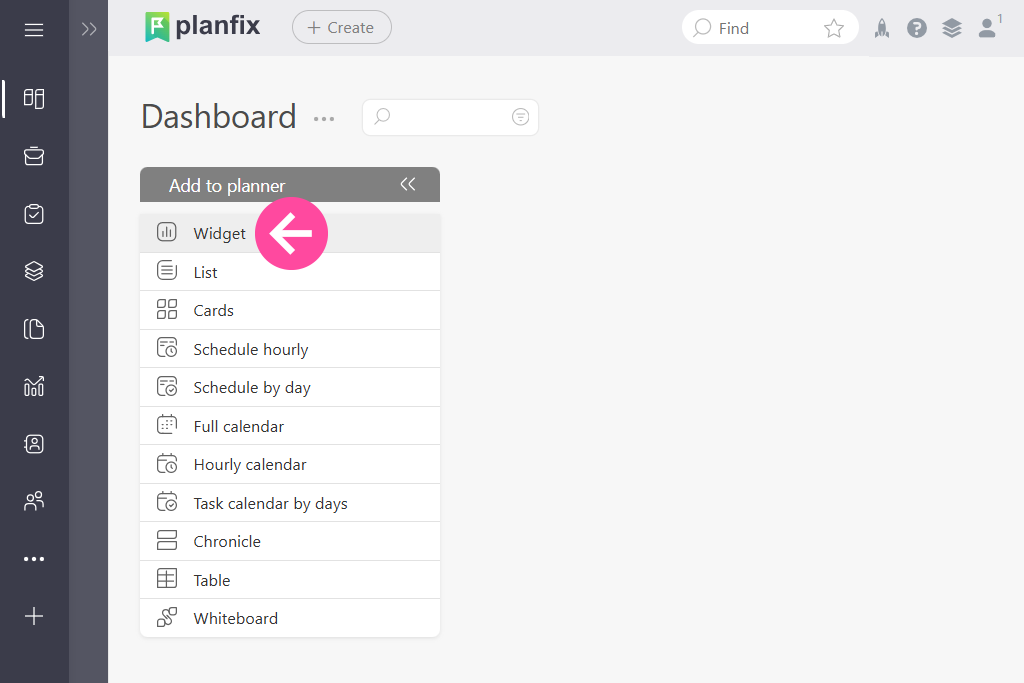
Step 2: Add a Widget
Click «Add to Planner» and select «Widget» from the list. This is the first step in building your dashboard for task management – or any other metric you want to track:
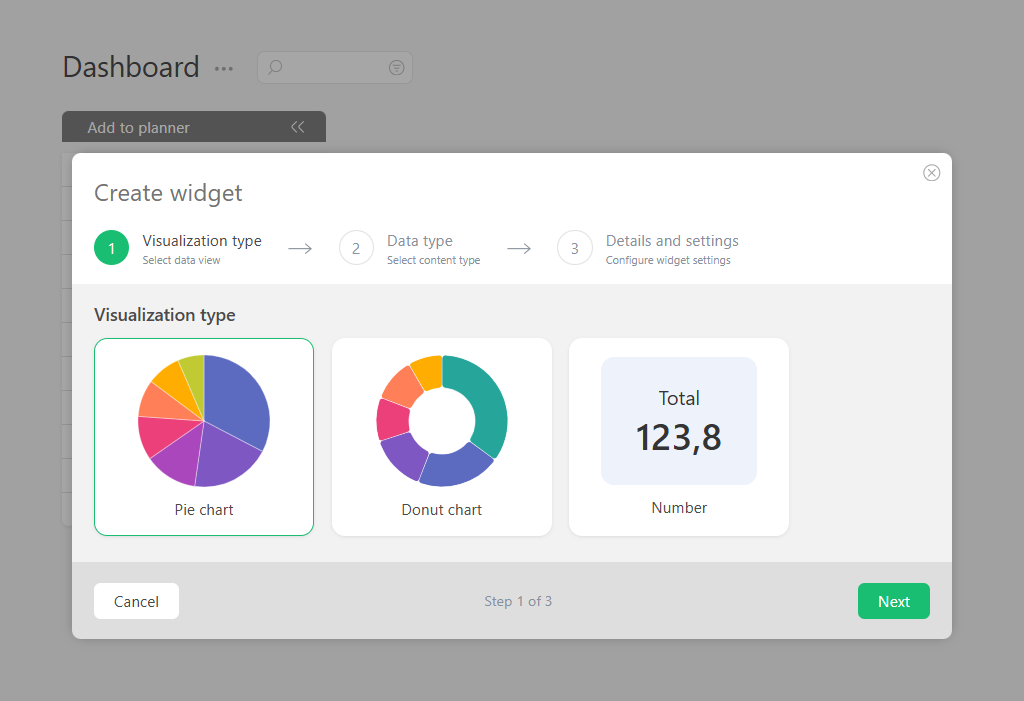
Step 3: Choose a Widget Type
Pick the format that fits your metric – whether you’re building a tasking dashboard or tracking financial numbers:
- Large Number – for a single value you need to see at a glance
- Donut Chart or Pie Chart – for a breakdown across categories or team members
Step 4: Choose Data Type
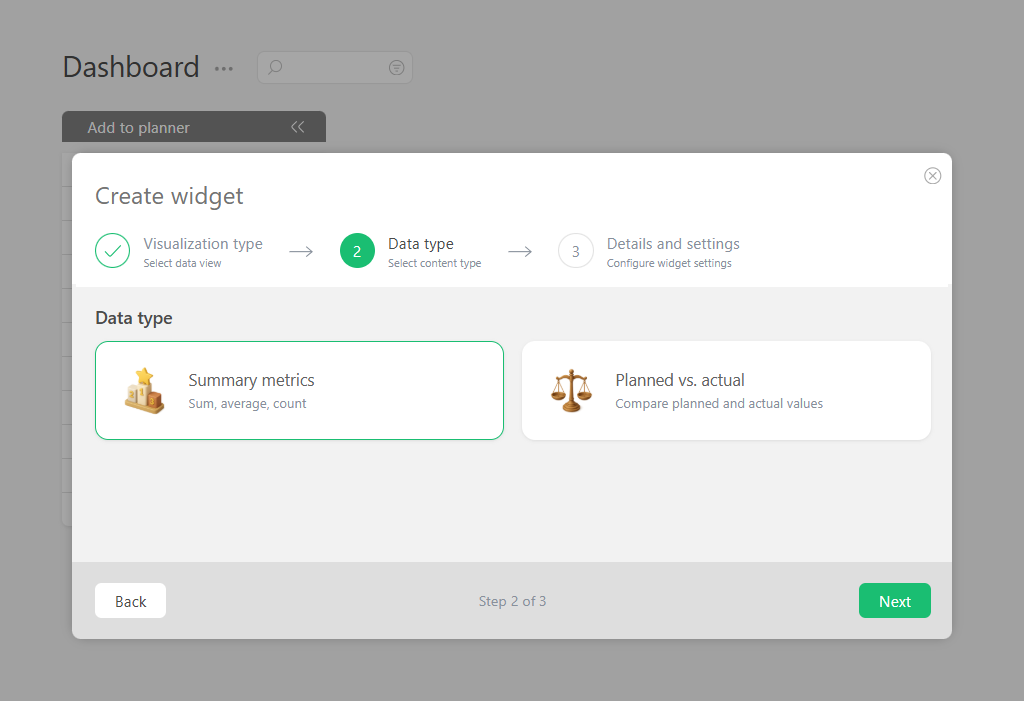
Next, choose how the widget should display its value.
- Summary metrics – shows a single KPI based on the selected data source. This is the best option for metrics like open tasks, revenue, or unresolved support requests.
- Planned vs. Actual – compares your target with the current result. Enter the planned value once, and Planfix automatically calculates the actual value and displays the completion percentage.
Step 5: Connect Your Data Source
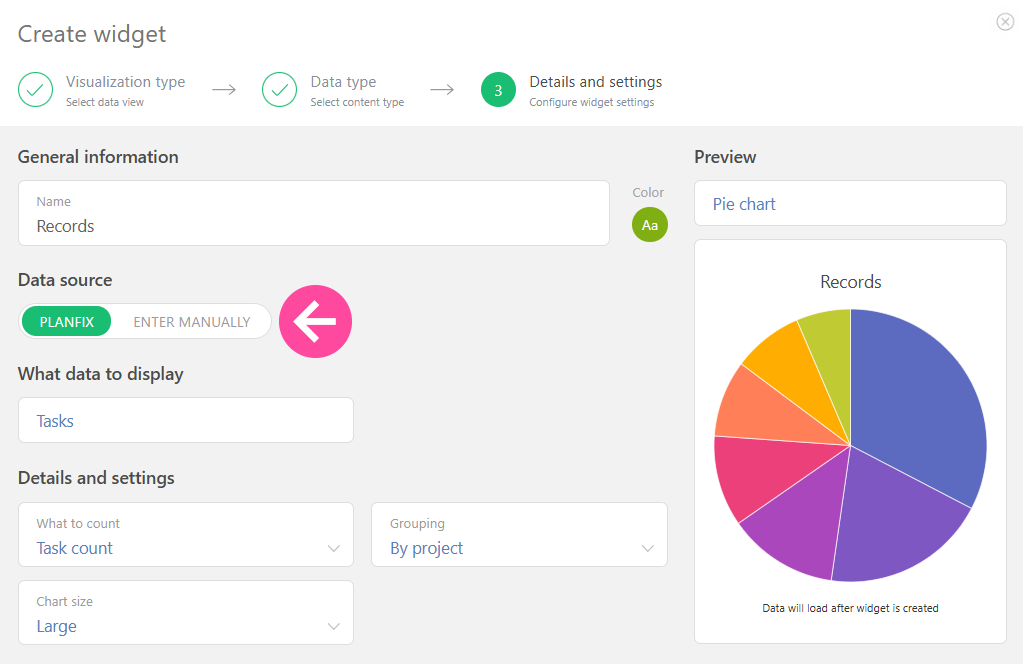
Choose how the widget gets its data:
- From Planfix – set up a filter the same way you would for a task list. This is what makes a project plan dashboard powerful: the widget updates automatically as tasks change.
- Enter manually – type in the value directly. Useful for metrics that live outside Planfix, like revenue or ad spend.
Step 6: Set Access Permissions
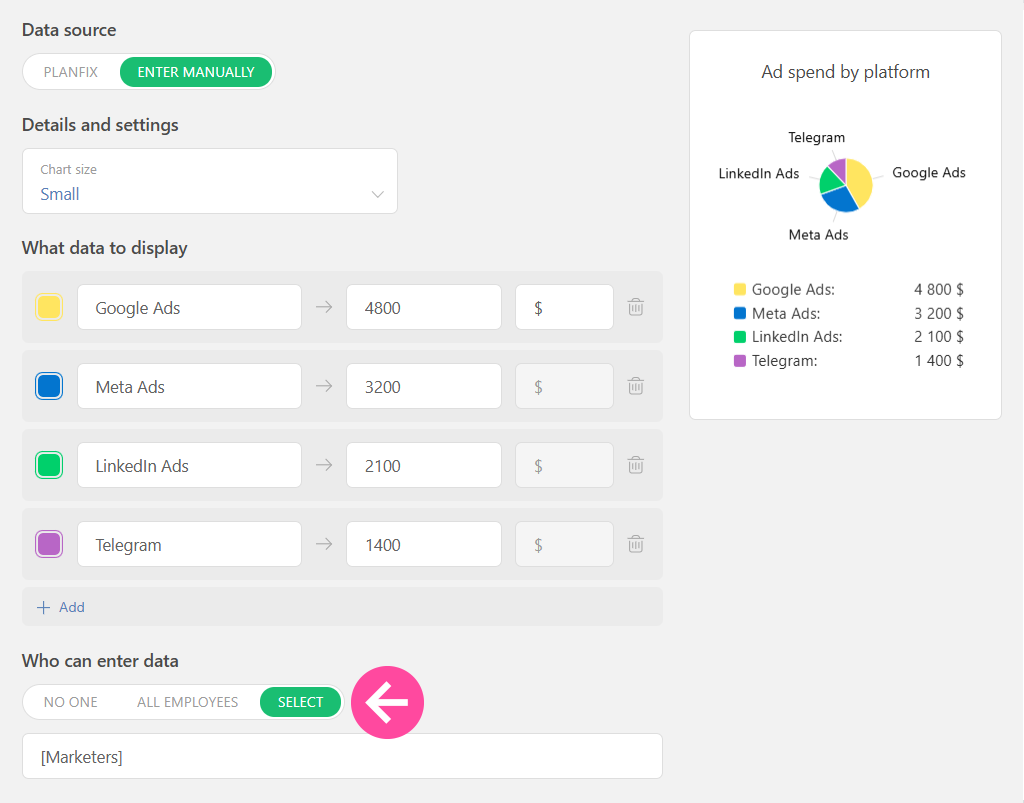
If the widget uses manual entry, decide who can update it. You can assign editing rights to a specific employee or group – for example, the marketer updates ad spend, the sales lead updates revenue.
Step 7: Place and Arrange
Move the widget to where it makes the most sense in your Planner. You can reorder widgets at any time by dragging them around.
That’s it. Repeat the process for each metric you want to track, and your first dashboard is ready. Ready-made project management dashboard templates can save hours of initial setup time.
Key Metrics to Track on Your Dashboard
The right dashboard shows different numbers depending on who is looking at it. A CEO needs a high-level view of the business, while a project manager needs a project performance dashboard – something that shows what is on fire right now. Here are the most useful metrics by role.
For project managers
- Overdue tasks – how many tasks are past their deadline right now
- Task completion rate – what percentage of planned work is actually done
- Workload distribution – how tasks are spread across team members
- Blocked tasks – items waiting on someone or something else
For Executives and Business Owners
- Monthly revenue vs. target – are you on track to hit the plan
- Budget spent vs. allocated – where the money is going
- Open deals or leads – what is in the pipeline right now
- Key project statuses – are the most important initiatives on track
For Marketing Teams
- Ad spend by channel – where the budget is going across platforms
- Leads generated this week or month – top of funnel health
- Conversion rate – how many leads are turning into customers
- Cost per lead by source – which channel is actually paying off
You do not need all of these at once. A PM dashboard typically starts with three to five metrics that directly reflect current priorities – add more as your dashboard evolves. You can always add more as your dashboard evolves. For management dashboard examples by team type, see the section below.
Where Widgets Get Their Data
When building this tool, we started with a simple reality: company data is not always neatly stored in one system. Some of it lives in Planfix, some is spread across external tools, and some may still be sitting on a manager’s sticky note.
That is why widgets offer two ways to add data: automatically, directly from Planfix, and manually.
Data from Planfix: For Processes Already Tracked in the System
If the metric you need can be calculated from tasks, contacts, or data tags in Planfix, the system handles it automatically.
All you need to do is just set up the logic the same way you would configure a regular task filter.
Where this helps:
- Current overdue tasks. A manager opens Planner and immediately sees a number. This indicates the number of tasks currently past their deadlines. There’s no need for them to open filters or count anything manually. The number is large and red, so the signal is clear: it is time to take action. Something went wrong, and you see it immediately.
- Team workload by project. Let’s assume you are managing a project and want to see how work is distributed across the team. A donut chart shows the breakdown: Dave has 40% of the tasks, Abby has 15%, and three other team members each have 15%. You can quickly see that Dave is overloaded, while someone else still has capacity. Without the chart, you might only notice the imbalance after deadlines start slipping.
Manual Entry: For Metrics from Outside Systems
Creating a complex API integration just to pull one number from a specialized tool is rarely worth the effort. Entering that number manually can take less than a minute.
- Monthly revenue. Revenue may come from several sources, including cash register payments, bank transfers, and online payments through your website. Pulling all of that data automatically would require a complex integration. But entering one final number once a day is quick. Every morning when you open the Planner, you’ll see yesterday’s revenue right away.
- Ad spend by platform. A marketer runs campaigns on Telegram, Instagram, TikTok, and Facebook, and pays Instagram influencers directly. Since each platform has its own ad account and billing, while influencer payments are often handled separately, pulling all of this data through an API would be a separate project. Entering four numbers once a week takes about five minutes. The chart immediately shows which platform takes the largest share of the budget, and when you compare it with new leads, it becomes much easier to see whether that channel is paying off.
Who Can Edit Manual Data?
Data accuracy is critical, so we added flexible access settings for all widgets with manual entry.
This way, you can choose exactly which employee or group of employees can edit the values. If you choose not to configure this, editing rights will remain with the administrator only.
This way, everyone is responsible for their own area: the warehouse manager updates stock levels, the marketer enters ad spend from external platforms, and HR updates the budget for a company event. All the while, the data stays current, and the process remains transparent.
Dashboard Examples by Team Type
To make it easier to get started, here are a few real-world dashboard setups for different teams. Each one is built from the widget types already available in Planfix.
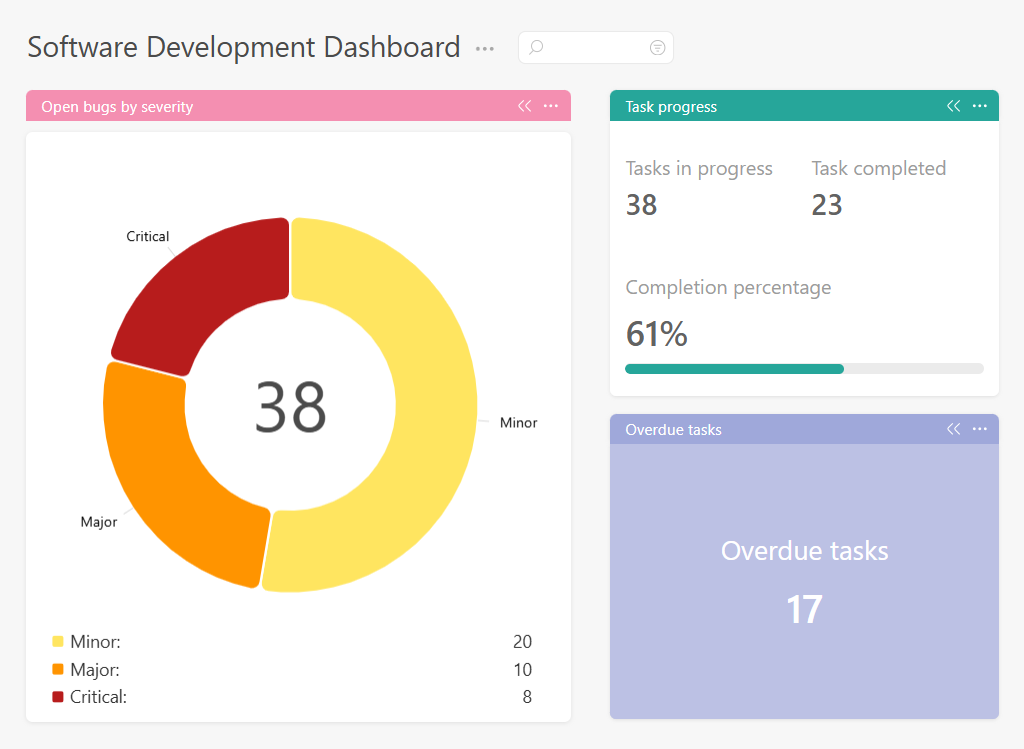
Software Development Team
A dev team lead needs a project tracker dashboard to know the health of the current sprint at a glance. A useful dashboard might include:
- Open bugs by severity – a donut chart showing critical, major, and minor issues
- Overdue tasks this sprint – a large number widget, ideally in red when above zero
- Tasks completed this week – to track velocity without opening reports
Marketing Team
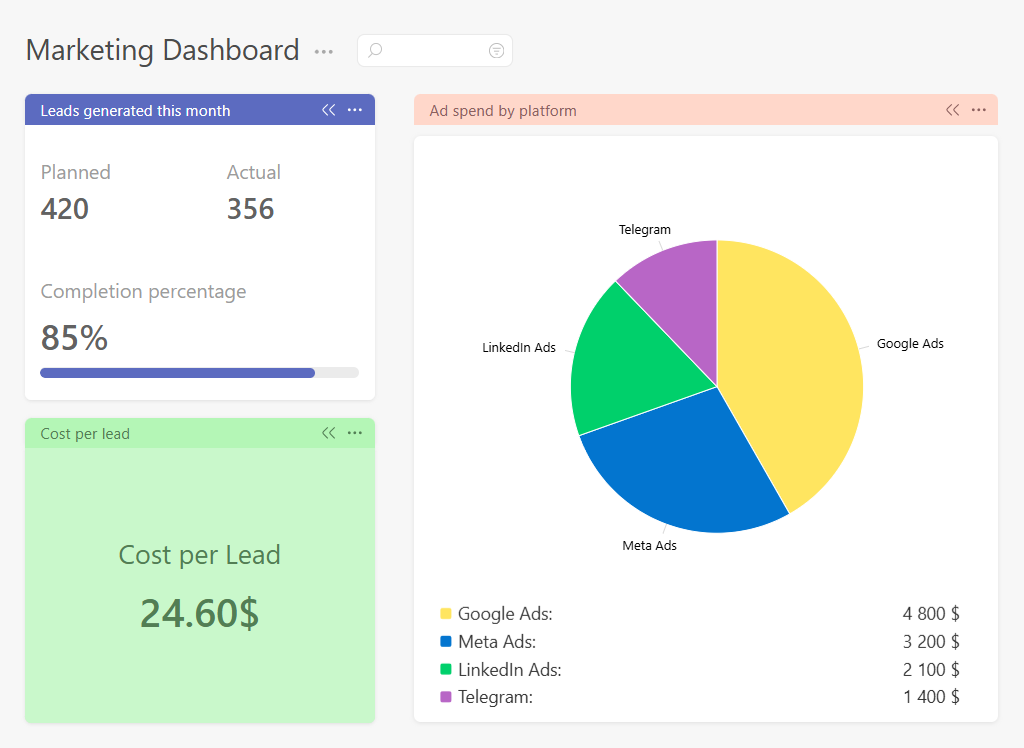
A marketer managing multiple channels needs budget visibility and top-of-funnel data in one place:
- Ad spend by platform – a donut chart across Google, Meta, Telegram, and other active channels
- Leads generated this month – a large number widget updated manually or pulled from a CRM tag
- Cost per lead – entered manually once a week for a quick channel comparison
Sales Team
A sales manager wants to track pipeline activity and revenue progress daily:
- New deals opened this week – a large number widget
- Deals by stage – a donut chart showing how opportunities are distributed across the funnel
- Revenue this month vs. target – two large number widgets side by side for instant comparison
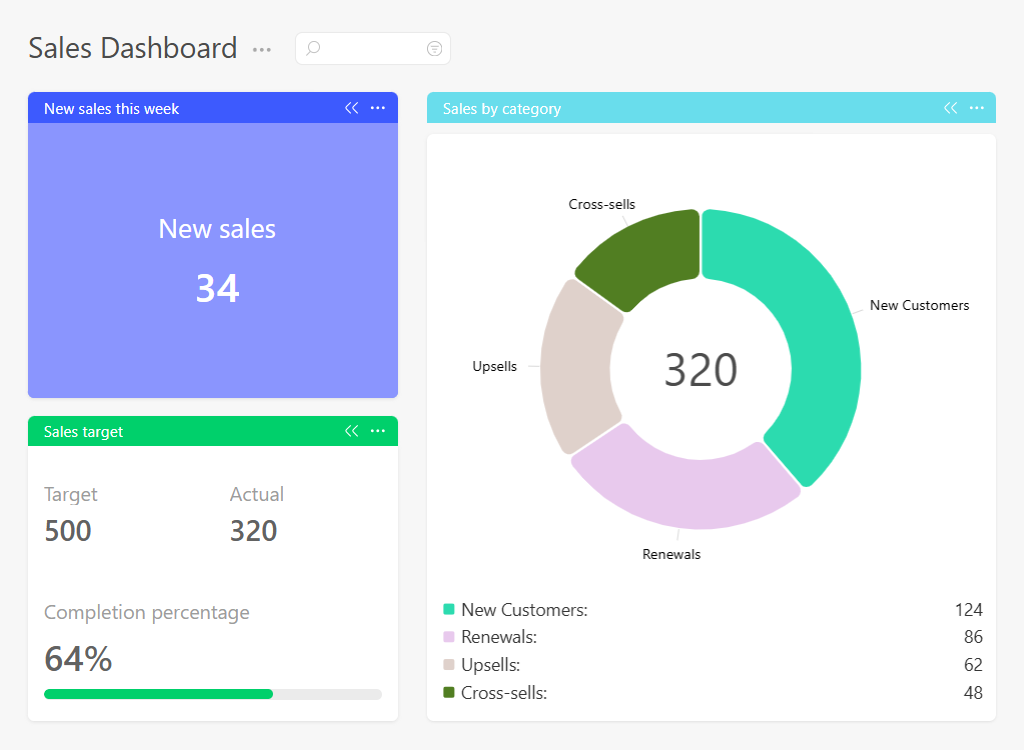
For example, you could set a target of 500 sales. Planfix will then calculate the actual result, such as 320 sales closed. Right there, you also see the completion percentage: 64%.
Support Team
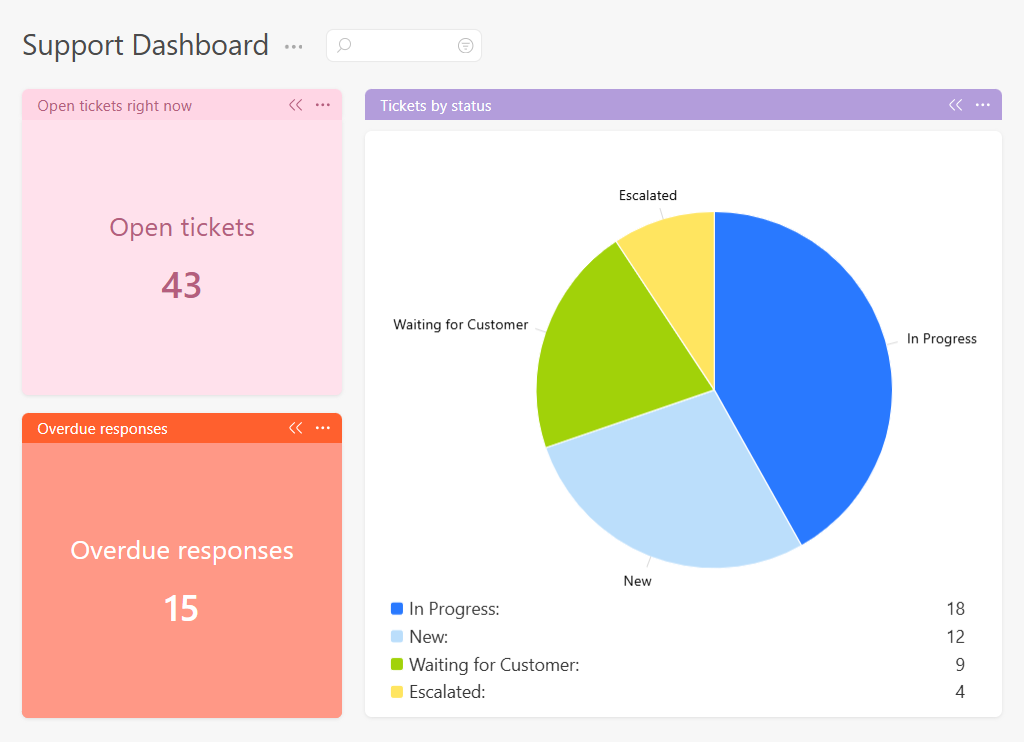
A support lead needs to monitor incoming volume and response quality:
- Open tickets right now – a large number widget that signals when the queue is getting long
- Tickets by status – a donut chart showing new, in progress, and waiting on customer
- Overdue responses – a large number widget to catch SLA breaches before they escalate
Each of these dashboards can be set up in Planfix in under ten minutes. For PMO dashboard examples that span multiple projects, the same widget types apply – scaled up to program level. Start with the widgets that match your most urgent questions, and adjust as your team’s needs become clearer.
A Few Tips for Getting Started
Don’t try to cover everything at once or rush in too fast. The tool is new, so you may want to test all its possibilities right away. However, adding 20 charts on day one is rarely useful. A dashboard should focus attention, not split it.
We recommend you start with the three most important numbers for your business, then add more as needed.
Later, when you have more metric widgets, separate them into strategic and operational groups. Strategic metrics work well in the main dashboard for executives, while operational metrics are better shown to the employees who work with them every day.
Don’t be afraid to experiment! Feel free to move widgets around, remove what you no longer need, and create new ones.
Why Planfix Dashboards Are Different
Most management dashboard software keeps dashboards in a separate section – something you open when you need to check numbers, then close and return to your work. Planfix takes a different approach.
Here is what sets it apart:
- Dashboards live where you work: Instead of a dedicated analytics section, widgets are built directly into your Planner. The metrics you need are visible in the same place where you manage tasks, not one click away in a separate module.
- You can mix automatic and manual data: Most dashboard tools only show data that already exists in the system. Planfix lets you combine both – automatically calculated metrics from tasks and contacts, alongside numbers you enter manually from external sources. This means you do not need a complex integration just to show monthly revenue or ad spend from a platform that has no API connection.
- Access control per widget: In most tools, dashboard editing is either open to everyone or locked to admins. Planfix lets you assign editing rights at the widget level – so the warehouse manager updates inventory, the marketer updates ad spend, and no one edits what is not their responsibility.
- No separate reporting tool needed: Traditional dashboard project reporting often requires a separate BI tool or spreadsheet – Planfix replaces all of that.
With Planfix, your project dashboard report is built in – no exports, no manual updates, no extra software.
What’s Coming in Future Updates
The widgets you see now are the first basic dashboard widgets. We will keep expanding them; more visual formats are coming, including histograms and classic bar charts for tracking data over time.
To help us better understand what you need, please tell us in the comments what else you would find useful on a dashboard.
FAQ
What is a project dashboard?
A project management dashboard is a visual display of the key metrics your team needs to track – tasks, deadlines, budgets, and performance indicators. Instead of opening multiple reports or asking for status updates, you see everything in one place at a glance.
What metrics should I track on a project dashboard?
It depends on your role. Project managers typically track overdue tasks and workload distribution, while executives focus on revenue and budget. Marketing and sales teams benefit from pipeline data, ad spend, and conversion rates.
Do I need technical skills to set up a dashboard in Planfix?
No. Setting up a widget in Planfix works the same way as configuring a task filter – no coding or integrations required. Most dashboards can be set up in under five minutes.
Can I add data from tools outside Planfix?
Yes. Widgets support manual data entry, so you can enter numbers from any external source – ad platforms, accounting tools, or spreadsheets. This way your dashboard stays complete even when full integration is not practical.
Who can edit dashboard data in Planfix?
You control access at the widget level. Each widget with manual entry can be assigned to a specific employee or group, so everyone updates only their own area of responsibility.
Is a dashboard the same as a report in Planfix?
Not quite. Reports in Planfix give you detailed data you can filter and export. A dashboard is designed for quick daily visibility – fewer details, but always in front of you where you work.

Comments 1
Thanks for this excellent piece. Embedding visual metric dashboards directly within planners significantly maximizes daily team operational focus.