

March may be over, but our efforts to improve Planfix are just getting into full swing. Check out our latest updates and improvements to optimize your workflow even more.
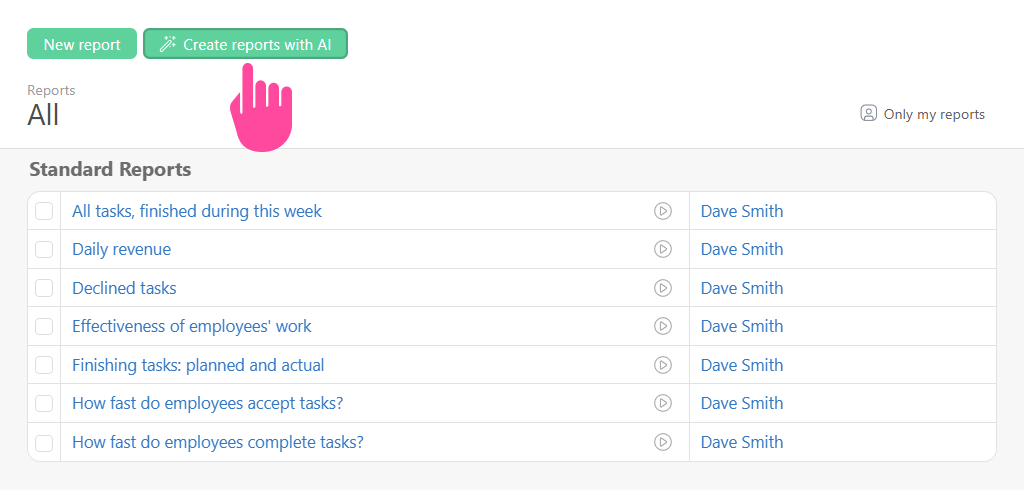
Planfix Just Got a New Button: “Create Reports with AI”
If you’ve been wanting to build reports but didn’t know where to start, now you can do it with just one click.
Here’s how it works: hit “Create reports with AI” → pick the object you want (like “Standard”) → and the system whips up several ready-made reports for you.
This is a game-changer if you’re new to data tags in Planfix or just want a quick set of basic reports without fiddling with every single field.
Of course, these AI-generated reports are just a starting point — you can tweak and customize them to fit your exact needs. But let’s be honest, starting with a solid draft beats staring at a blank screen any day.
AI: Creating Your Workspace Made Easy
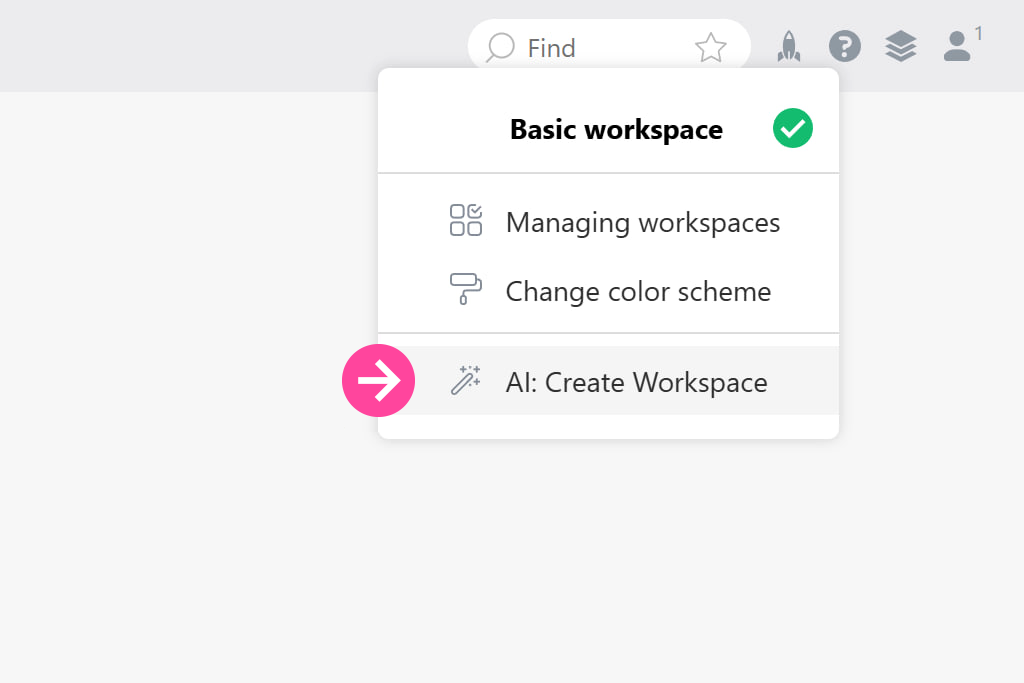
We’re all about making it simpler for you to hit the ground running with Planfix — and we’re tackling this from a bunch of angles. One exciting direction? Using AI to build a full workspace complete with objects and reports — all based on a simple text description of the business process you want to set up.
Today, we’re rolling out the very first version. It doesn’t do everything we have in mind just yet, but it’s already able to create fully functional workspaces you can use right away or tweak further if the basic setup doesn’t quite fit your needs.
We’re just getting started here. Going forward, AI will be able to craft even more complex workspaces using all the power of Planfix. Plus, stay tuned for updates that make manual system setup way easier, along with fresh AI-powered features inside the Planfix interface.
Main Menu Makeover
Be honest — whose Planfix menu looks like that kitchen drawer where everything random ends up? You know the one: batteries chilling next to scissors, old receipts, and three screwdrivers for some reason. Well, now that drawer’s got a “deep cleaning” mode.
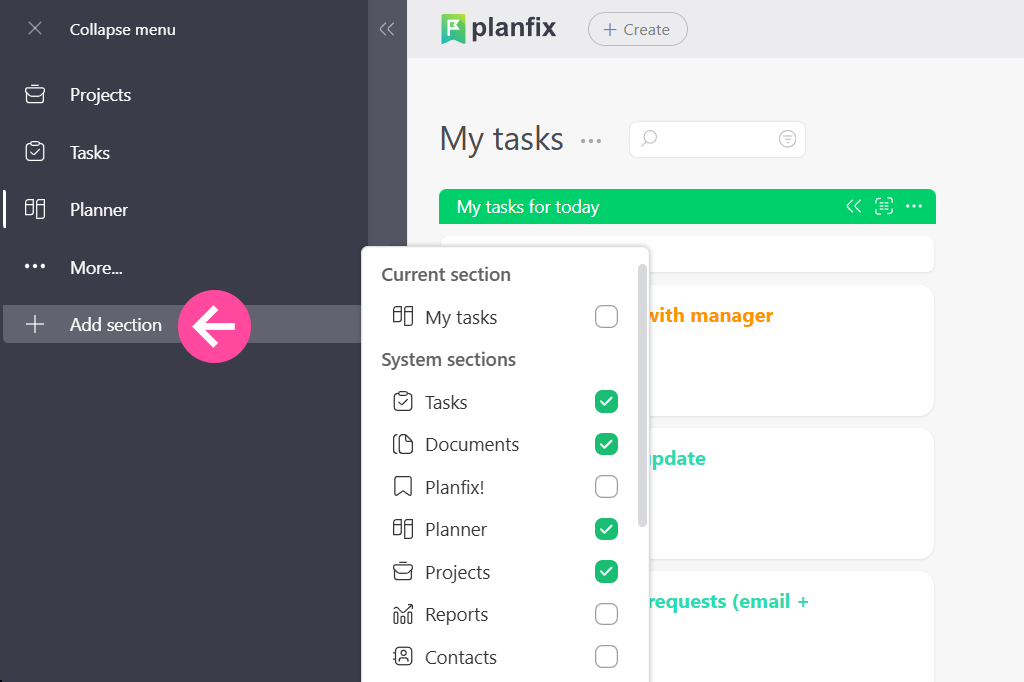
See that little plus sign at the bottom of the vertical menu? Tap it, and voilà — you get a neat list of recently opened sections, system sections, and objects. Each has a checkbox next to it. Check it to make that section show up in your menu, uncheck to hide it. Need to create something new — a project, a link, or a group? Hit “Create,” and you’re all set.
Bottom line: your main menu is now your space. The kitchen drawer won’t organize itself, but your Planfix menu? Totally under control.