
Exporting contacts: Difference between revisions
No edit summary |
|||
| Line 11: | Line 11: | ||
==Overview== | ==Overview== | ||
You can export them as part of a [[Exporting data | general export of account data]], by using the [[Report export | reports feature]], or directly from a [[Contact filters | contact filter]]. | You can export them as part of a [[Exporting data | general export of account data]], by using the [[Report export | reports feature]], or directly from a [[Contact filters | contact filter]]. | ||
==Exporting contacts from a contact filter== | ==Exporting contacts from a contact filter== | ||
You can initiate a contact export from any [[Contact filters | Contact filter]], using the '''Export''' button.This button lets you download a file containing all contacts that match the current filter's criteria. By default, the export format is an Excel file, but you can also choose CSV or Google Sheet as the export format. | You can initiate a contact export from any [[Contact filters | Contact filter]], using the '''Export''' button.This button lets you download a file containing all contacts that match the current filter's criteria. By default, the export format is an Excel file, but you can also choose CSV or Google Sheet as the export format. | ||
| Line 20: | Line 18: | ||
https://s.pfx.so/pf/R5/EdXr9R.jpg | https://s.pfx.so/pf/R5/EdXr9R.jpg | ||
You can also choose which contact fields will be included in the export file: | |||
https://s.pfx.so/pf/AA/tliZjv.jpg | https://s.pfx.so/pf/AA/tliZjv.jpg | ||
==Contact Export Log== | |||
You can view the history of contact exports in the log as follows: | |||
https://s.pfx.so/pf/wn/6j9doo.jpg | https://s.pfx.so/pf/wn/6j9doo.jpg | ||
The contact export log is stored for 90 days, just like other activity logs. | |||
https://pic.planfix.ru/pf/Ft/OnctSb.png | https://pic.planfix.ru/pf/Ft/OnctSb.png | ||
Revision as of 14:55, 13 November 2025
You can export contacts from Planfix in several ways:
- From the contacts filter
- Using reports
- As part of a data export
Overview
You can export them as part of a general export of account data, by using the reports feature, or directly from a contact filter.
Exporting contacts from a contact filter
You can initiate a contact export from any Contact filter, using the Export button.This button lets you download a file containing all contacts that match the current filter's criteria. By default, the export format is an Excel file, but you can also choose CSV or Google Sheet as the export format.
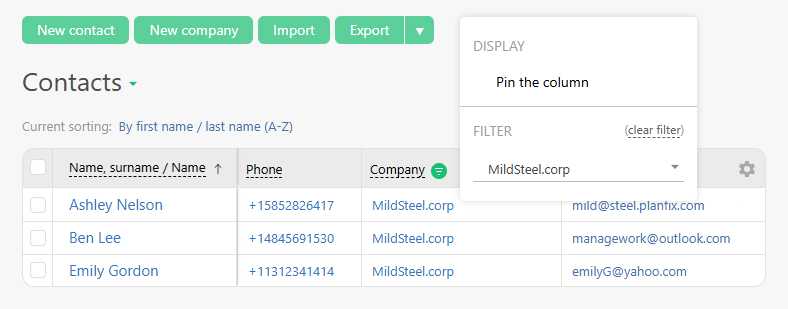
To export only contacts that match specific criteria, use the quick filters available by clicking on the relevant columns in the list:
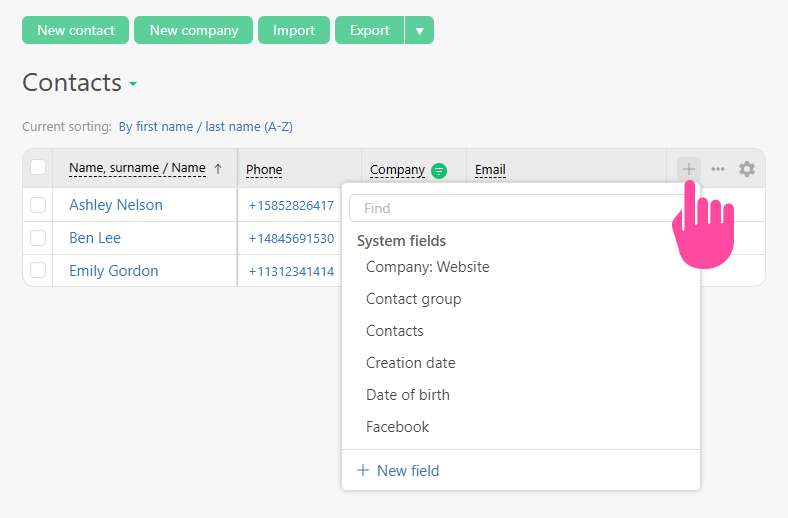
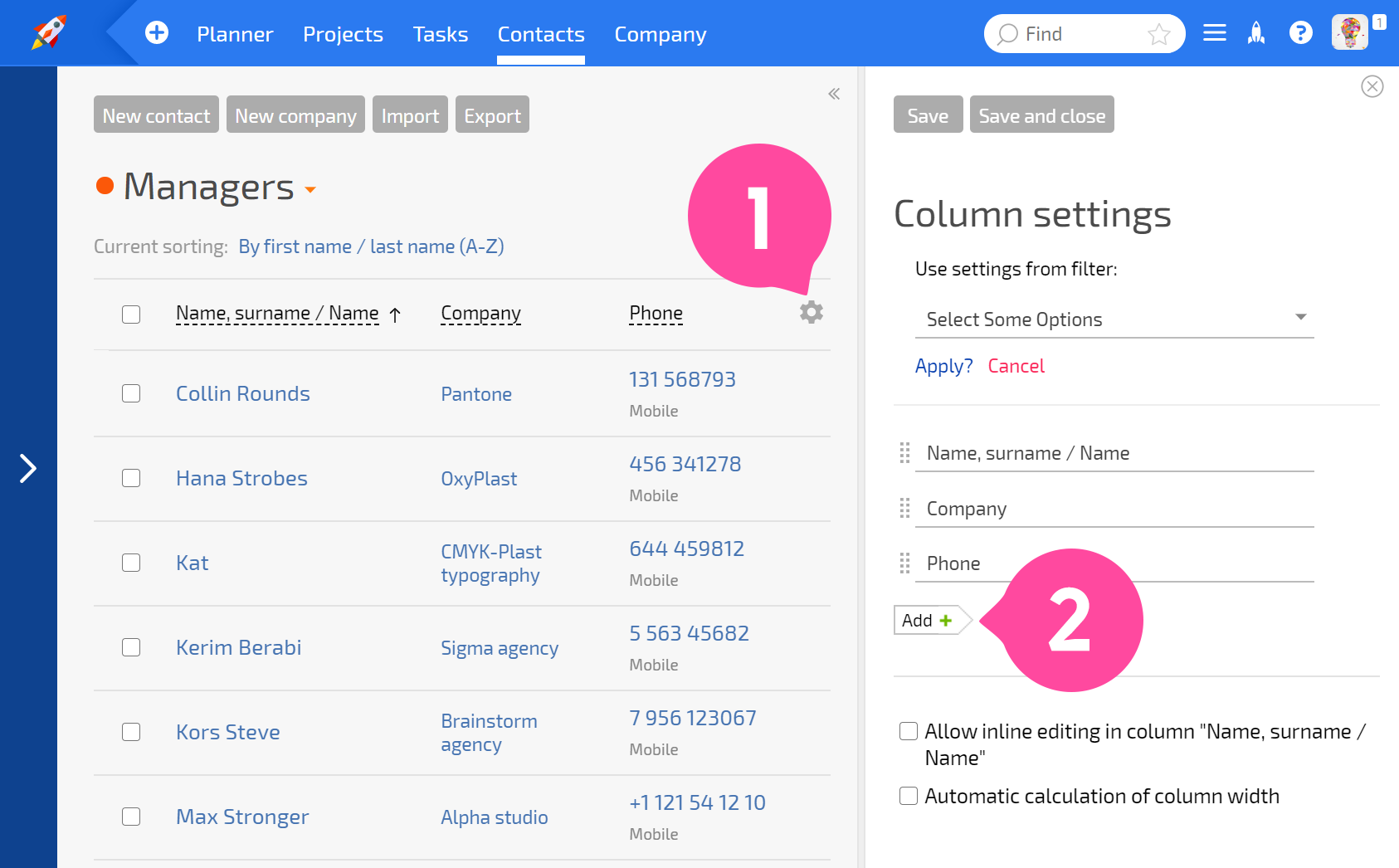
You can also choose which contact fields will be included in the export file:
Contact Export Log
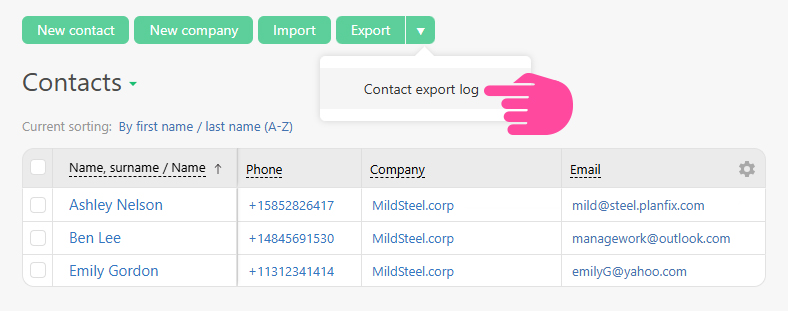
You can view the history of contact exports in the log as follows:
The contact export log is stored for 90 days, just like other activity logs.
Exporting contacts using reports
To export contacts, you need to:
- Create a new report.
- Set the general information fields and select the desired report type. You should add a column for each contact/company field that you want to see in the final file.
- Configure the filter for selecting data.
- Setting the filter conditions lets you select contacts based on a specific combination of factors. If you don't set any filter conditions, the report will display all contacts in Planfix.
- Run the report.
- You can export the final report to Excel which gets you an Excel file with the contact and company data you need.
Exporting contacts as part of a general data export
- You can also export contacts as part of a general export of all data and files, in the Account management section.
- The data will be downloaded as a ZIP file, broken out by sections, in JSON.
- Only Primary Account Admin can download a general export, and they can only do it once every 30 days, due to the heavy load on the system.