
Access to directories: Difference between revisions
From Planfix
No edit summary |
|||
| Line 13: | Line 13: | ||
Access is removed by clicking the "Remove access" next to the employee or group name. | Access is removed by clicking the "Remove access" next to the employee or group name. | ||
To edit access, select a group, employee, or contact by clicking the row for that person. After the row is highlighted in green, you can configure their permissions by granting access to [[Setting up edit/delete access to entries or groups of entries| | To edit access, select a group, employee, or contact by clicking the row for that person. After the row is highlighted in green, you can configure their permissions by granting access to [[Setting up viewing access to entries or groups of entries|view,]] [[Setting up edit/delete access to entries or groups of entries|edit, or delete entries and entry groups]]. | ||
== Important == | == Important == | ||
*You can quickly grant or remove access to a specific directory entry by opening the entry, going to the Access panel, and clicking Manage access. | *You can quickly grant or remove access to a specific directory entry by opening the entry, going to the Access panel, and clicking Manage access. | ||
Revision as of 15:59, 8 December 2025
Access to directories and their subsections is configured by account administrators or authorized employees. It is configured in the Directories section:
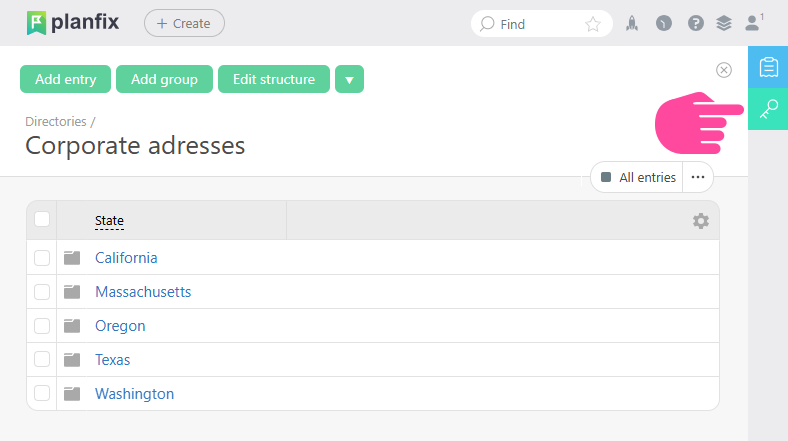
Here you can view and open more detailed access settings for the directory:
- In the left panel, you can see who has access to the directory entries.
- In the right panel, you can see which directory entries are available to the selected employee, group, or contact:
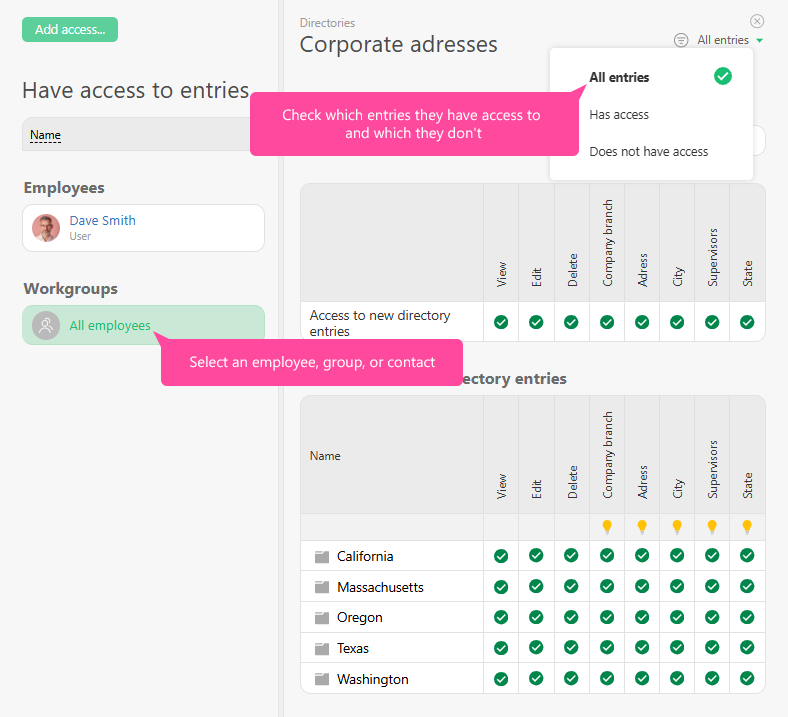
Access is added using the "Add access" button. In the window that opens, you can select a work group, employee, or contact to configure their access in more detail later.
Access is removed by clicking the "Remove access" next to the employee or group name.
To edit access, select a group, employee, or contact by clicking the row for that person. After the row is highlighted in green, you can configure their permissions by granting access to view, edit, or delete entries and entry groups.
Important
- You can quickly grant or remove access to a specific directory entry by opening the entry, going to the Access panel, and clicking Manage access.

Additionally
- Setting up directory access
- Setting up viewing access to entries or groups of entries
- Setting up edit/delete access to entries or groups of entries
- Changing permissions when moving directory entries
- Granting an employee permission to manage directory access