
WhatsApp: Difference between revisions
| Line 15: | Line 15: | ||
Alternatively, you can revoke Planfix access in Meta Business settings, in the section where partner permissions for WhatsApp accounts are managed. | Alternatively, you can revoke Planfix access in Meta Business settings, in the section where partner permissions for WhatsApp accounts are managed. | ||
==How the integration works== | ==How the integration works== | ||
To connect the integration, go to Account management — Integrations — Messengers — WhatsApp — WhatsApp Business. | To connect the integration, go to Account management — Integrations — Messengers — WhatsApp — WhatsApp Business. | ||
Revision as of 14:32, 14 November 2025
This integration allows you to use Planfix to chat with contacts who have messaged you on WhatsApp. In addition, you can also use Planfix to process requests from customers or other WhatsApp users. Planfix unites all messages from all of the channels of communication you use. This helps you be more productive and makes it easier for you to hand off work to other employees.
Ways for Integration with WhatsApp
- Directly through the WhatsApp Business.
- By using third-party services.
Direct connection via WhatsApp Business
When setting up WhatsApp Business integration, you can choose one of two configuration options:
- Connect a new WhatsApp number — uses a phone number that is not registered in the WhatsApp app.
- Connect an existing WhatsApp Business account — use the same number in both the WhatsApp Business app and the Planfix integration simultaneously.
Note: The option to connect an existing account is not available in all countries. Check the official Meta page for a list of countries where this feature is not supported.
Disconnecting the Integration
If you need to disconnect the integration, complete both steps:
- Disconnect the integration in the Planfix interface.
- In the WhatsApp Business app, go to Settings — Account — WhatsApp Business Platform and disconnect Planfix.
Alternatively, you can revoke Planfix access in Meta Business settings, in the section where partner permissions for WhatsApp accounts are managed.
How the integration works
To connect the integration, go to Account management — Integrations — Messengers — WhatsApp — WhatsApp Business.
After you set up the integration, you can receive and send messages to WhatsApp users. The logic for handling messages is the same as in other messenger integrations:
- When a new WhatsApp user sends a message to your number for the first time, a new task will appear in Planfix.
- Contact will be created automatically in your account with the name and phone number of the WhatsApp user, and this contact will be set as the assigner for this task.
- If you write a comment in this task and notify the new contact about it, they will see your comment as a WhatsApp message, as if you wrote to them from the app.
- You can add other Planfix users to these tasks and discuss customers' questions in the task comments. The WhatsApp user will only receive the messages where they are specified to receive a notification.
- The integration allows you to exchange files. Files sent from WhatsApp by a user are added to the comment created in Planfix for their message. Files that you attach to Planfix comments are sent to the WhatsApp user.
- You can select the following option in the integration settings: Create a new task if there are no active tasks with this contact
- You can send a message to a contact who has never written to you before if you know the phone number they use for WhatsApp:
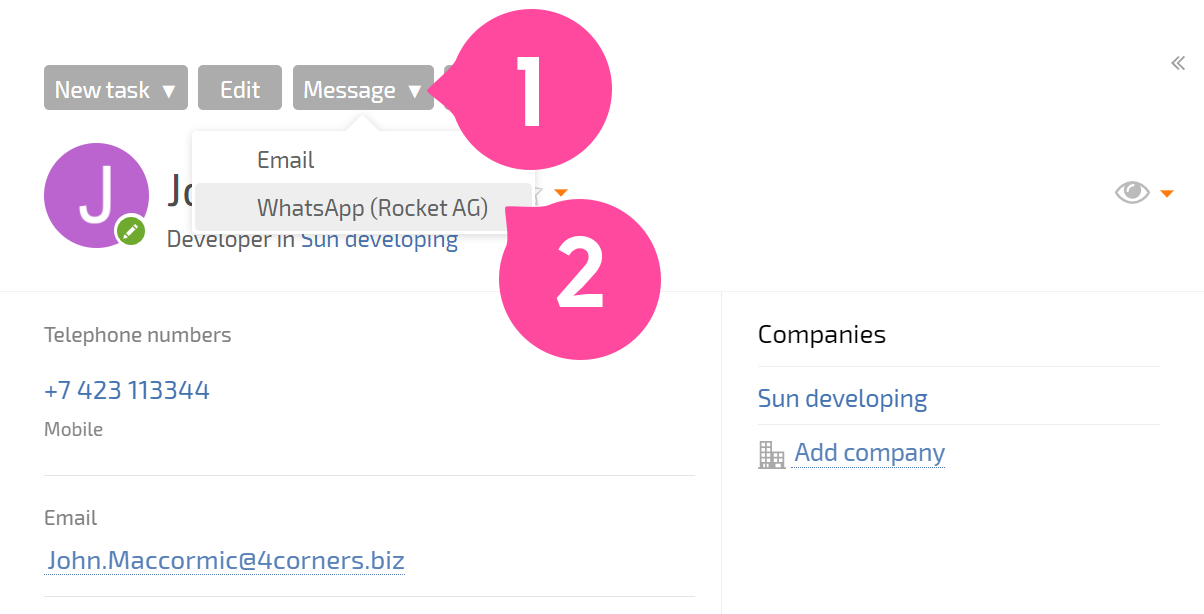
Be sure not to send undesired or bothersome messages, as your WhatsApp account could be blocked. Also note that the availability of this feature may depend on the integration service you choose and its settings.
Important
You can link both regular and business WhatsApp accounts.