
Settings for displaying cards in a planner: Difference between revisions
No edit summary |
No edit summary |
||
| (3 intermediate revisions by one other user not shown) | |||
| Line 1: | Line 1: | ||
{{#seo: | |||
|title=Settings for displaying cards in a planner | |||
|titlemode=append | |||
|keywords=planfix, cards, planner, settings, menu cards | |||
|description=Settings for displaying cards in a planner | |||
}} | |||
In most types of [[Types of planner lists | Planner lists]], you can configure how task or contact cards are displayed. These settings let you display only the necessary data from tasks or contacts, and they let you control the list of operations that can be carried out on these objects. | In most types of [[Types of planner lists | Planner lists]], you can configure how task or contact cards are displayed. These settings let you display only the necessary data from tasks or contacts, and they let you control the list of operations that can be carried out on these objects. | ||
==Settings for displaying cards== | ==Settings for displaying cards== | ||
| Line 15: | Line 21: | ||
You can control how the fields will look that are displayed in a card by choosing a font and text size and placing each field where you would like it in the card: | You can control how the fields will look that are displayed in a card by choosing a font and text size and placing each field where you would like it in the card: | ||
https:// | https://s.pfx.so/pf/Gv/5EcZTT.jpg | ||
A special note on the '''Line break''' option. This option controls the wrapping of fields into a new line. If this option is disabled, the system places the field on the same line as the previous one. The option is enabled by default. | A special note on the '''Line break''' option. This option controls the wrapping of fields into a new line. If this option is disabled, the system places the field on the same line as the previous one. The option is enabled by default. | ||
| Line 23: | Line 29: | ||
*as icons at the bottom of the card: | *as icons at the bottom of the card: | ||
*as a drop-down menu available by clicking the three dots in the upper right-hand corner of the card: | |||
https://s.pfx.so/pf/Hg/LgQKHq.gif | |||
*Configuring the list of operations and how the menu of operations is displayed can be done in the corresponding panel in the list settings: | *Configuring the list of operations and how the menu of operations is displayed can be done in the corresponding panel in the list settings: | ||
https:// | https://s.pfx.so/pf/Q8/j4dVIw.jpg | ||
If the operations panel is disabled, the menu of operations will be displayed by clicking on the three dots in the upper right-hand corner of the card. | If the operations panel is disabled, the menu of operations will be displayed by clicking on the three dots in the upper right-hand corner of the card. | ||
== Go To == | |||
==Go To== | |||
*[[Cards]] | *[[Cards]] | ||
*[[Types of planner lists]] | *[[Types of planner lists]] | ||
*[[Planner]] | *[[Planner]] | ||
*[[Feature Description]] | *[[Feature Description]] | ||
Latest revision as of 08:35, 27 November 2025
In most types of Planner lists, you can configure how task or contact cards are displayed. These settings let you display only the necessary data from tasks or contacts, and they let you control the list of operations that can be carried out on these objects.
Settings for displaying cards
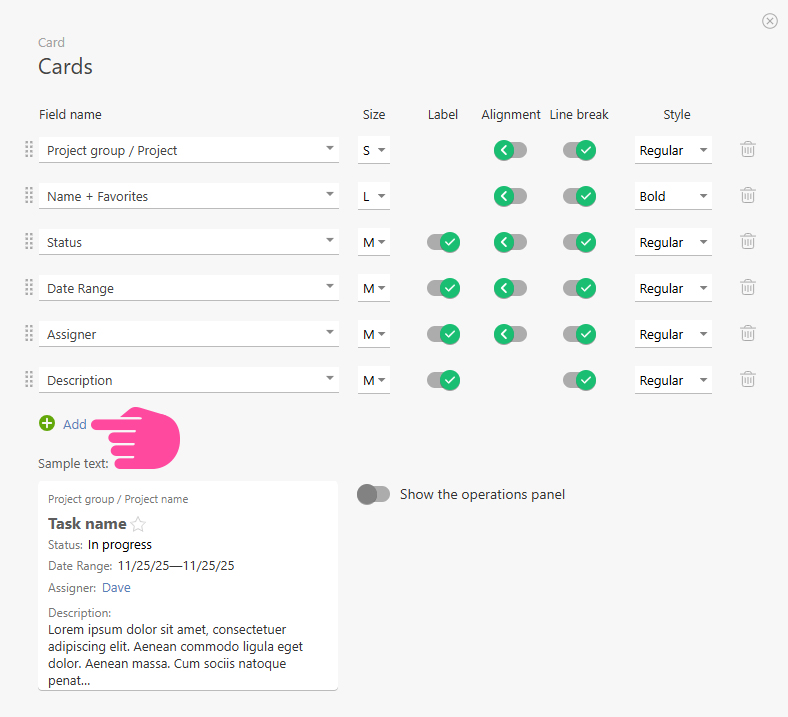
In a card, you can display both standard and custom task/contact fields:
In addition to fields, you can also display files that are attached to a task in its card:
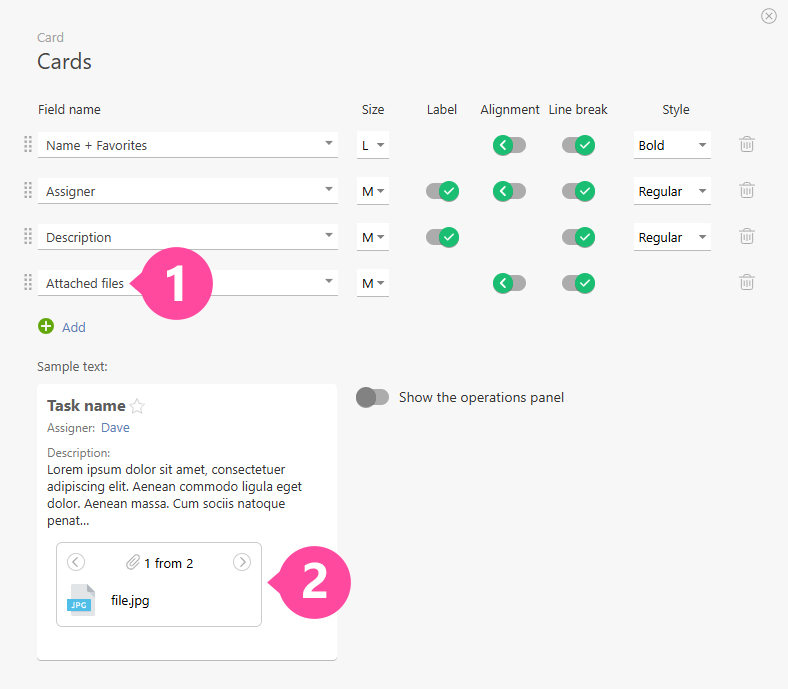
You can view a file from a Planner card the same way you can when you're in the full task — just click the file. When you close the file view window, you return to the Planner.
Please note
Only files that are attached directly to the task (i.e. are displayed in its description) will be displayed here.
You can control how the fields will look that are displayed in a card by choosing a font and text size and placing each field where you would like it in the card:
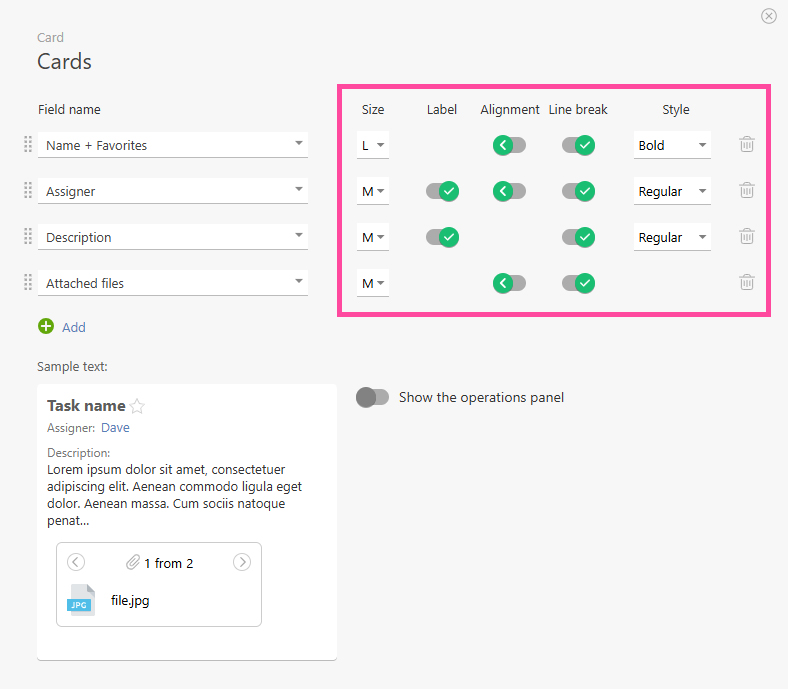
A special note on the Line break option. This option controls the wrapping of fields into a new line. If this option is disabled, the system places the field on the same line as the previous one. The option is enabled by default.
In addition to the appearance of a card, you can also adjust settings for the menu of operations users can use on the card. The menu can be displayed in two ways:
- as icons at the bottom of the card:
- as a drop-down menu available by clicking the three dots in the upper right-hand corner of the card:
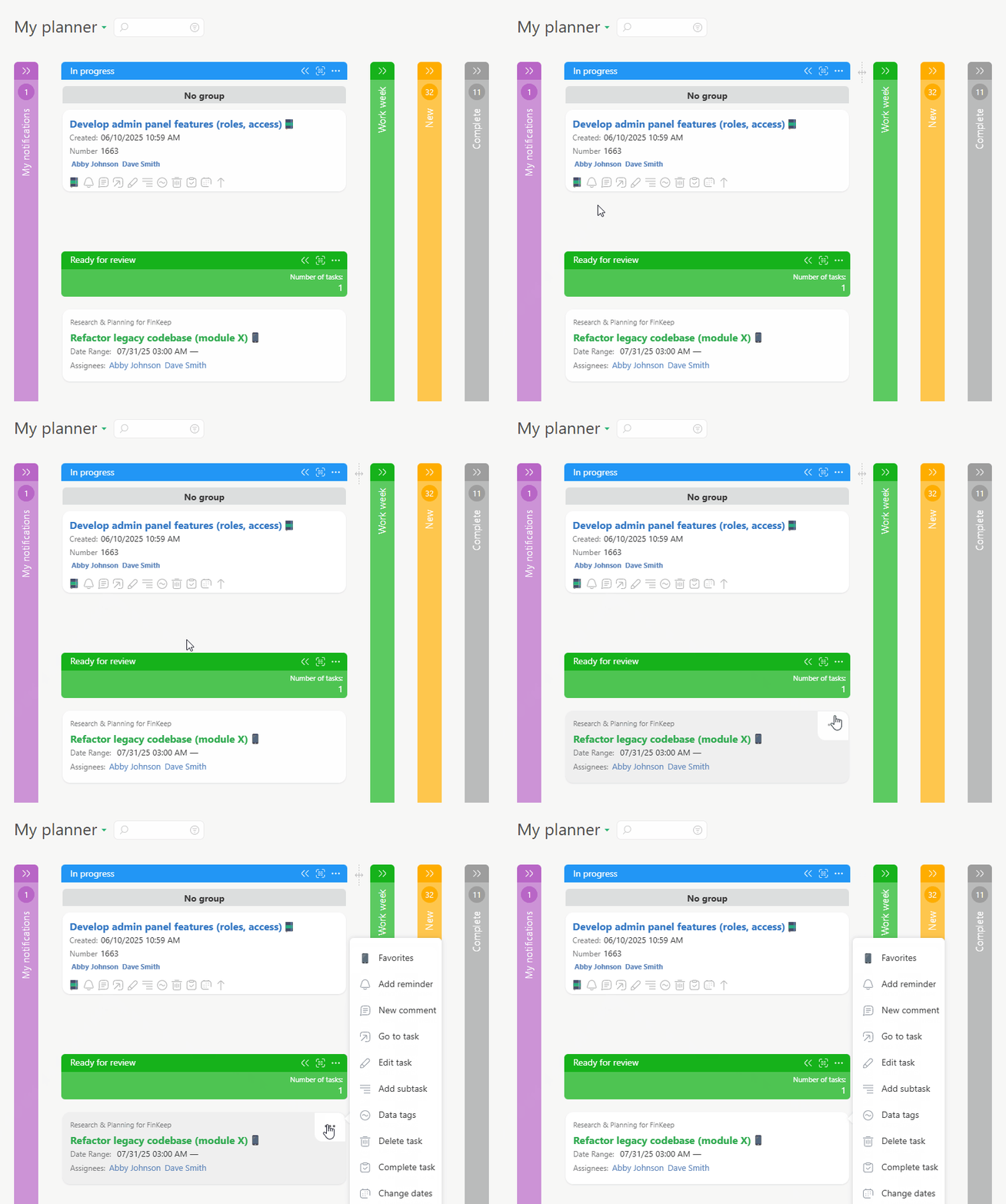
- Configuring the list of operations and how the menu of operations is displayed can be done in the corresponding panel in the list settings:
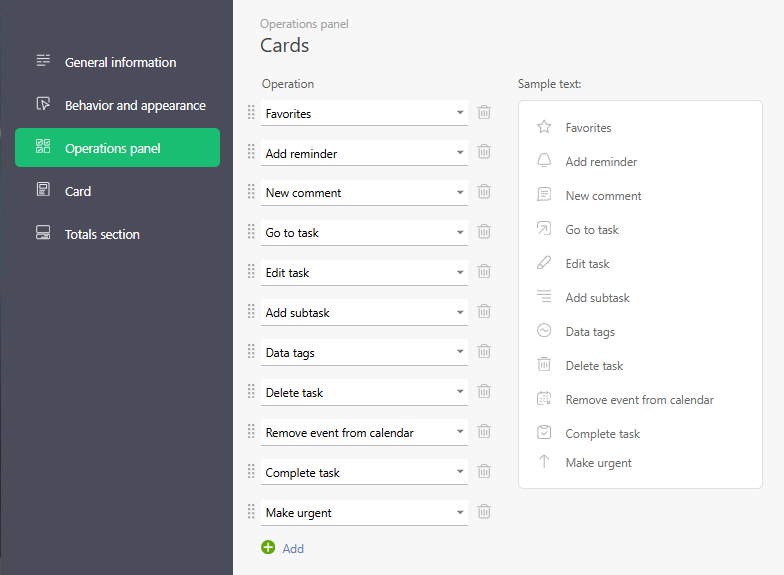
If the operations panel is disabled, the menu of operations will be displayed by clicking on the three dots in the upper right-hand corner of the card.