
Enabling two-factor authentication for employees
From Planfix
If an administrator selects All employees can use this type of authentication in the account security settings, any employee can enable or disable two-factor authentication in their user card, in the Security tab:
After the Enable button is clicked, the system will prompt you to install the Google Authenticator app and use it to register your smartphone in your Planfix account:
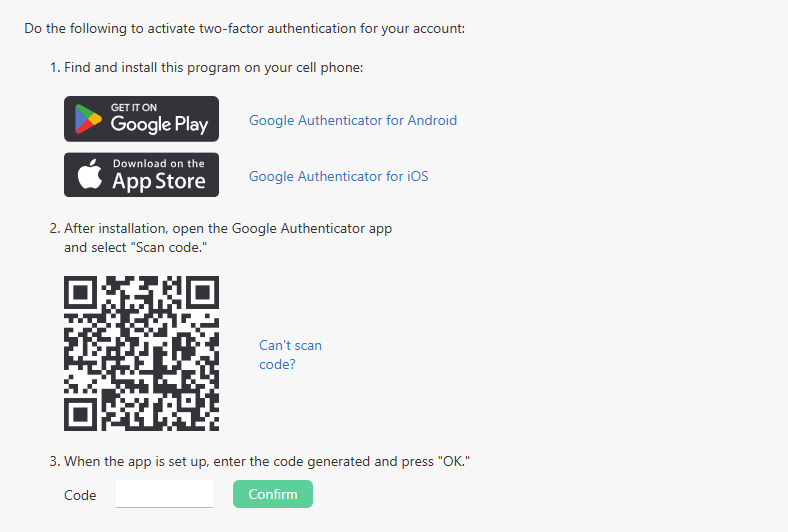
Complete these steps to link your smartphone to your Planfix account and receive codes on it to log in to the web version of Planfix.
Important
- Immediately after enabling two-factor authentication, you will need to save backup passwords that can also be used to access the system.
- To log in to the mobile Planfix app with two-factor authentication enabled, you must receive a one-time app password.