
REST API: Working with files
The REST API of Planfix supports working with files
Attach and update
You can use the API to attach or update files that you have previously uploaded:
Task
- Files are only attached or updated in the task description.
- Attach files to the description when creating a task:

- Update files in the task description:

Important:
- Files are replaced with those passed in the files parameter.
- If an empty field is passed, files are detached from the task and deleted if not used elsewhere.
- If the files field is not passed, files are not updated.
Contact
- Files are only attached or updated in the contact description.
- Attach files to the description when creating a contact:

- Update files in the contact description:

Important:
- Files are replaced with those passed in the files parameter.
- If an empty field is passed, files are detached from the contact and deleted if not used elsewhere.
- If the files field is not passed, files are not updated.
Project
- Files are only attached or updated in project documents.
- Attach files during project creation:

- Update files in the project:

Important:
- Files are replaced with those passed in the files parameter.
- If an empty field is passed, the files are removed from the project and deleted if not used elsewhere.
- If the files field is not transferred, the files are not updated.
Directory
Adding a file to a directory entry in Planfix involves two steps:
1. Upload the file using one of the following REST API methods:
- /file/ — Upload a file from a local source.
- /file/from-url/ — Upload a file from a URL.
Make sure to pass directory as the value for the targetType parameter.
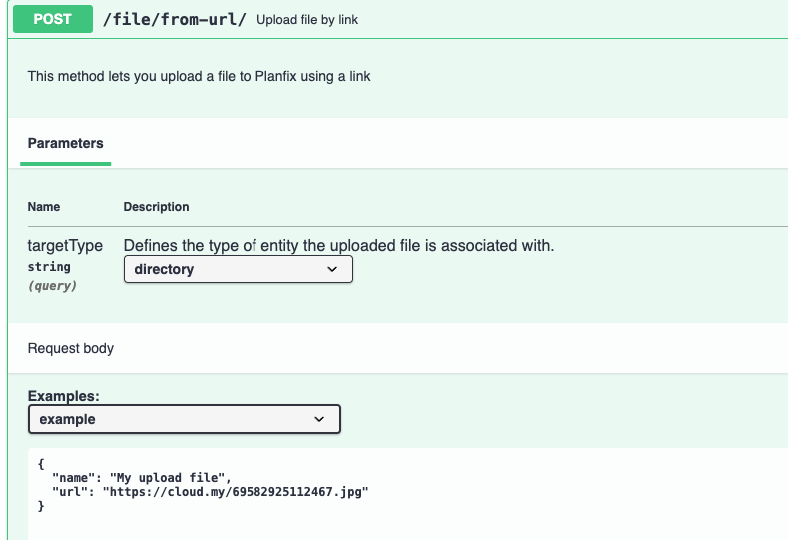
In the response, you will receive the ID of the uploaded file.
2.Create a new directory entry and add the file to the “files” field.
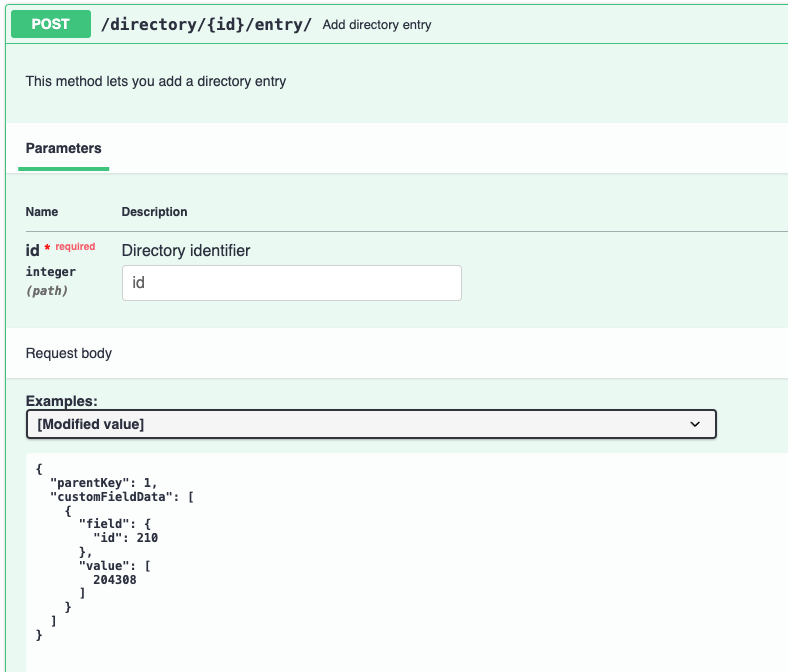
Or update an existing directory
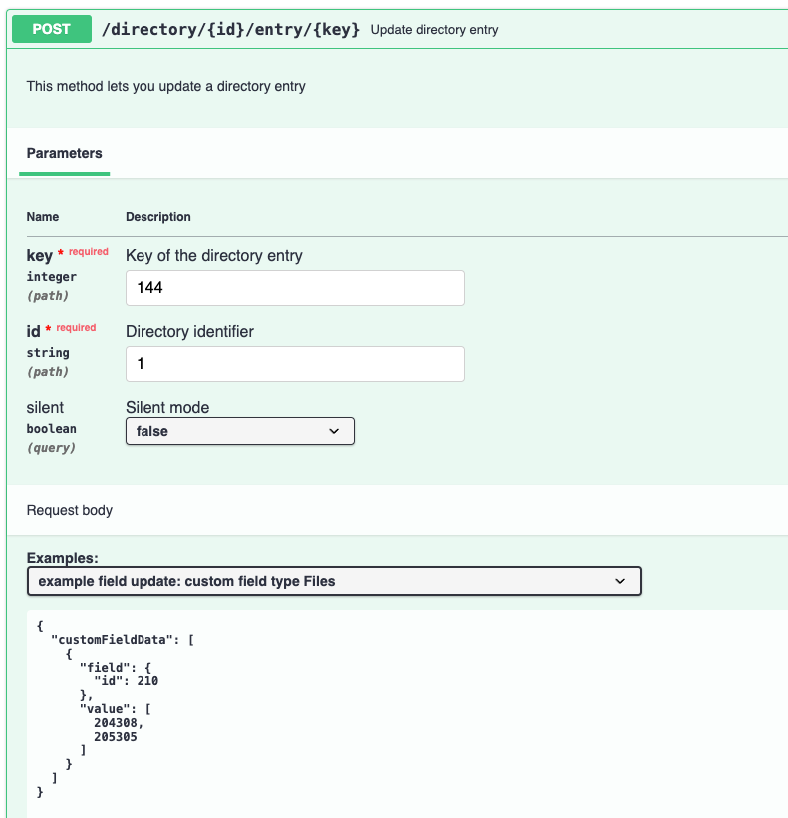
Important:
- When updating an entry, the files are replaced by those passed in the value parameter.
Get a list of files
You can obtain a list of files via API:
Task
The method has a parameter onlyFromDescription, which allows you to retrieve files only from the task description:

Contact
The method has an onlyFromDescription parameter, which you can use to retrieve files from the contact description only:

Project
The method has the parameters pageSize and offset for page navigation through the list:
