
Variables in document templates: Difference between revisions
No edit summary |
No edit summary |
||
| Line 7: | Line 7: | ||
'''Variables''' are can play a large role in [[Document templates | document templates]]. When creating a document using a template, any variables used are replaced with the values stored in the object they are linked to. This makes document templates a convenient way to create documents and populate them with data from a specific contact, task, or data tag. | '''Variables''' are can play a large role in [[Document templates | document templates]]. When creating a document using a template, any variables used are replaced with the values stored in the object they are linked to. This makes document templates a convenient way to create documents and populate them with data from a specific contact, task, or data tag. | ||
There are certain variables available for document templates, in addition to the [[Variables in task templates | variables used in task]] templates. A complete list of variables available can be found in the section '''Documents | There are certain variables available for document templates, in addition to the [[Variables in task templates | variables used in task]] templates. A complete list of variables available can be found in the section '''Documents — Document templates''': | ||
https://s.pfx.so/pf/Md/N7GRPH.png | https://s.pfx.so/pf/Md/N7GRPH.png | ||
Revision as of 09:17, 6 November 2025
Variables are can play a large role in document templates. When creating a document using a template, any variables used are replaced with the values stored in the object they are linked to. This makes document templates a convenient way to create documents and populate them with data from a specific contact, task, or data tag.
There are certain variables available for document templates, in addition to the variables used in task templates. A complete list of variables available can be found in the section Documents — Document templates:
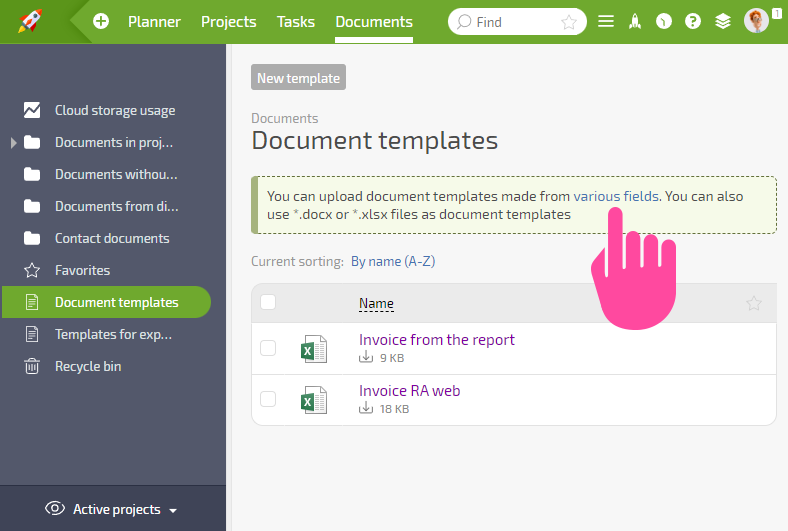
On the left-hand side of the window that opens when you click this link, you can see a list of available objects:
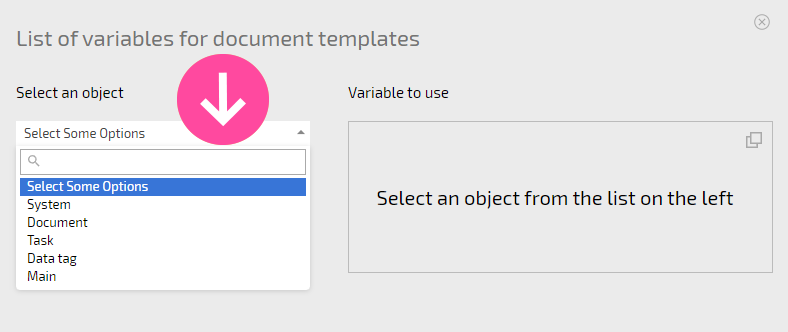
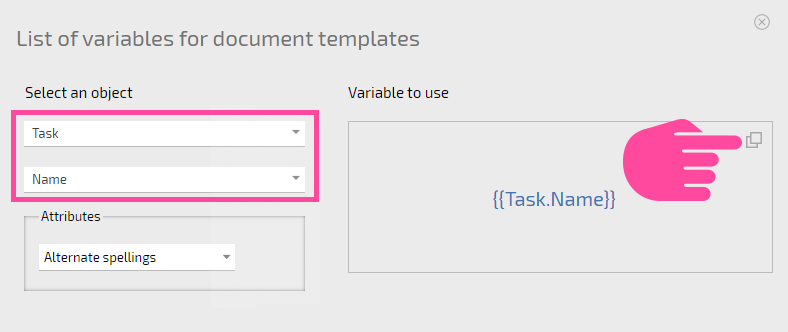
After choosing an object, you'll be able to view the associated variable on the right-hand side of the window. These variables can be copied and then pasted in your document template:
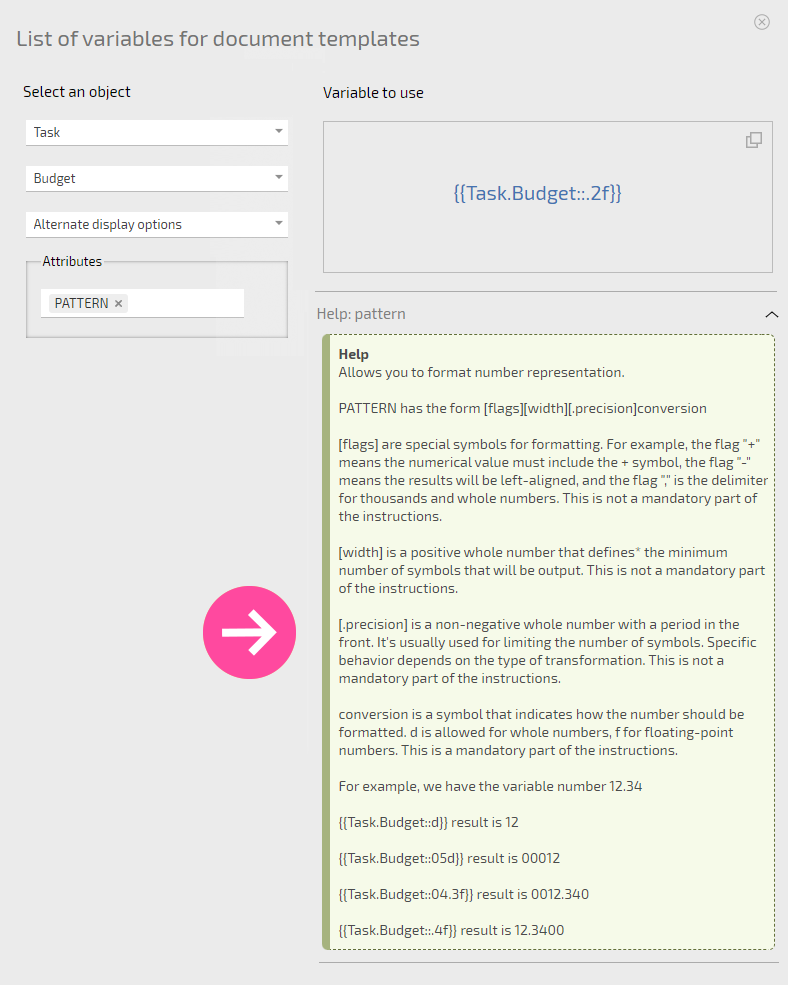
Some variables can be formatted. If that's the case, you'll see information about how to format the variable below the variable name:
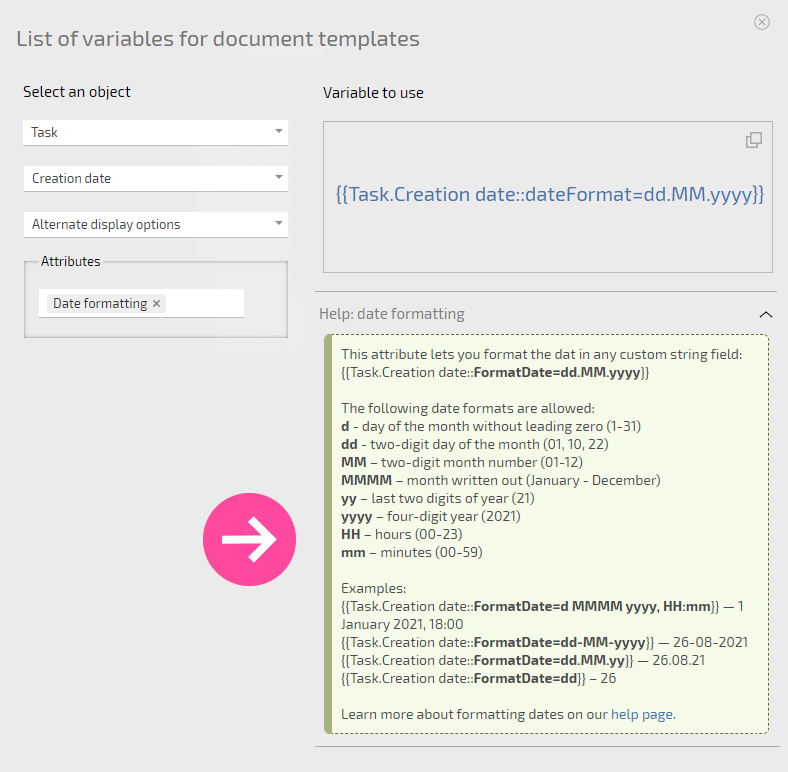
Formatting numbers are also possible. Under the name of the variable, information about formatting options can be found:
Important
There are two different types of variables that can be used in document templates:
- Regular variables.
- Variables that automatically add rows to the final document.
Variable encoding
Variables can be assigned different functions in Planfix.
Variables