
Adding new fields to contact cards
From Planfix
Additional user fields can be added to contact cards when editing a contact template:
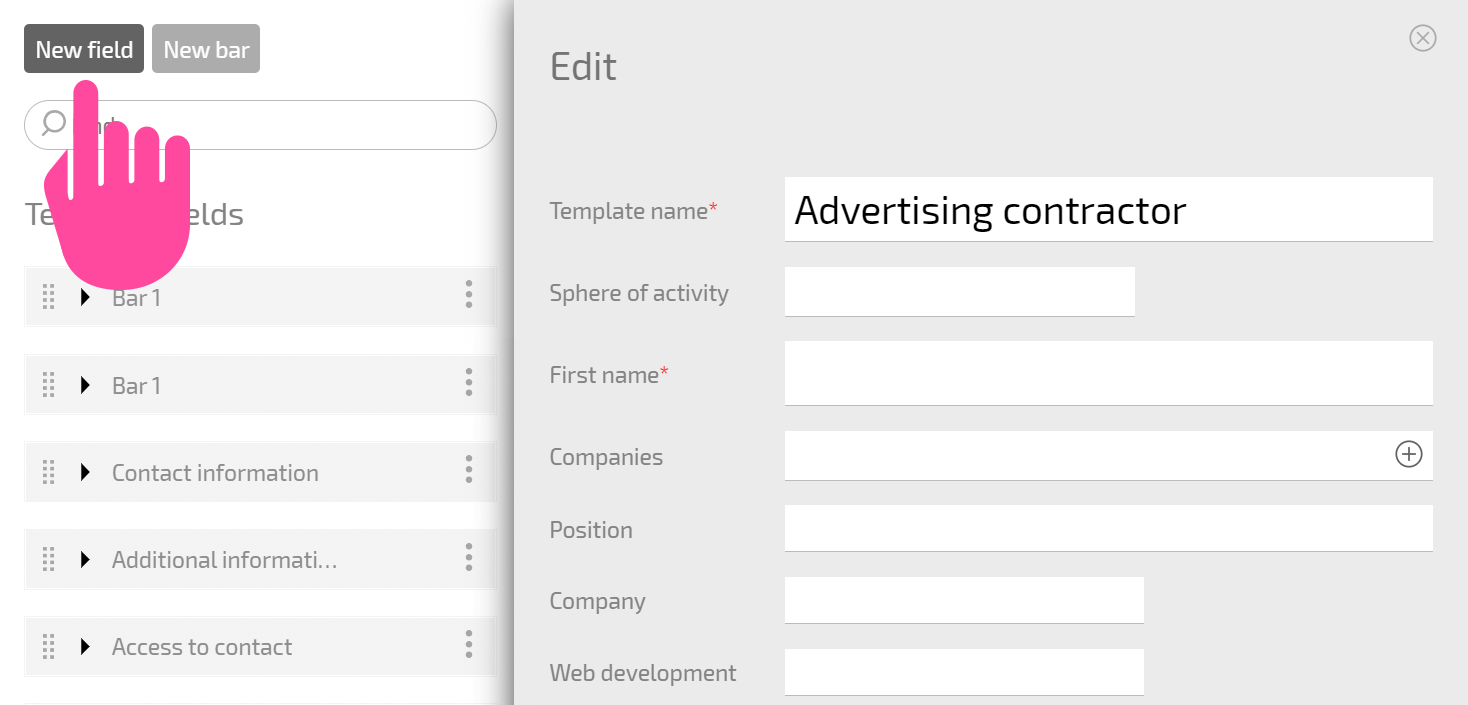
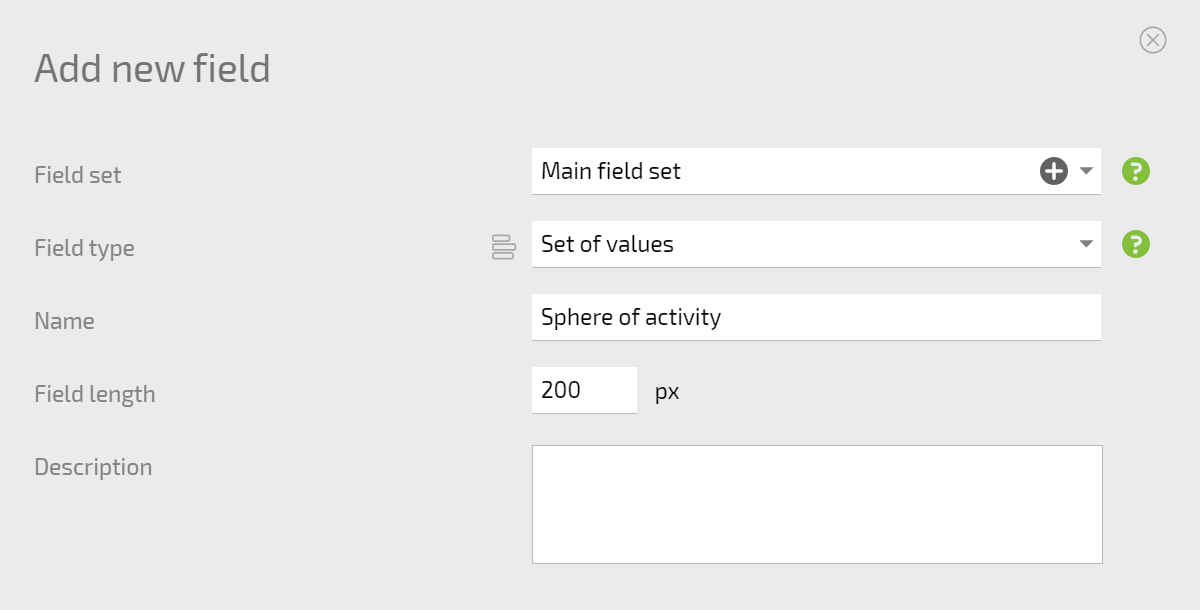
- In the form that opens, select the field type, enter a name, and configure additional parameters depending on the field type:
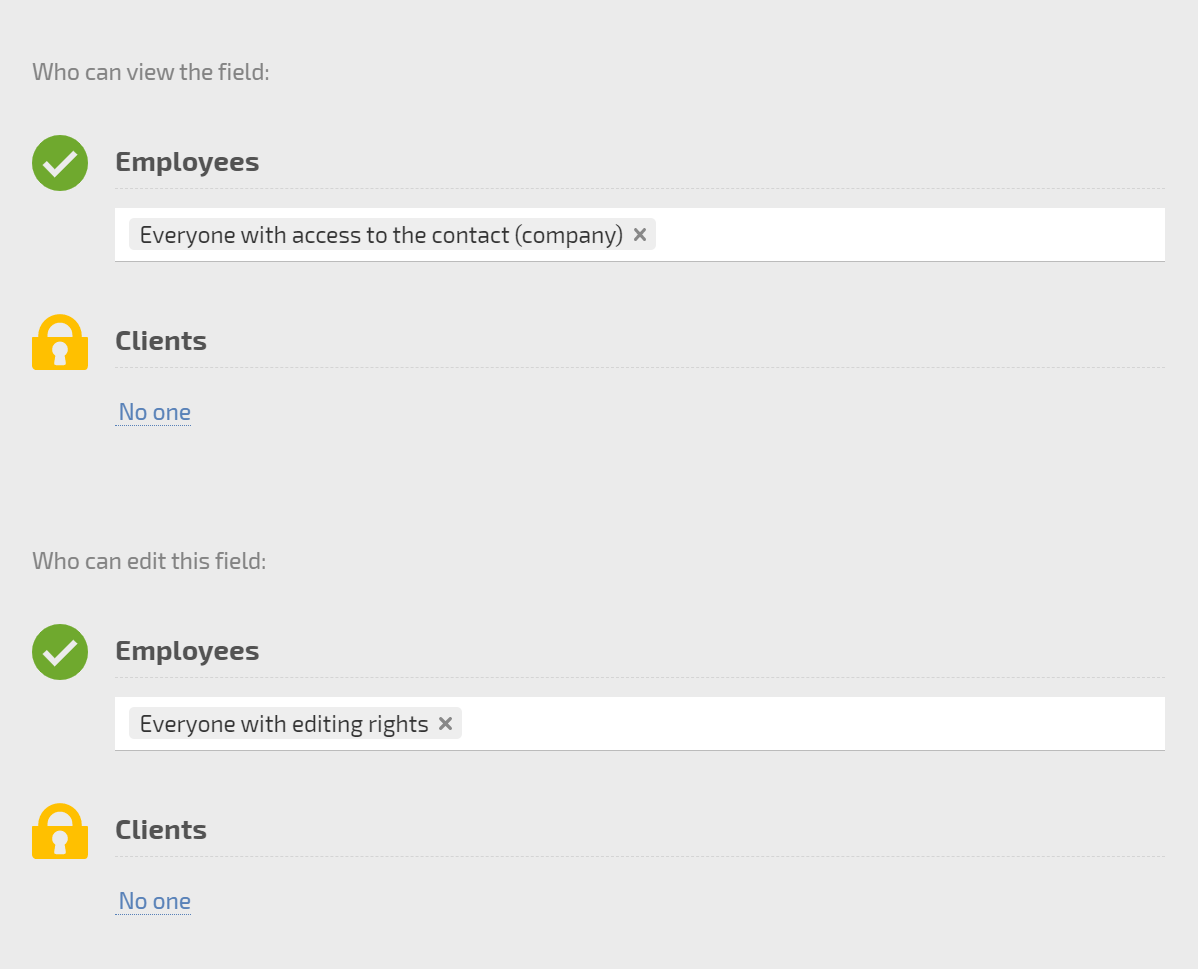
- Set access to this field for employees or clients:
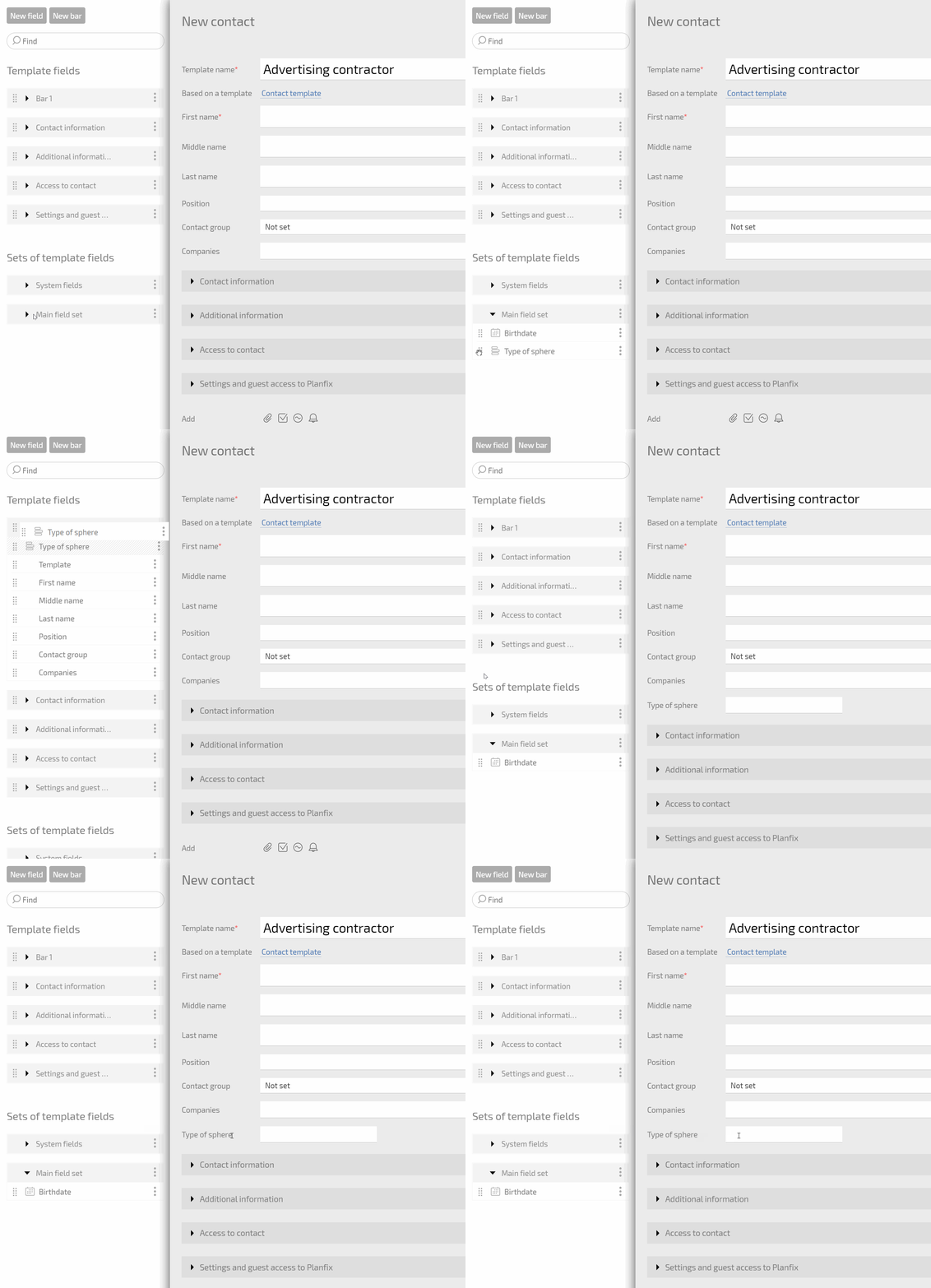
The field you create will appear in the Main field set section that can be found at the bottom of the list of panels and fields. You can add a new field to one of the panels in the contact form by clicking its name in the list:
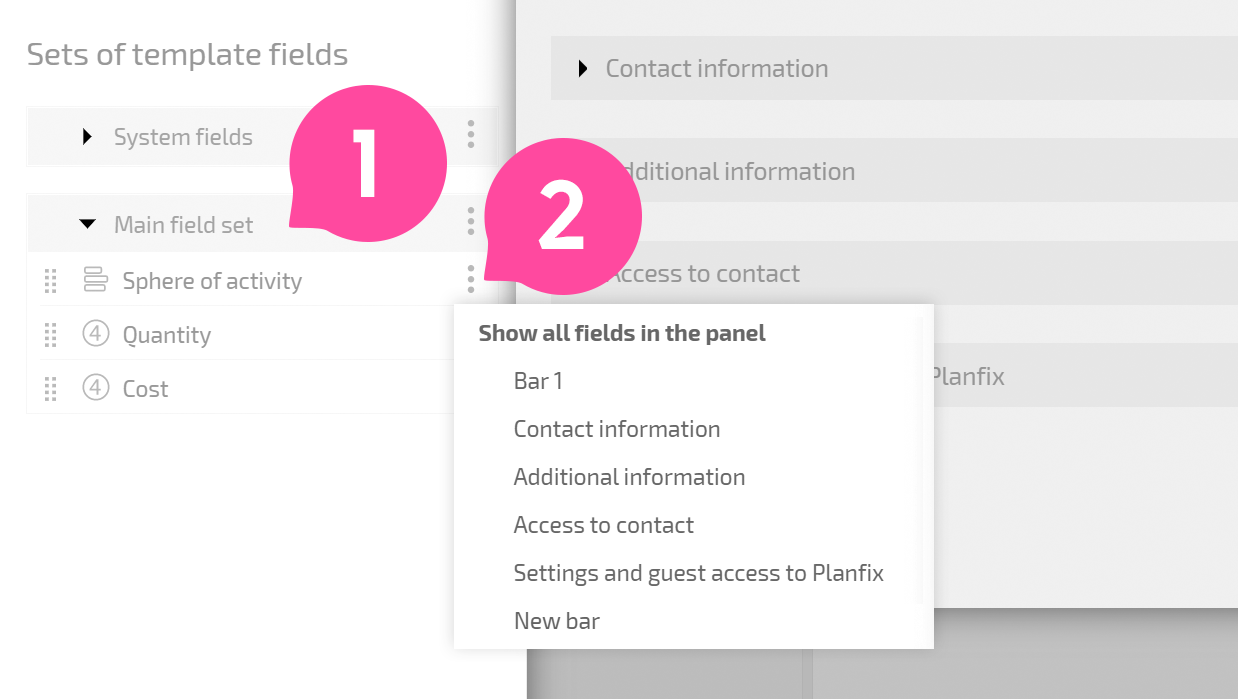
Or by dragging and dropping:
Important
If the field were created at an earlier point, it would be in the list of fields found on the form's left-hand side. You don't need to create the field again: you can create a field once and use it multiple times in any contact template where it's relevant.