Adding a checklist
There are several ways to create a checklist, which are described below. Regardless of how checklists are added, they look and work the same way.
Adding a checklist when viewing a task
New checklist items can be added when working in the card of a task that has already been created:

Adding a checklist when creating/editing a task
When creating or editing a task, you can open the interface for adding a checklist by clicking this icon:

Adding a checklist when adding a new comment
When adding a comment to a task, you can also add one or several checklist items, by clicking the following icon:

This method is convenient because checklist items created in comments contain links that take you to the comment where they were added. This can provide users with additional information about the item:

Adding a checklist from an existing comment
The context menu of any comment contains the item Add to checklist:

As in the previous option, a checklist item added this way contains a link that lets you quickly jump to the comment it’s associated with.
Adding checklist items as a list
You can enter multiple lines in the field for adding checklist items, and as a result, you'll get a separate item for each line. To do this, enter multiple lines of text:
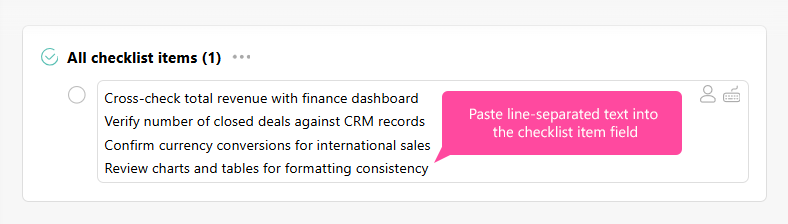
When you press enter, you'll get multiple checklist items.
Useful information
- When creating a task, you can automatically add a checklist item for each assignee.
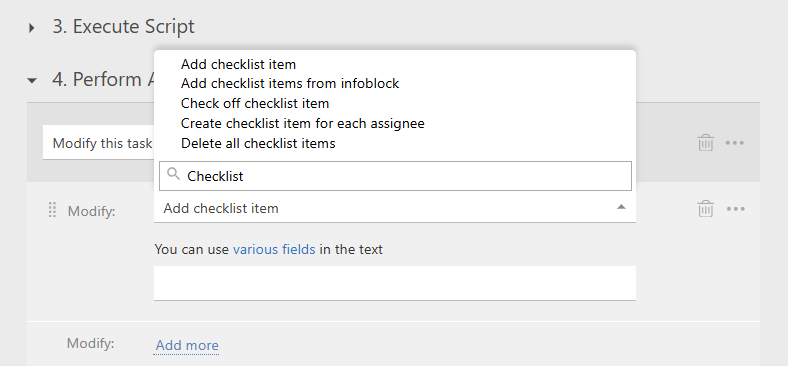
- Scripts also let you add checklist items to a task: