
Quick replies: Difference between revisions
No edit summary |
|||
| (14 intermediate revisions by the same user not shown) | |||
| Line 11: | Line 11: | ||
*[[#Answers in different languages | Answers in different languages]] | *[[#Answers in different languages | Answers in different languages]] | ||
*[[#Variables in answers | Variables in answers]] | *[[#Variables in answers | Variables in answers]] | ||
*[[#Quick replies in the task description | Quick replies in the task description]] | |||
== Settings == | == Settings == | ||
To enable quick replies, navigate to Account Management — System Settings — Advanced Features — Quick Replies. Once this option is activated, select the pre-prepared reply directory and specify the field name within that directory that contains the response text in the settings window. | |||
https://s.pfx.so/pf/ | https://s.pfx.so/pf/wa/SDmM9G.jpg | ||
*Example of a linked directory: | *Example of a linked directory: | ||
https://s.pfx.so/pf/ | https://s.pfx.so/pf/wP/H36rTx.jpg | ||
*To select a quick answer, add an * (asterisk) in the comment field | *To select a quick answer, add an * (asterisk) in the comment field. | ||
== Search for answers == | |||
After adding the asterisk (*), you can type several words from the question or answer of the connected directory. It is not necessary to follow the word order. Planfix will find the correct answer anyway: | |||
https://s.pfx.so/pf/40/VvFknv.jpg | |||
== Answers in different languages == | == Answers in different languages == | ||
*Add a new quick reply to the directory in another language: | *Add a new quick reply to the directory in another language: | ||
https://s.pfx.so/pf/ | https://s.pfx.so/pf/Dm/W5N4aQ.jpg | ||
*Start typing the reply in the desired language, and Planfix will display the corresponding entry: | *Start typing the reply in the desired language, and Planfix will display the corresponding entry: | ||
https:// | https://s.pfx.so/pf/Md/dhIzwB.jpg | ||
== Variables in answers == | == Variables in answers == | ||
In quick replies, you can specify the usual Planfix variables or text with variables as in a dynamic block: formulas, tables, and more. Thus, quick replies can be personalized, for example, by adding the variable for the customer's full name. Or send the pre-calculated values of formulas and tables in response to the customer. | In quick replies, you can specify the usual Planfix variables or text with variables as in a dynamic block: formulas, tables, and more. Thus, quick replies can be personalized, for example, by adding the variable for the customer's full name. Or send the pre-calculated values of formulas and tables in response to the customer. | ||
https://s.pfx.so/pf/ | https://s.pfx.so/pf/no/D7gL0K.jpg | ||
== Quick replies in the task description == | |||
Quick replies can be used in the task description. This feature can be helpful in situations where you need to write a templated email to a contractor with minimal changes, for example: | |||
https://s.pfx.so/pf/mK/s2PBQ1.gif | |||
== Important == | == Important == | ||
*Quick replies work only in paid accounts. | *Quick replies work only in paid accounts. | ||
| Line 49: | Line 54: | ||
*You can add only one line or text in a comment as a reply. | *You can add only one line or text in a comment as a reply. | ||
*Search works on the part of a word added to simple fields (like string, text, number) of the linked directory. | *Search works on the part of a word added to simple fields (like string, text, number) of the linked directory. | ||
== Go To == | == Go To == | ||
*[[Actions]] | *[[Actions]] | ||
*[[Feature Description]] | *[[Feature Description]] | ||
Latest revision as of 09:52, 21 November 2025
Quick replies in comments are a system setting and work for the entire account. They are disabled by default.
- Settings
- Search for answers
- Answers in different languages
- Variables in answers
- Quick replies in the task description
Settings
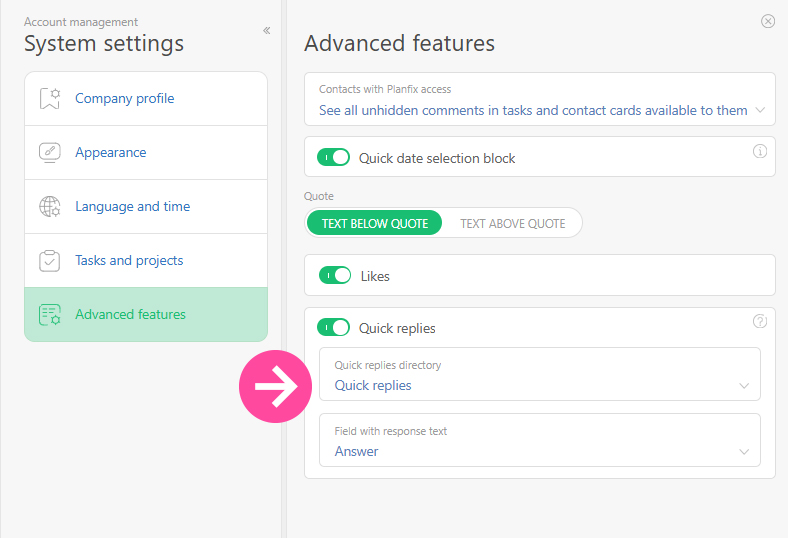
To enable quick replies, navigate to Account Management — System Settings — Advanced Features — Quick Replies. Once this option is activated, select the pre-prepared reply directory and specify the field name within that directory that contains the response text in the settings window.
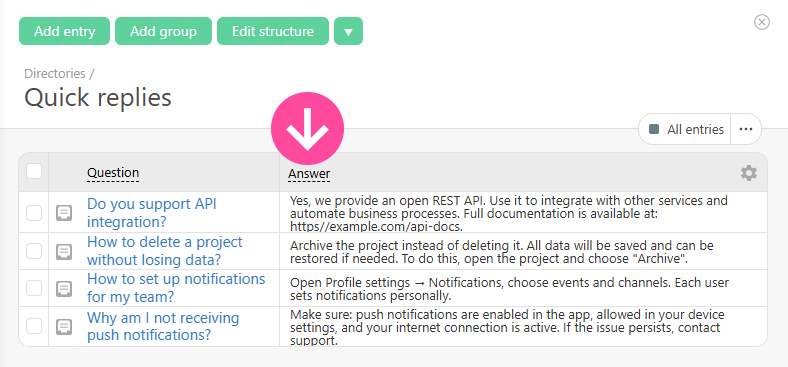
- Example of a linked directory:
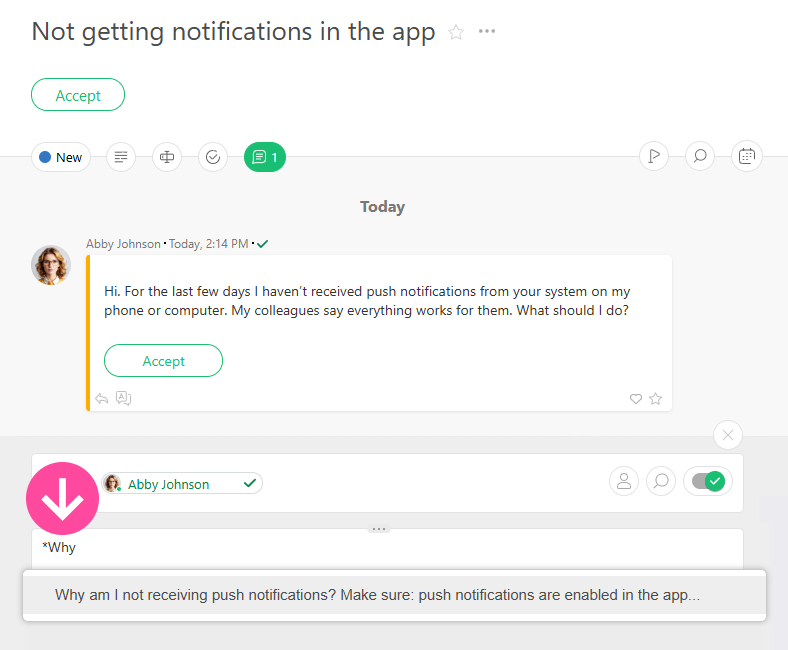
- To select a quick answer, add an * (asterisk) in the comment field.
Search for answers
After adding the asterisk (*), you can type several words from the question or answer of the connected directory. It is not necessary to follow the word order. Planfix will find the correct answer anyway:
Answers in different languages
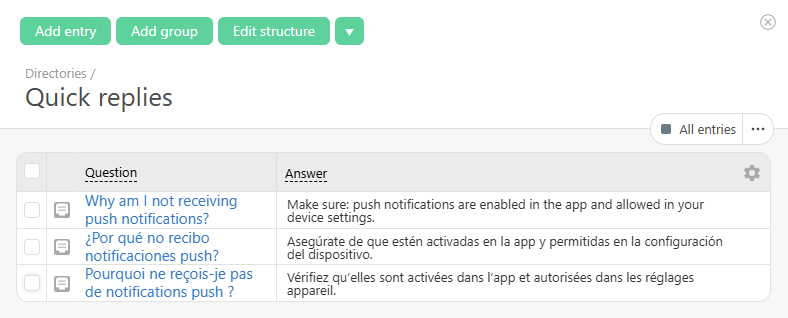
- Add a new quick reply to the directory in another language:
- Start typing the reply in the desired language, and Planfix will display the corresponding entry:

Variables in answers
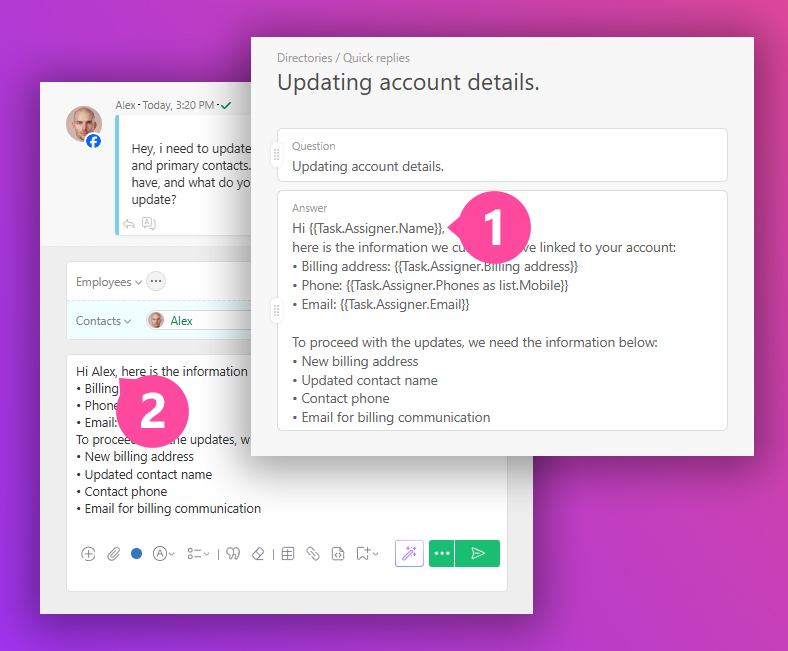
In quick replies, you can specify the usual Planfix variables or text with variables as in a dynamic block: formulas, tables, and more. Thus, quick replies can be personalized, for example, by adding the variable for the customer's full name. Or send the pre-calculated values of formulas and tables in response to the customer.
Quick replies in the task description
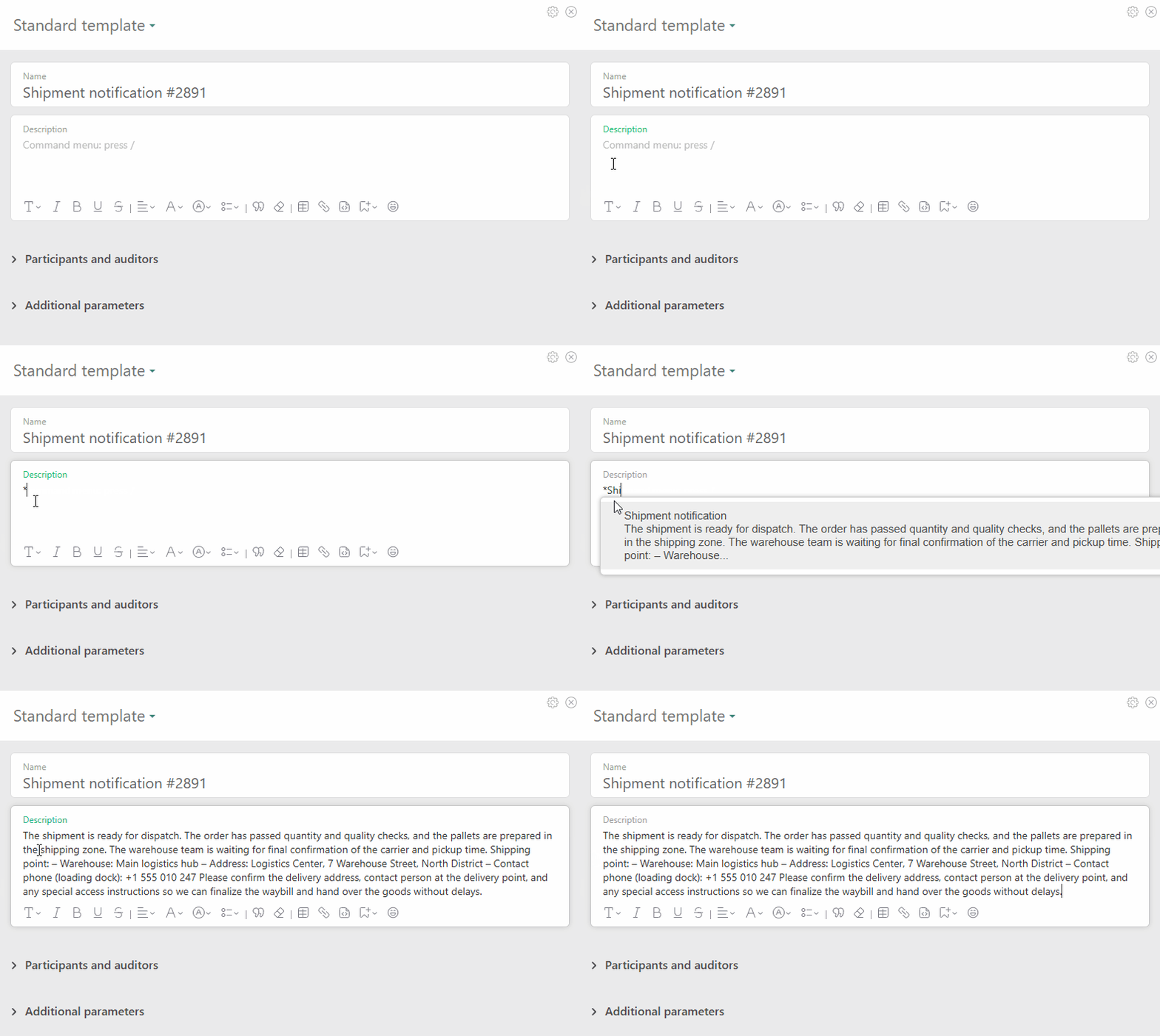
Quick replies can be used in the task description. This feature can be helpful in situations where you need to write a templated email to a contractor with minimal changes, for example:
Important
- Quick replies work only in paid accounts.
- They are a system setting and work for the entire account.
- Disabled by default.
- You can add only one line or text in a comment as a reply.
- Search works on the part of a word added to simple fields (like string, text, number) of the linked directory.